Set Price Alerts

Learn how to set price alert easily via digibank and be alerted when your target Stock, FX, Funds or Fixed Income Product reaches your target price.

How to set price alerts

There are various channels to set price alerts with us. The most convenient method would be via digibank mobile.

digibank mobile

phone frame
login
invest tab
price alert
slider
slider
1
Step 1
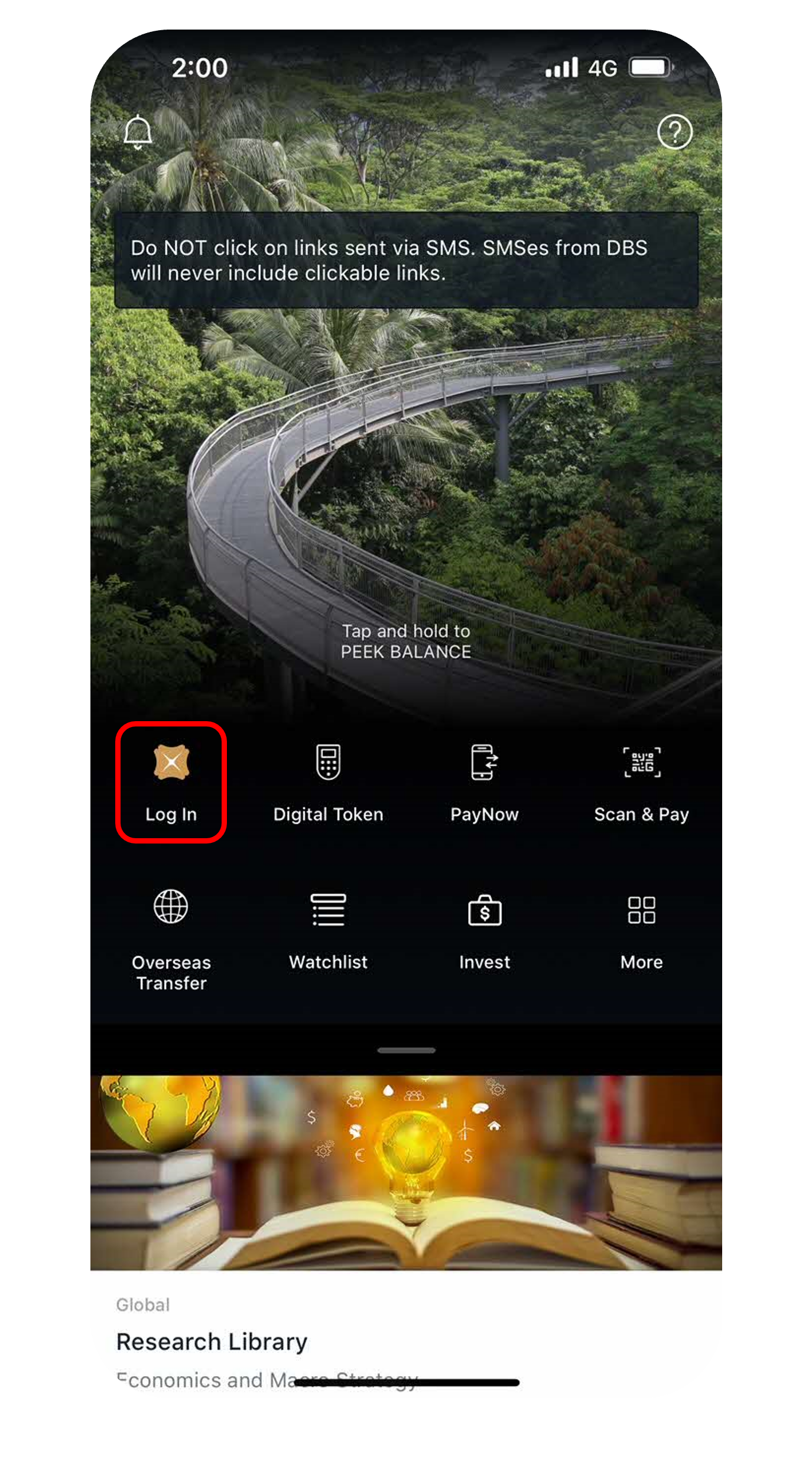
Log in to digibank mobile with your Touch / Face ID or digibank User ID & PIN.
2
Step 2
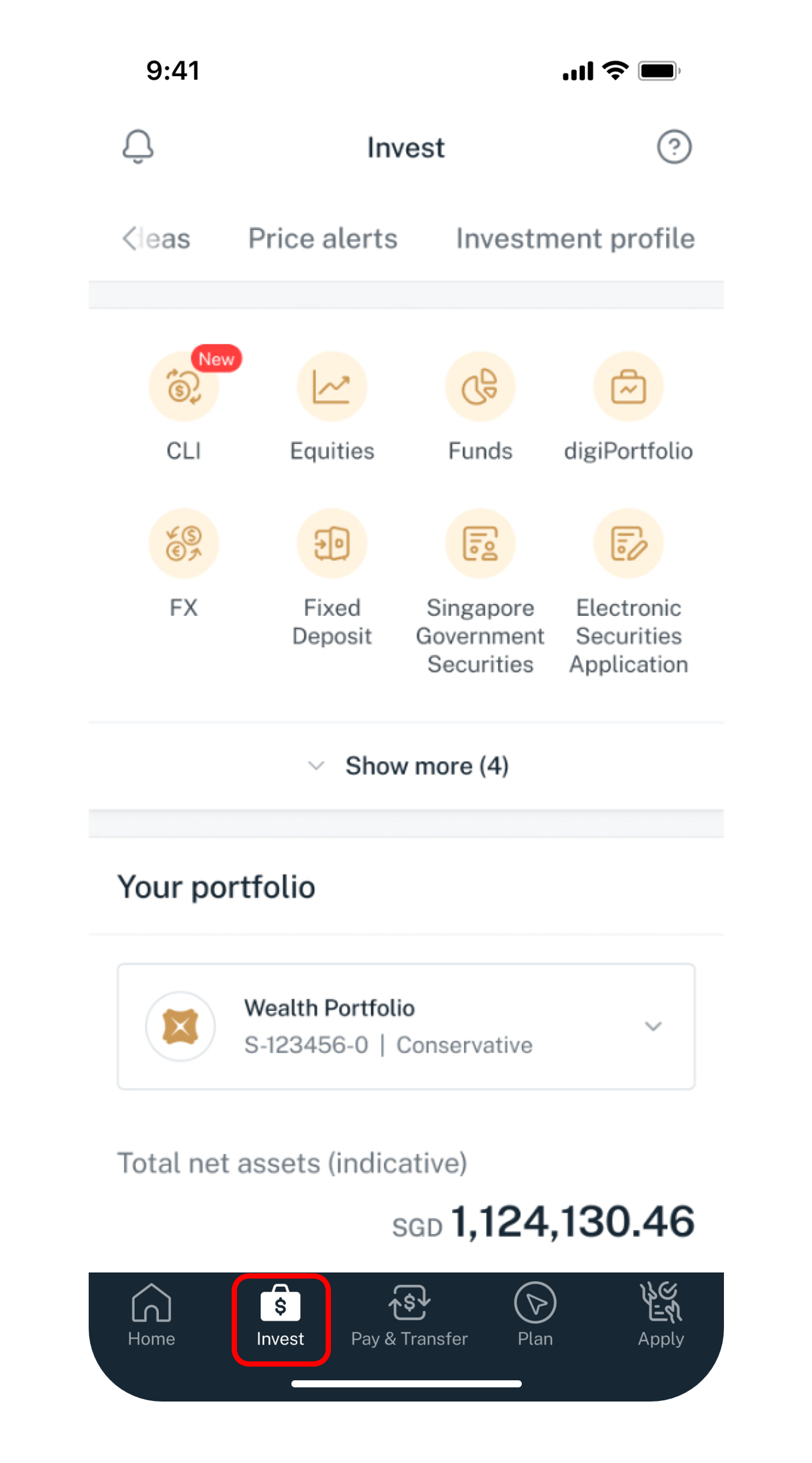
Tap on Invest at the bottom of the navigation.
3
Step 3
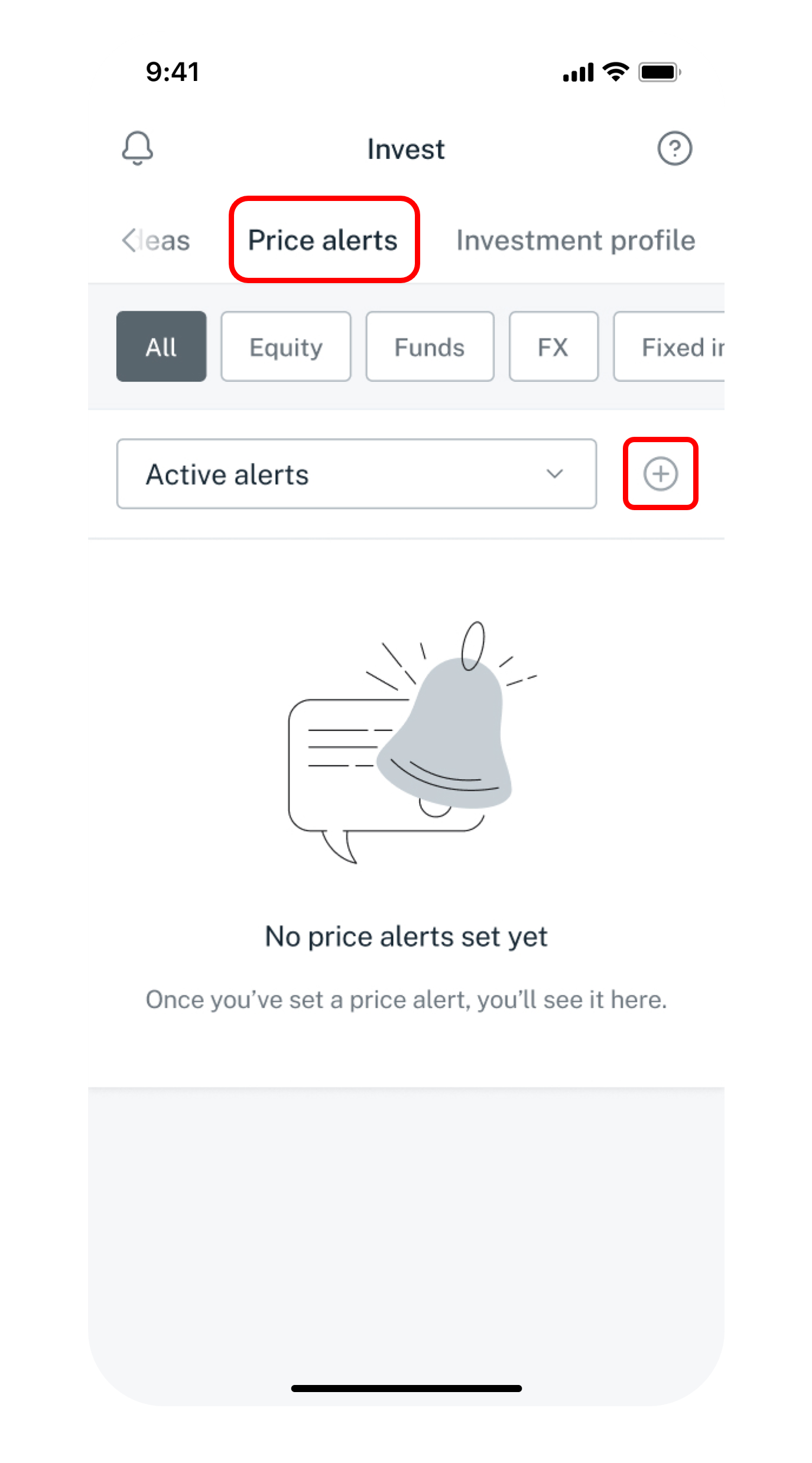
Select Price alerts at the top and tap on the (+) icon to create a price alert.
4
Step 4
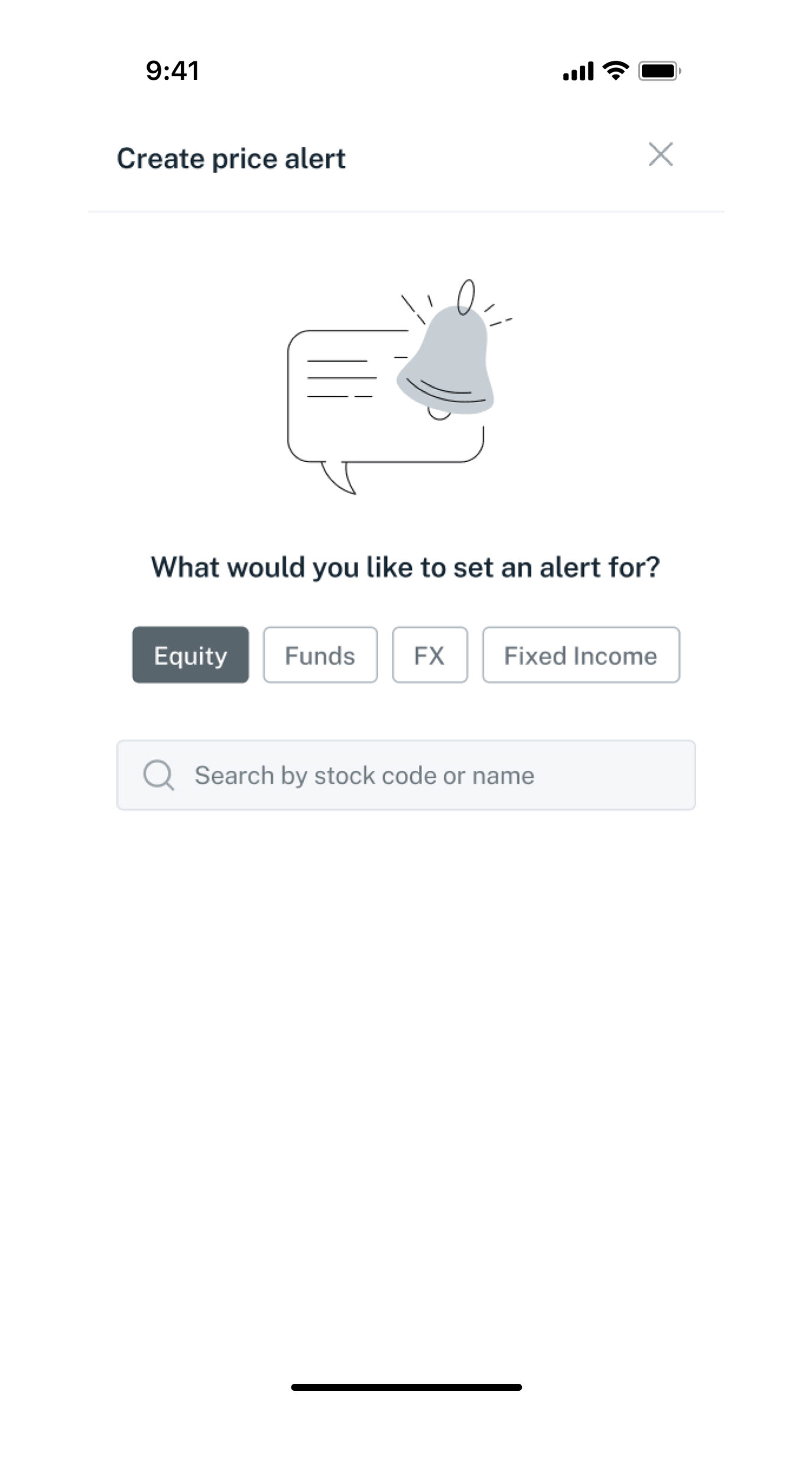
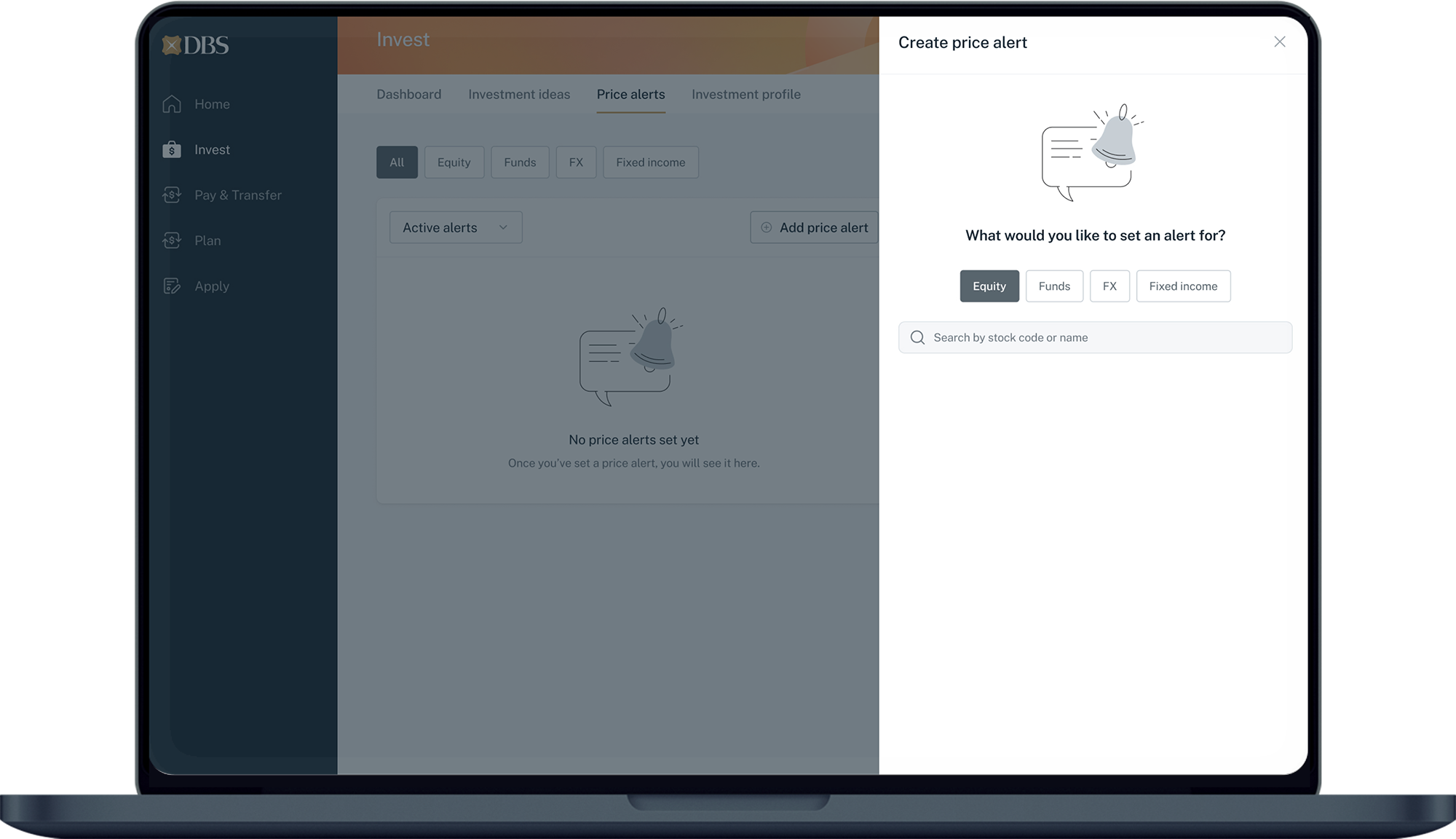
Select the product type Equity, Funds, FX or Fixed income and enter the product name to select the desired product.
5
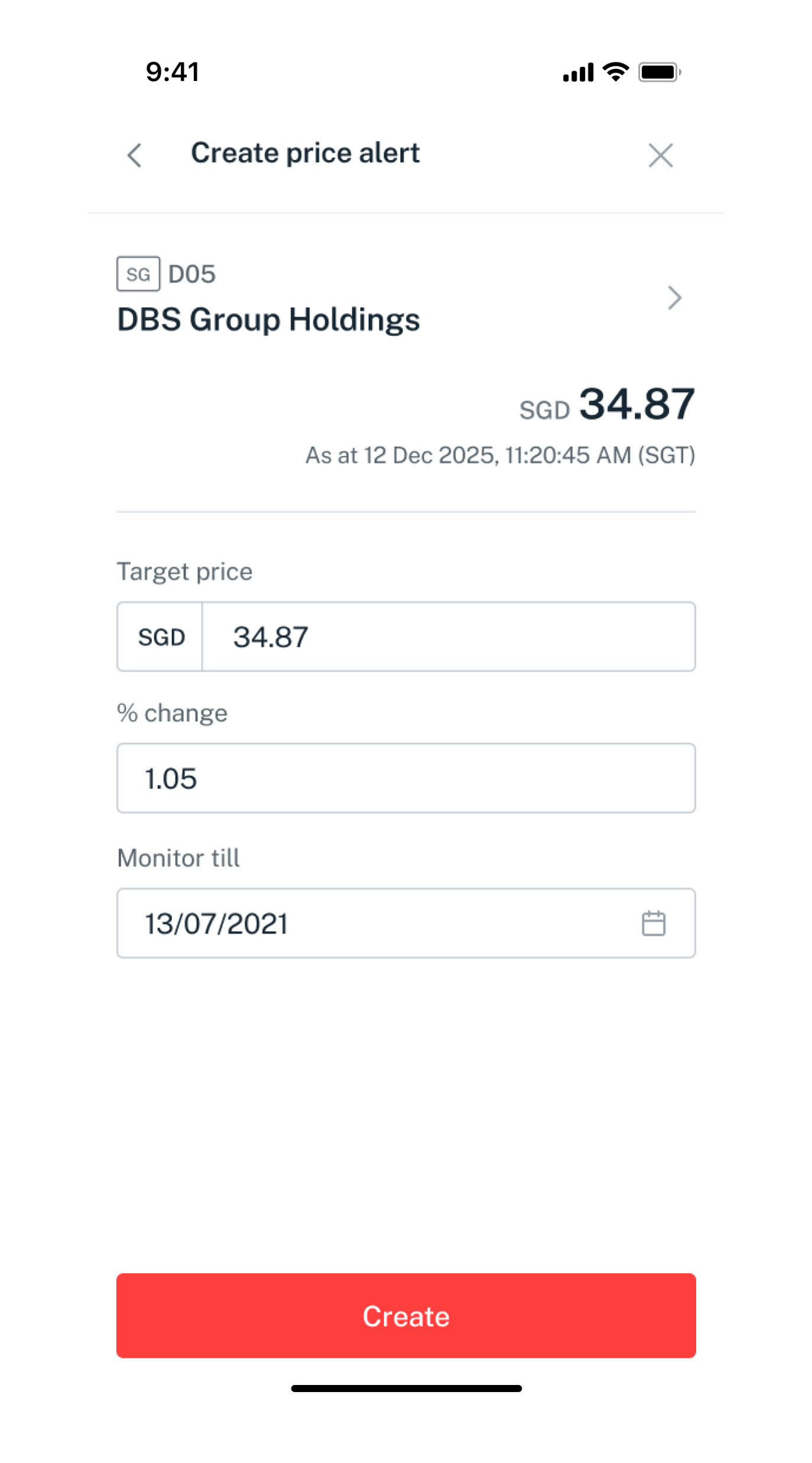
Step 5
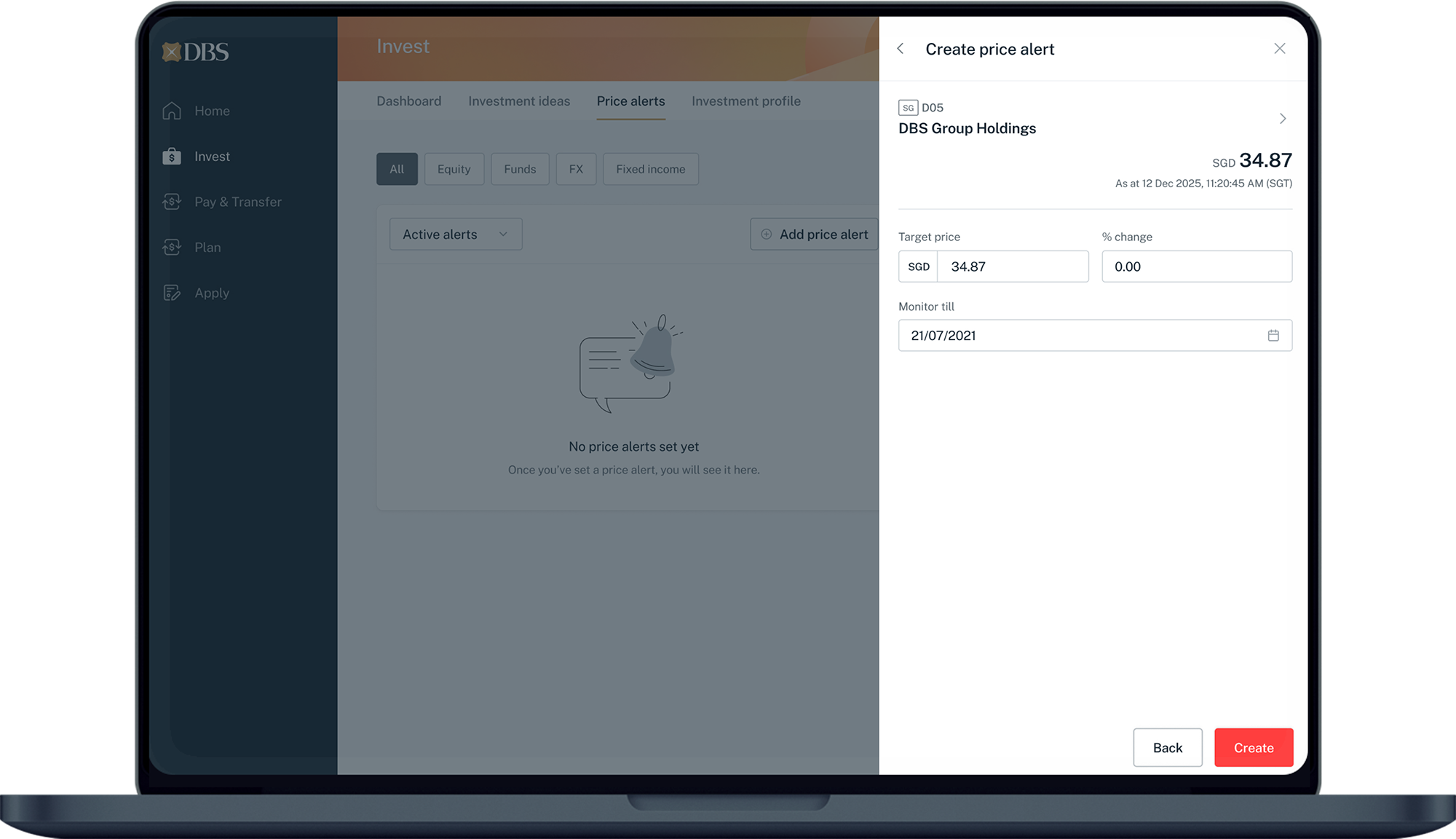
Enter a Target price or % change to trigger the alert. Set a Monitor till date and tap Create to set the alert.
Get the latest DBS digibank(wealth) mobile app now!

laptop
slider
slider
slider
slider
slider
1
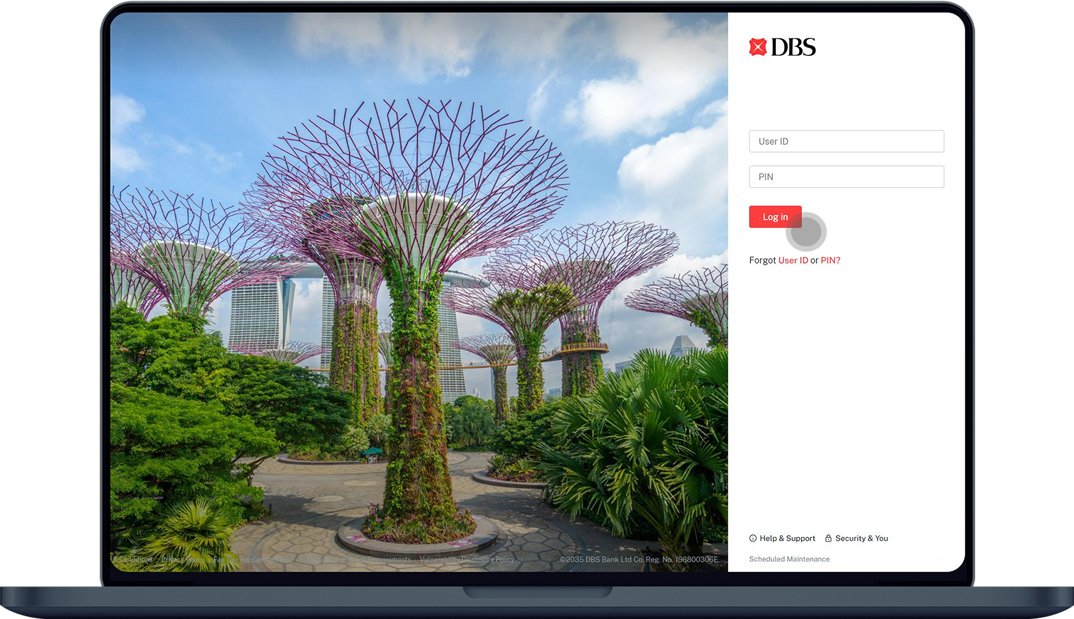
Step 1
Log in to digibank online with your User ID & PIN.
2
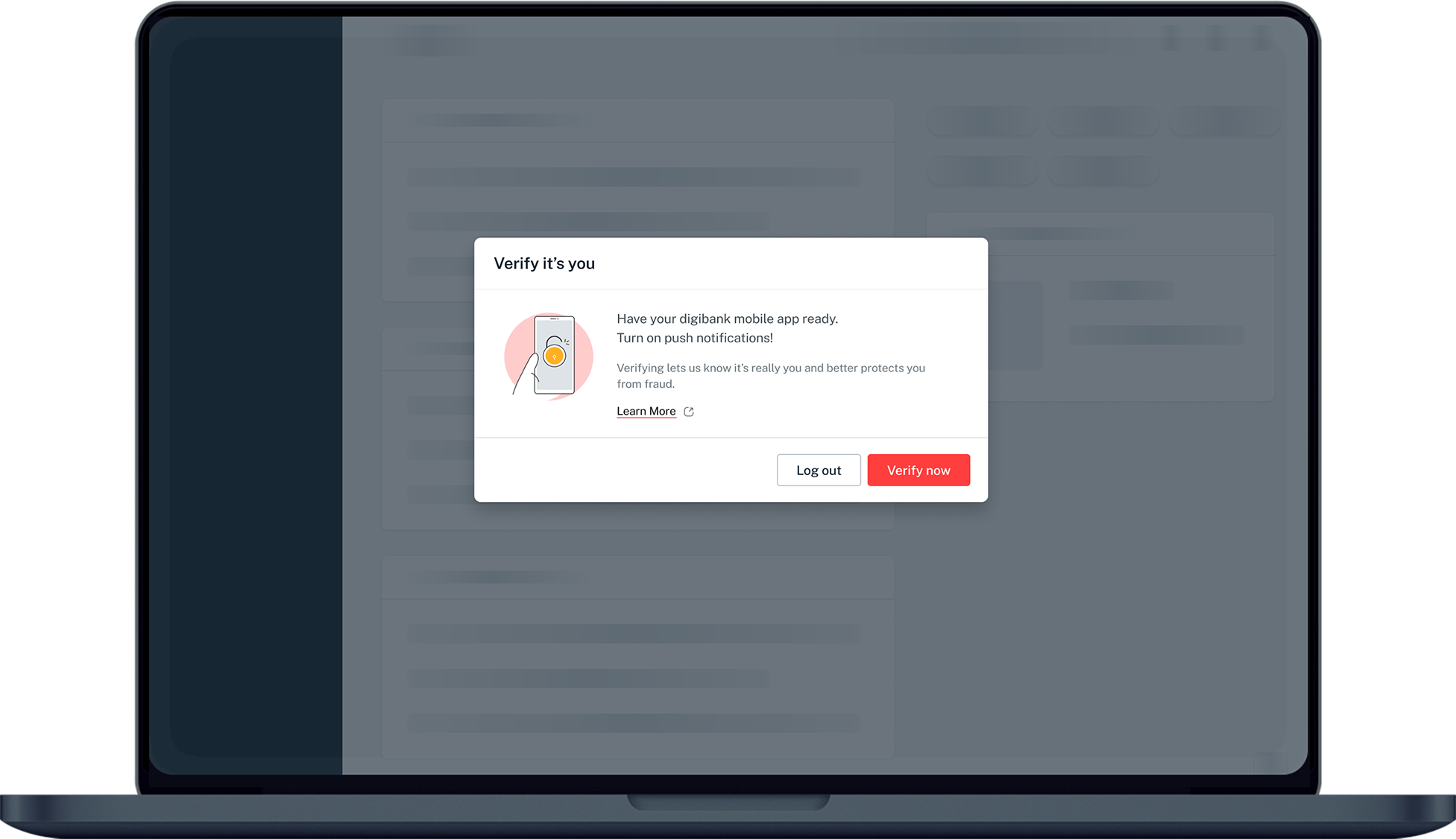
Step 2
Complete the Authentication Process.
3
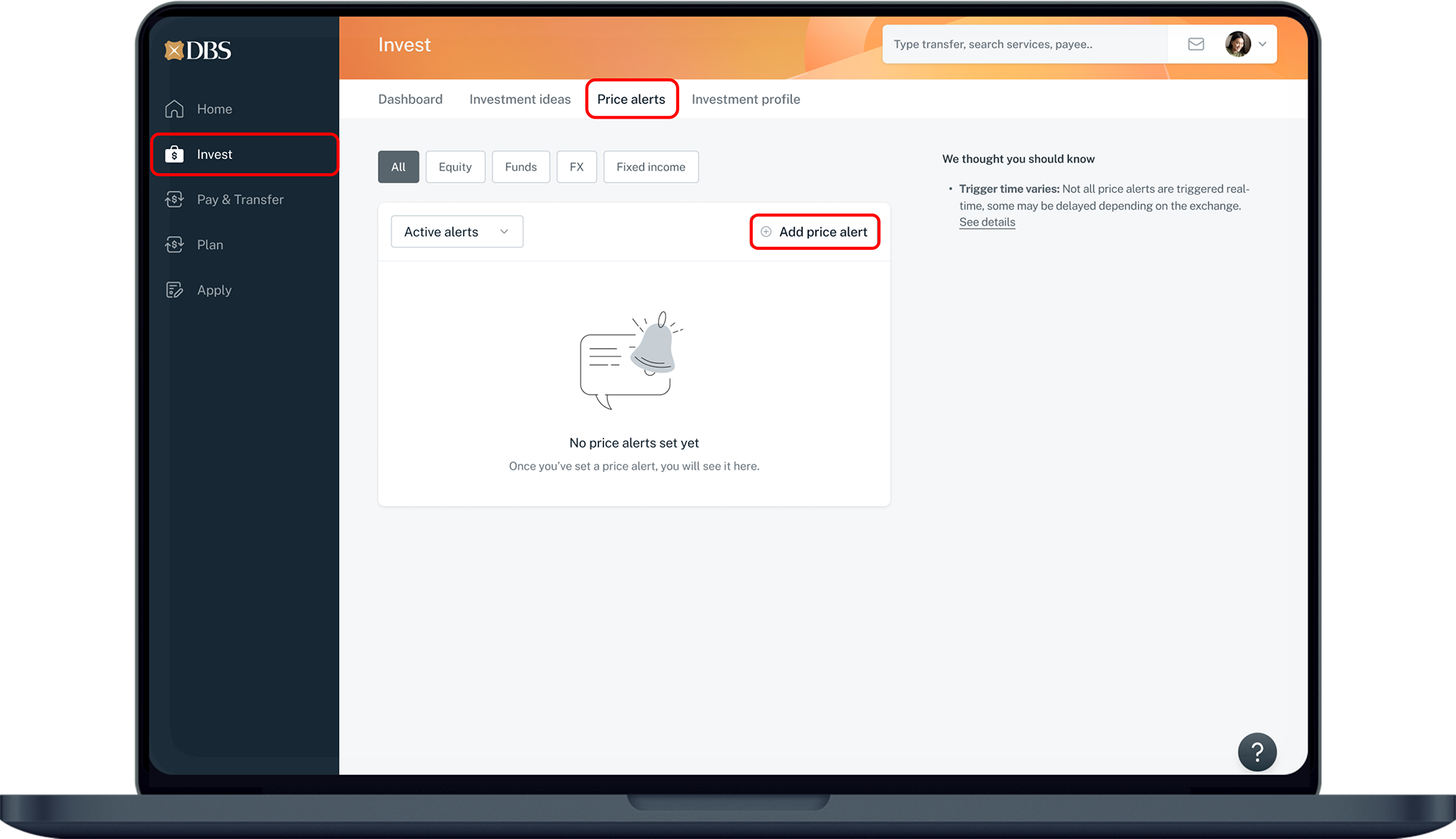
Step 3
Click on Invest on the left menu, select Price alerts and click on + Add price alert.
4
Step 4
Select the product type, Equity, Funds, FX or Fixed income and enter the product name to select the desired product.
5
Step 5
Enter a Target price or % change to trigger the alert. Set a Monitor till date and click Create to set the alert.

More information

  • A maximum of 50 price alerts can be set at any point in time.
  • Price alerts for SG market is based on real time quotes, while price alerts for HK, US, CA, AU, JP and UK markets are based on delayed quotes.
  • To find your triggered, expired or delayed price alerts:
    • digibank mobile: Go to Invest tab, under Alerts, select History.
    • digibank online: Under the Gear Icon, select Manage Price Alerts and click on History.
    • These alerts alerts will be automatically removed after 30 days.
Was this information useful?

We welcome your feedback

Information is easy to understand and find
Information is useful to answer your inquiries completely