Access and deep dive into Portfolio Holdings

Learn how to monitor and manage your investments holdings within your portfolio.

Part of: Guides > Your Guide to DBS digibank (Wealth)

How to access and deep dive into Portfolio Holdings

There are various channels which you may access and deep dive into Portfolio Holdings with us. The most convenient method would be via digibank mobile.

digibank mobile

phone frame
login
slider
slider
slider
slider
slider
slider
slider
1
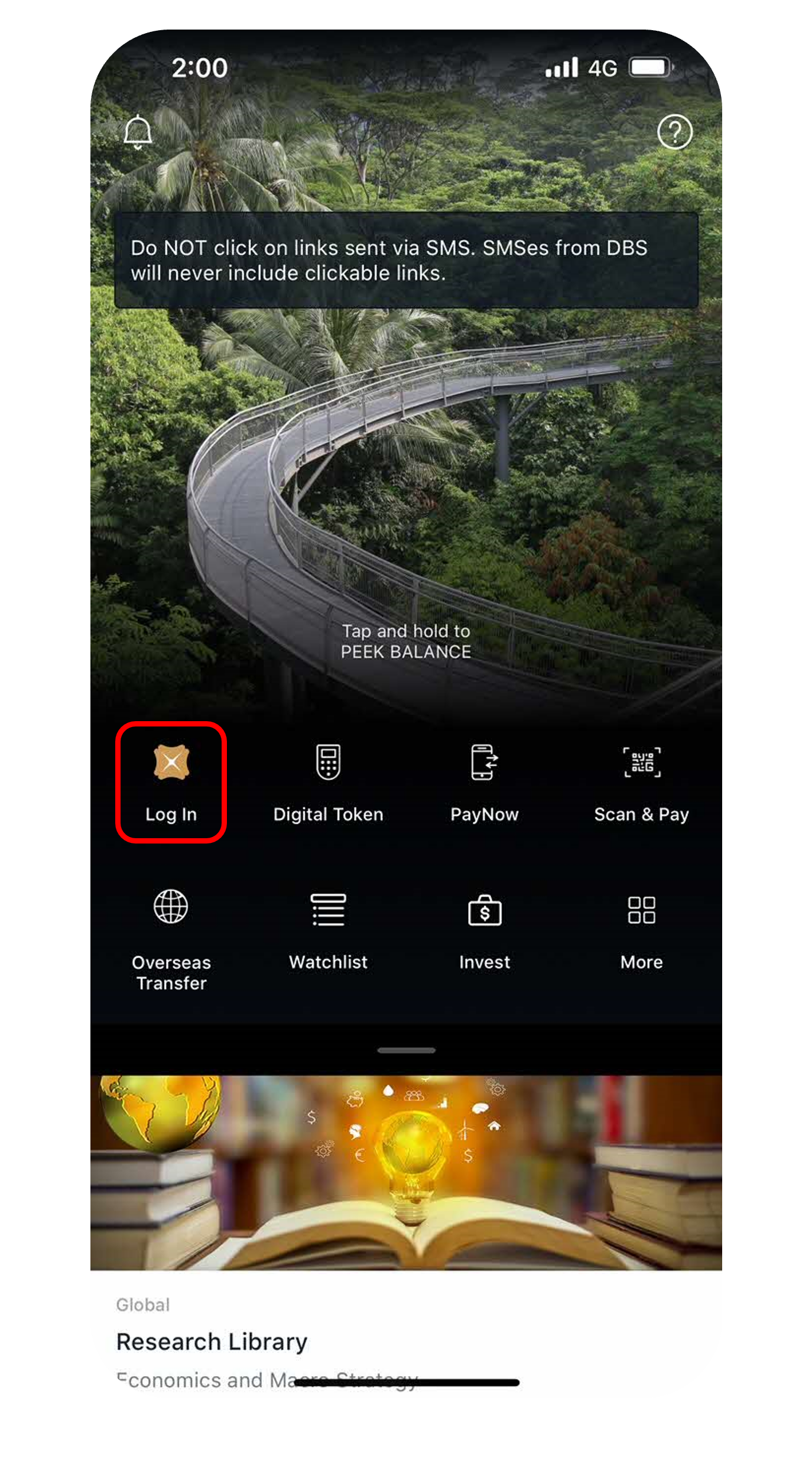
Step 1
Log in to digibank mobile with your Touch / Face ID or digibank User ID & PIN.
2
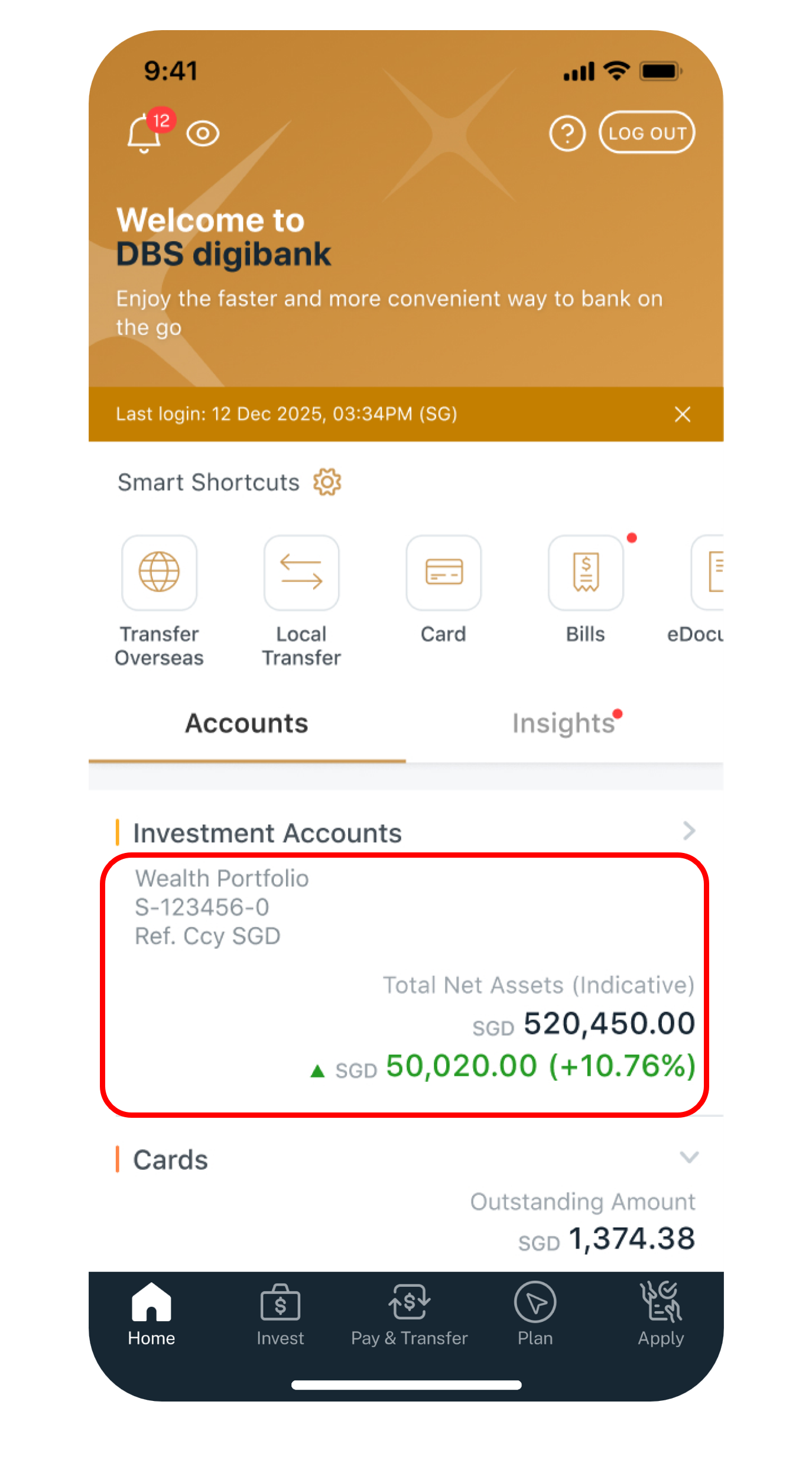
Step 2
Under Home, tap on Wealth portfolio.
3
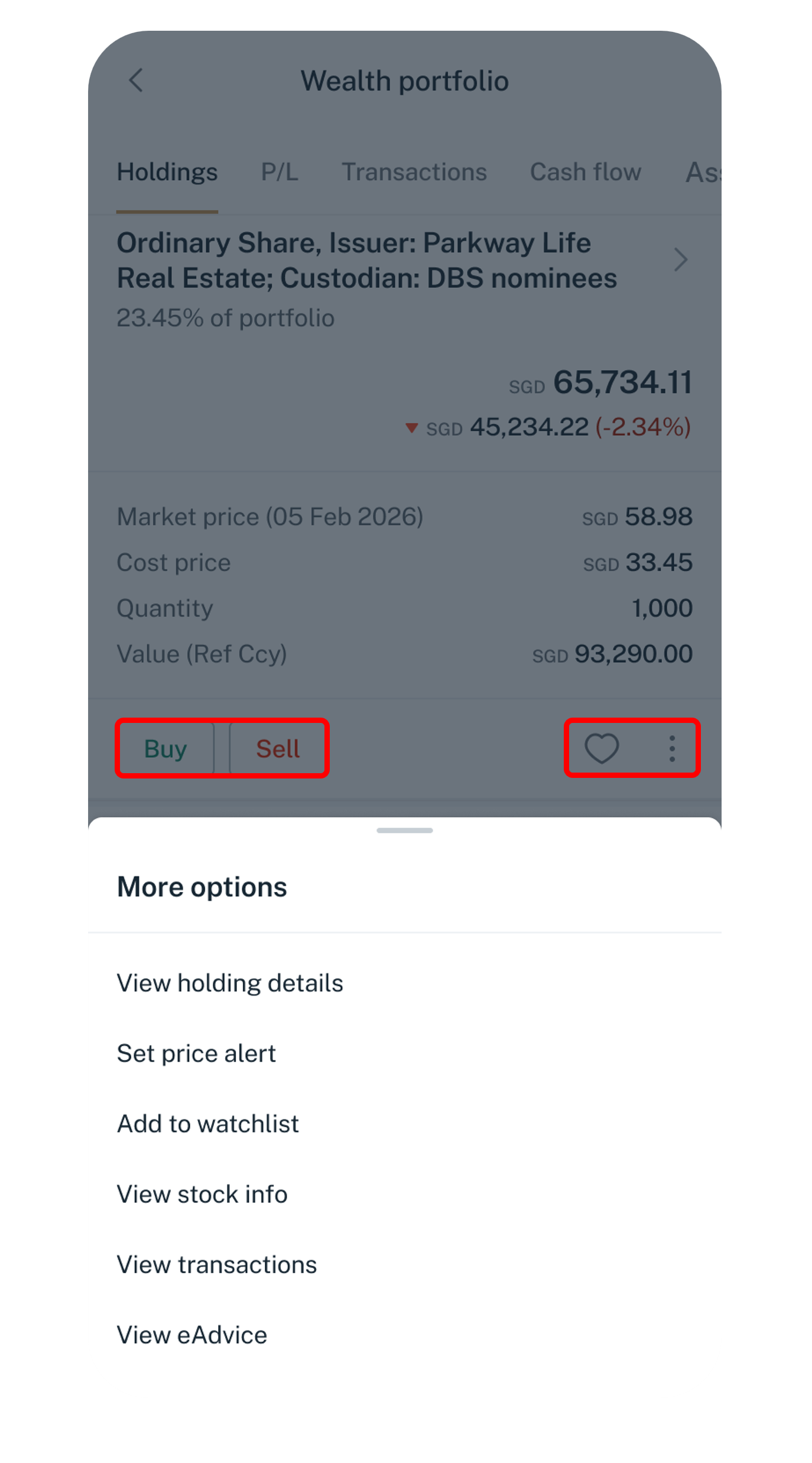
Step 3
Scroll down to view current list of holdings.
You can buy/sell your investment, favourite your holdings and shortcut access to details of each holding, set price alerts, view transactions and e-advice.
4
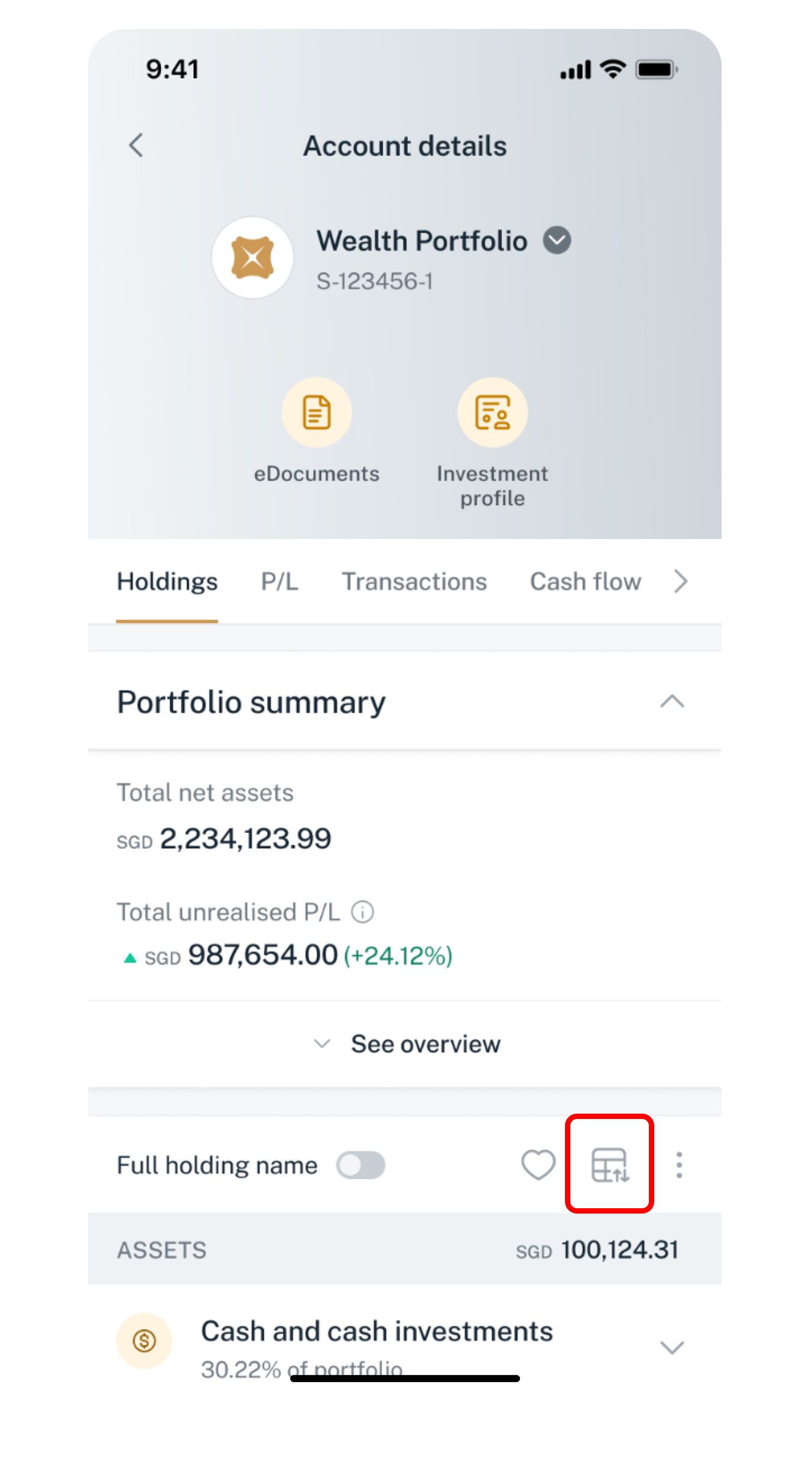
Step 4
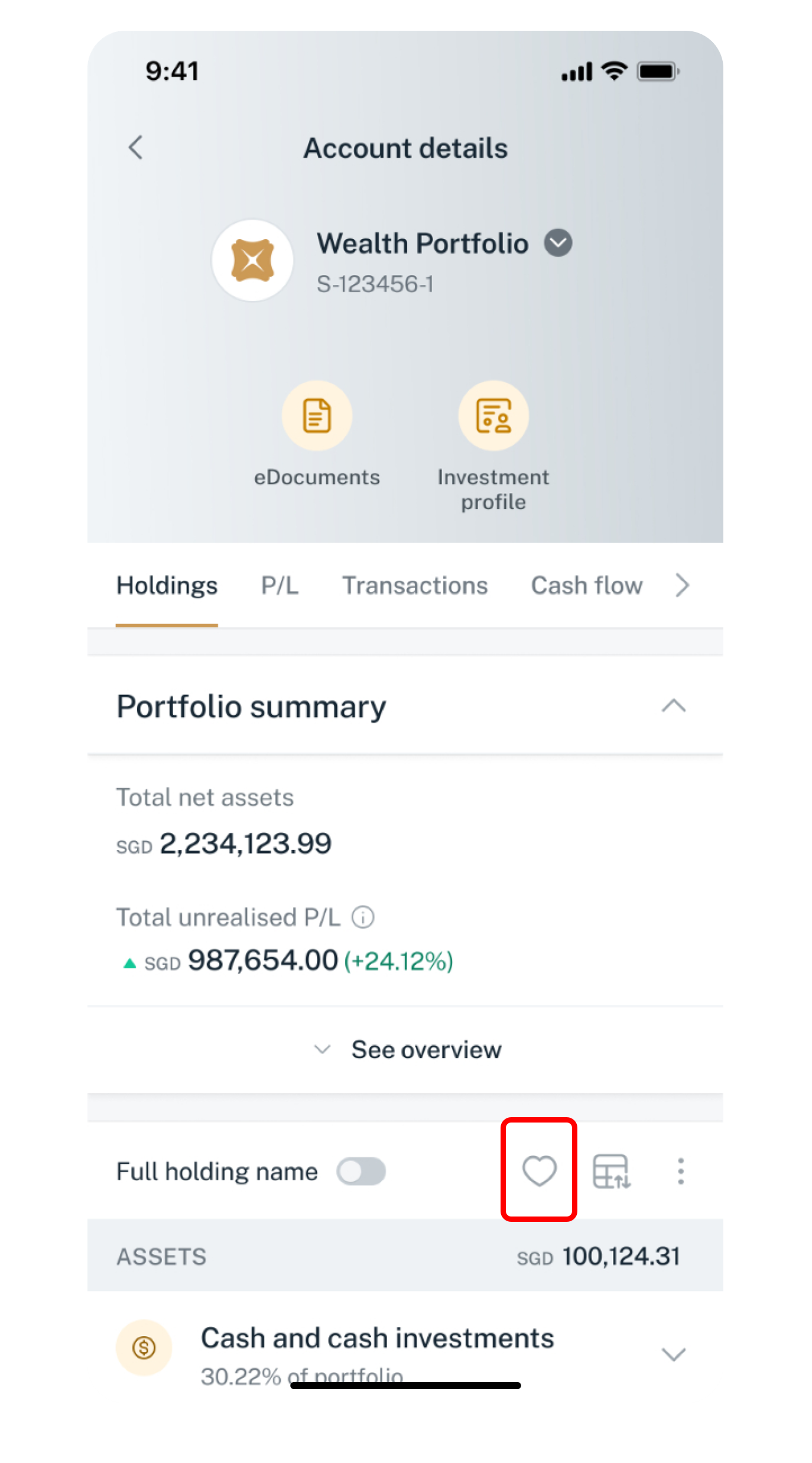
Tap on the Table icon (beside the favourite icon, just below the portfolio summary section) for the list view.
5
Step 5
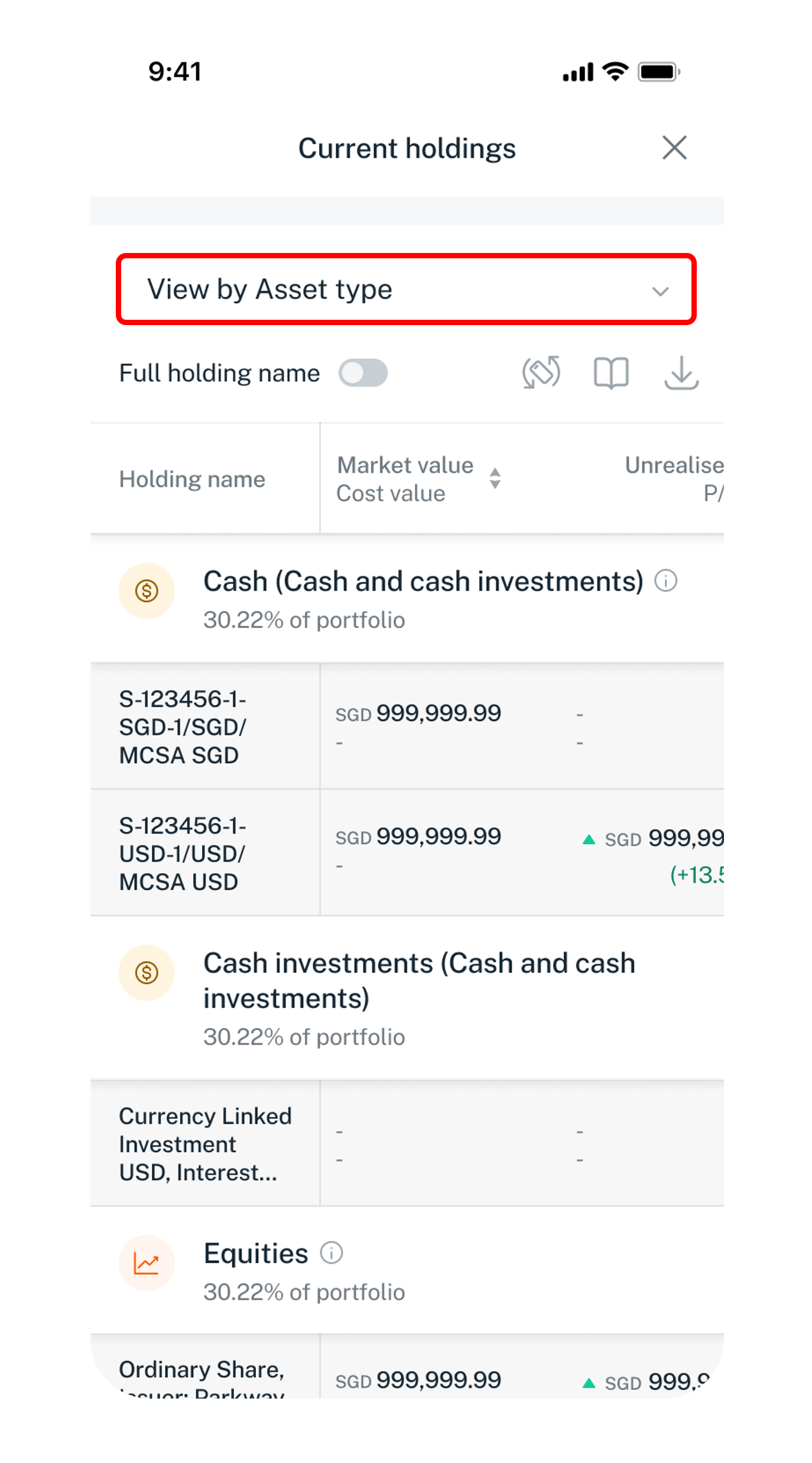
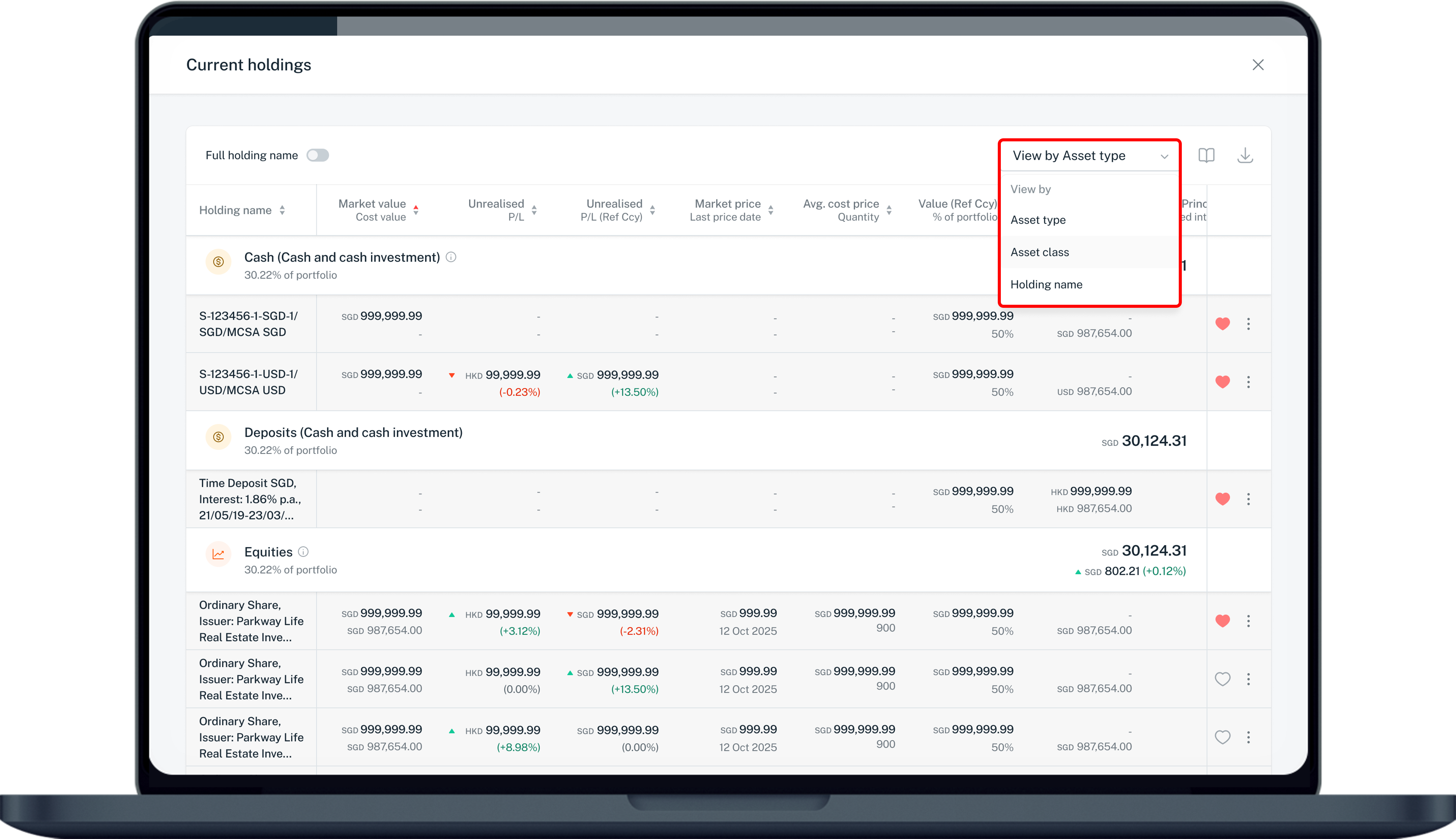
View table by Asset type, Asset class, or Holding name.
Scroll to the right for more data points and you can click on the arrows beside each column’s header to sort the columns to your preference.
6
Step 6
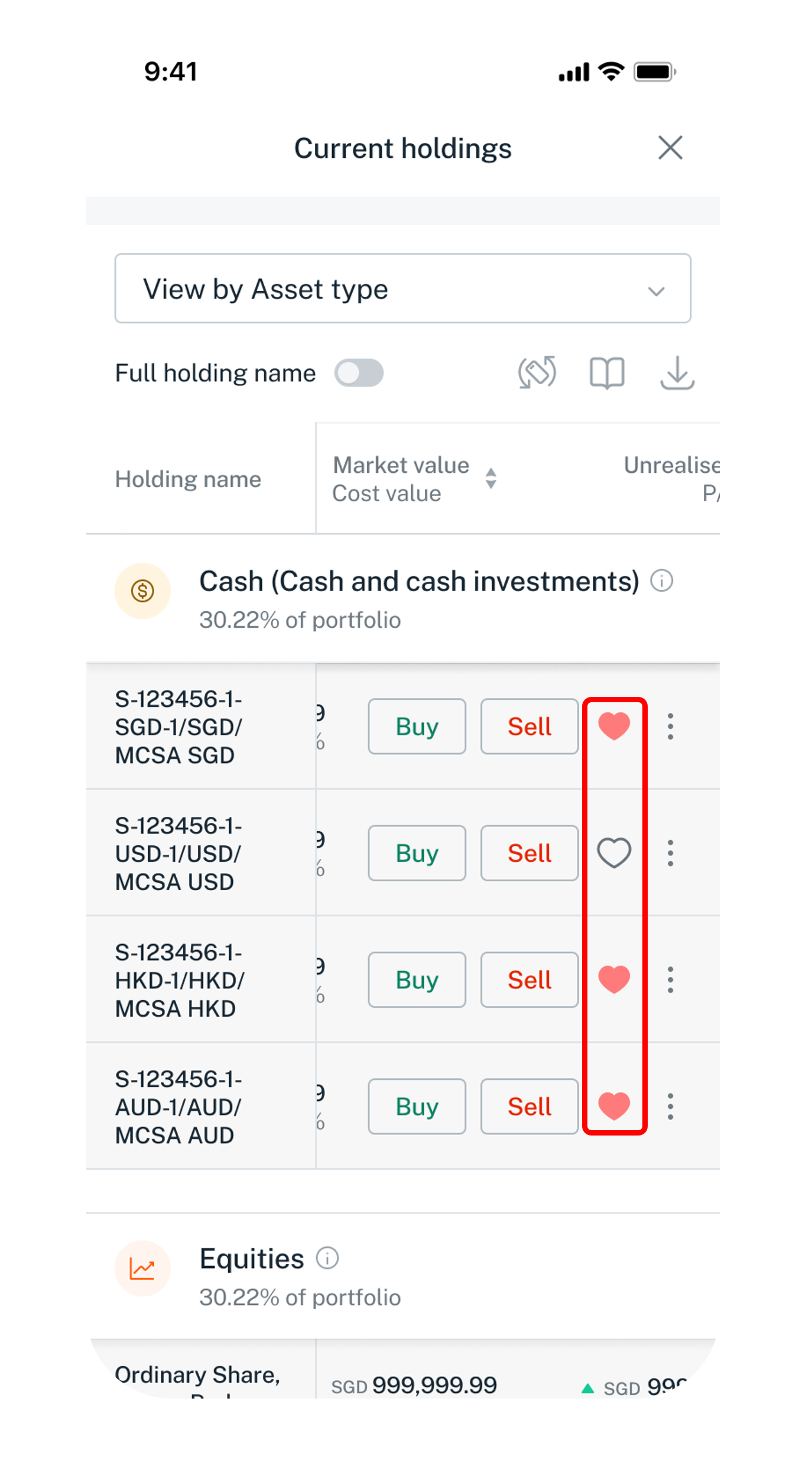
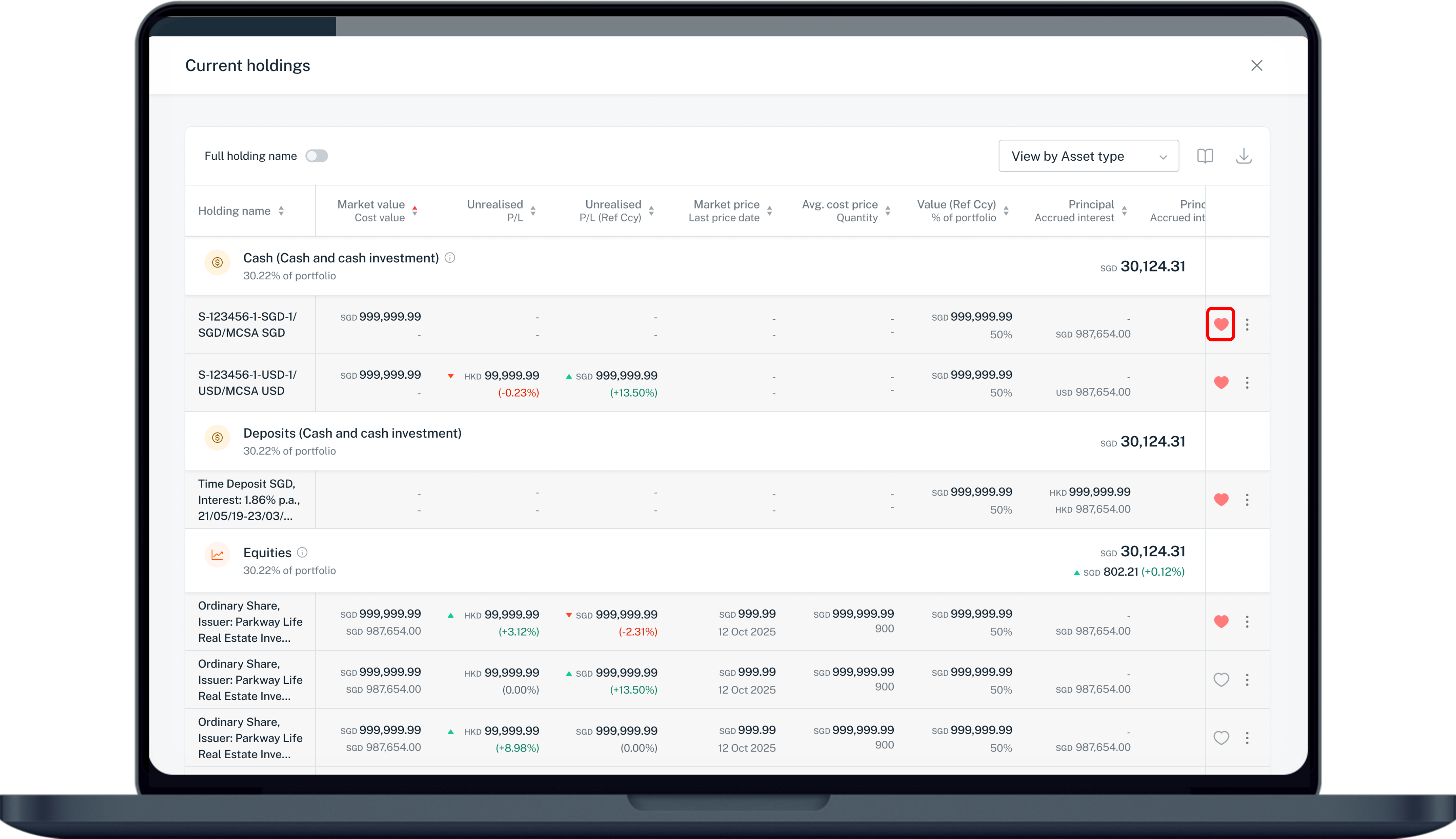
Tap the heart icon to add the holding into your favourite list.
7
Step 7
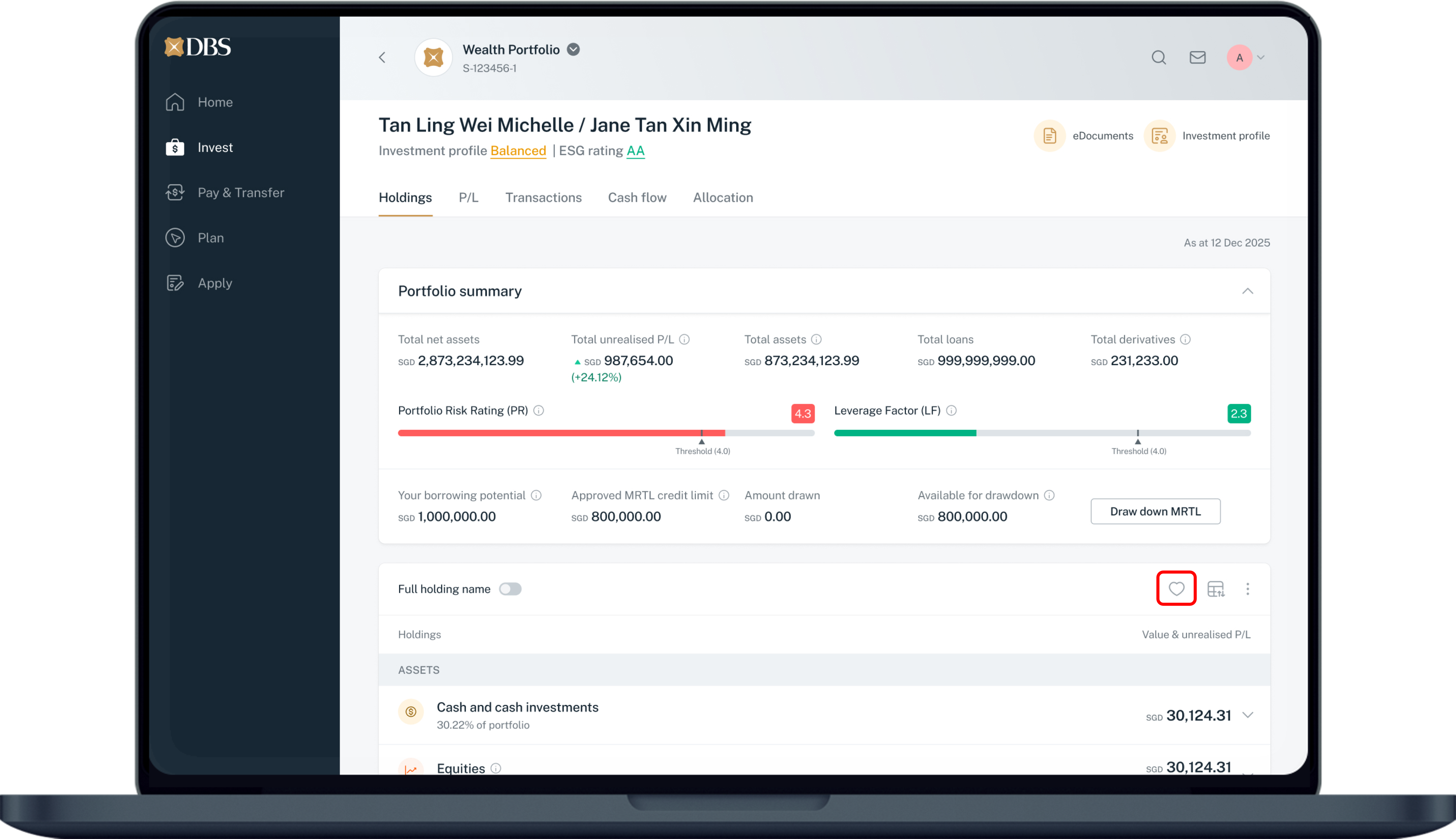
Tap on the heart icon on the table header, it will display all your favourite holdings.
8
Step 8
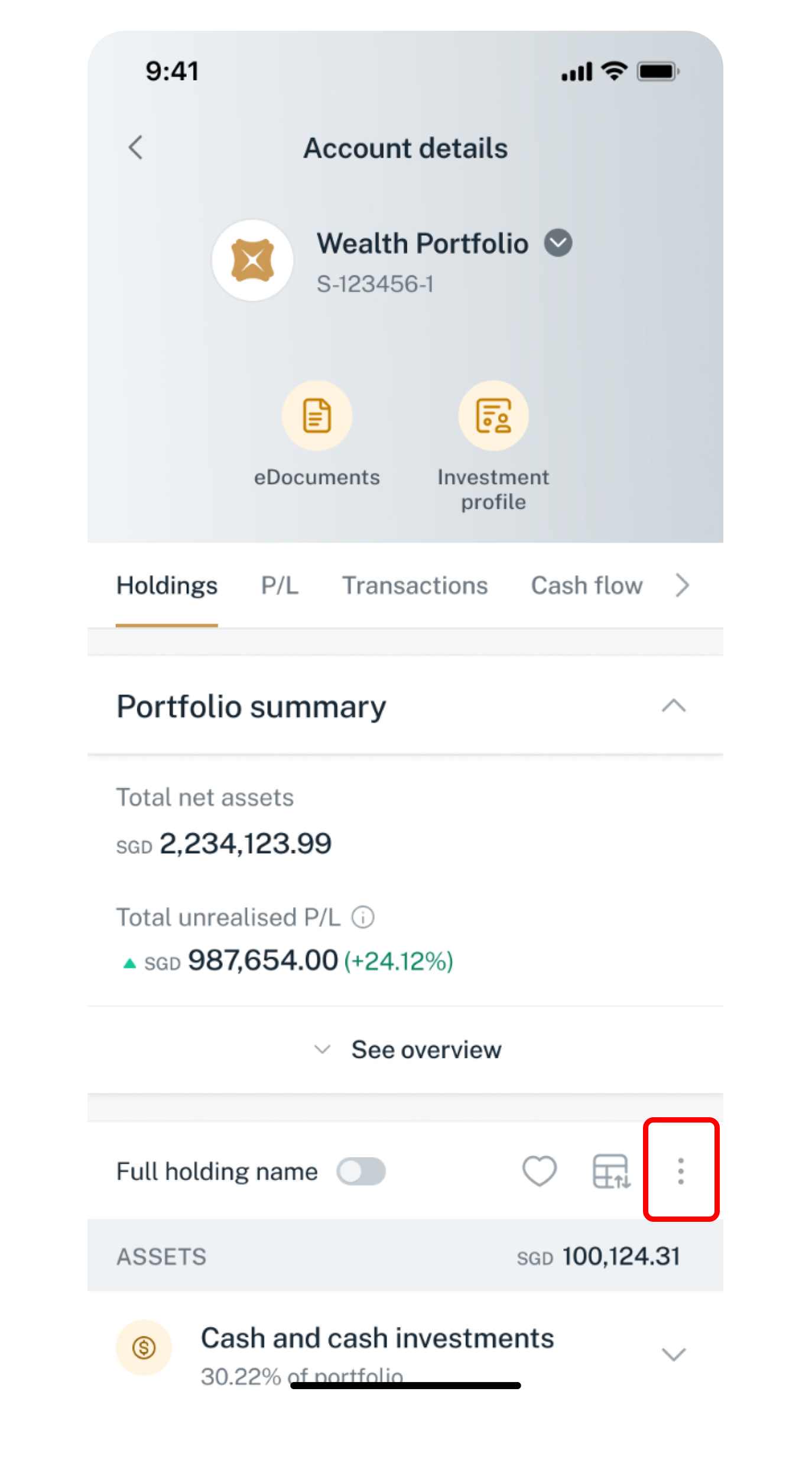
Click on the ellipsis icon and you can have access to download the holdings into an excel spreadsheet, print and glossary.
Get the latest DBS digibank mobile app now!

laptop
slider
slider
slider
slider
slider
slider
slider
slider
slider
1
Step 1
Log in to digibank online with your User ID & PIN.
2
Step 2
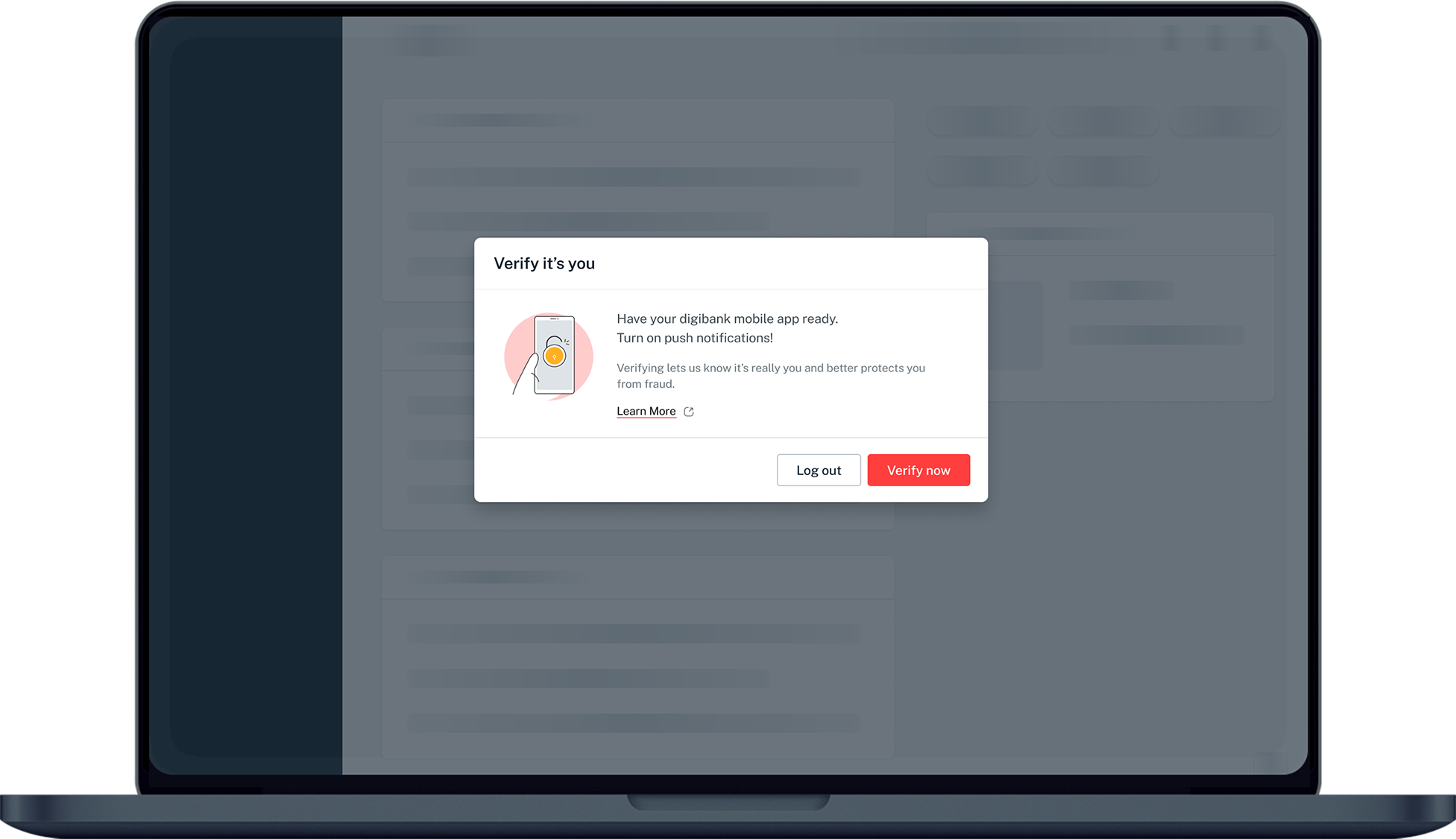
Complete the Authentication Process.
3
Step 3
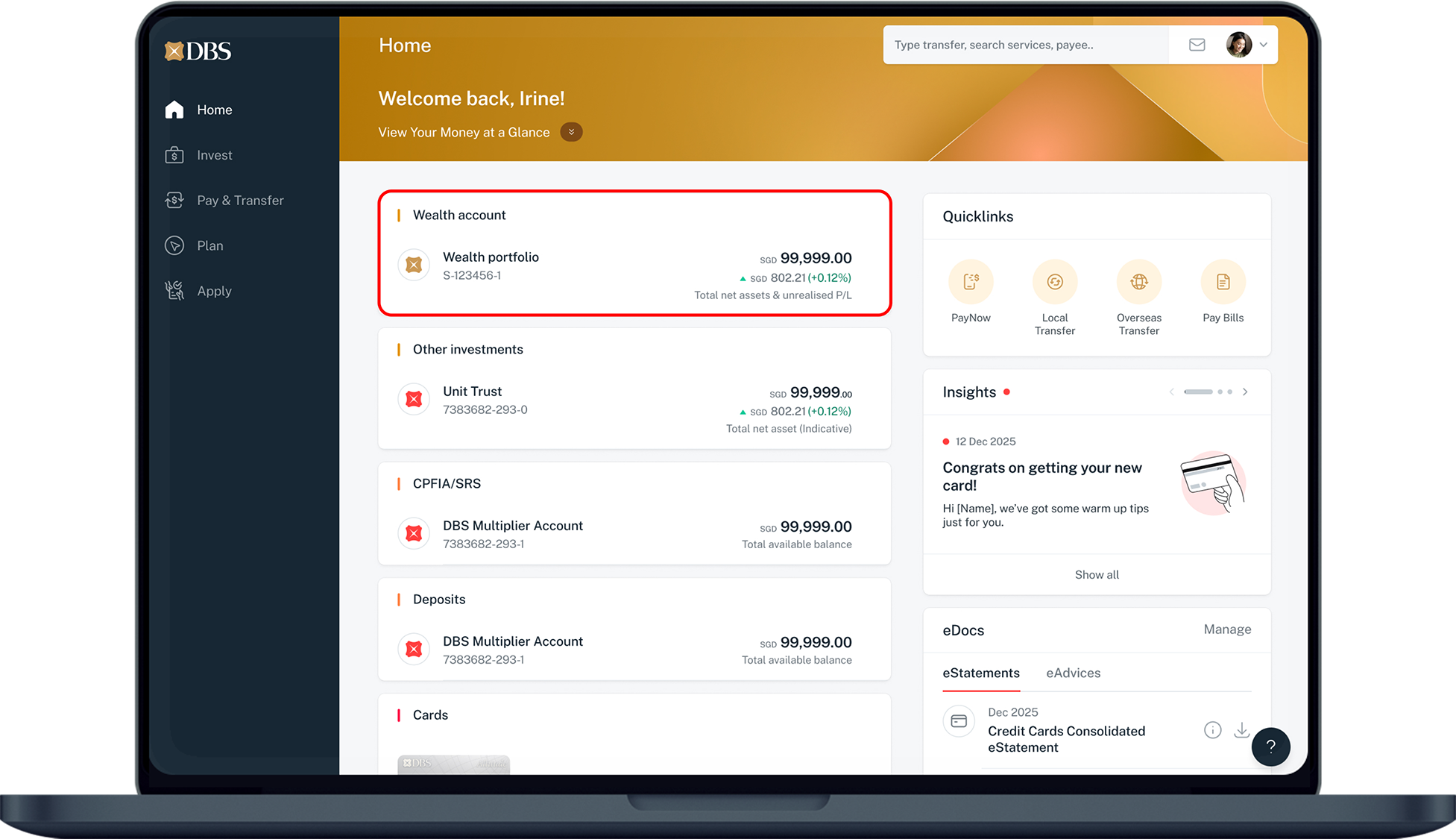
Under Home, click on Wealth portfolio.
4
Step 4
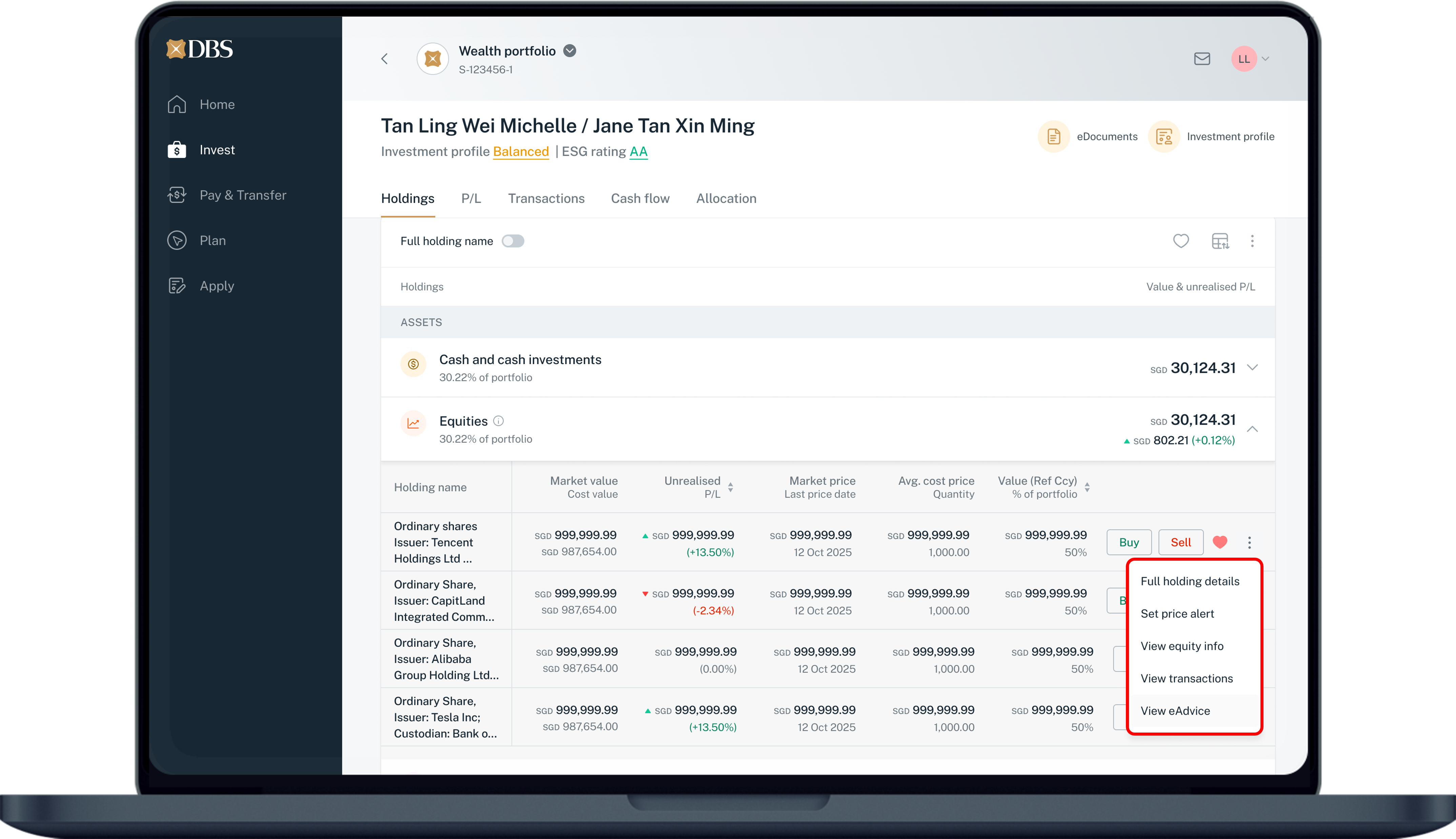
Scroll down to view current list of holdings.
You can buy/sell your investment, favourite your holdings and shortcut access to details of each holding, set price alerts, view transactions and e-advice.
5
Step 5
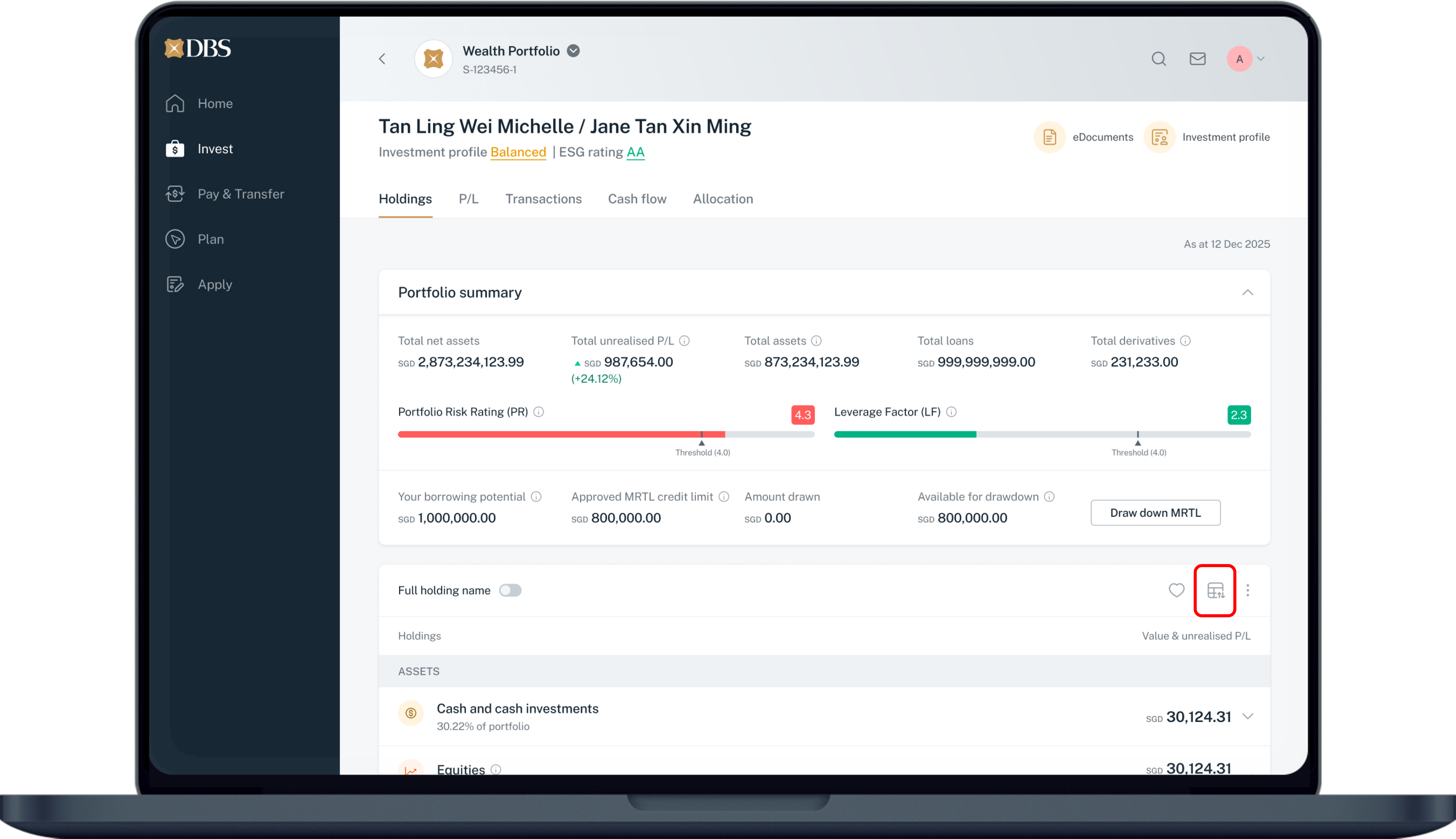
Click on the Table icon (beside the favourite icon, just below the portfolio summary section) for the list view.
6
Step 6
View table by Asset type, Asset class, or Holding name.
Scroll to the right for more data points and you can click on the arrows beside each column’s header to sort the columns to your preference.
7
Step 7
Click the heart icon to add the holding into your favourite list.
8
Step 8
Click on the heart icon on the table header from your portfolio holding page, it will display all your favourite holdings.
9
Step 9
Click on the ellipsis icon and you can have access to download the holdings into an excel spreadsheet, print and glossary.
Was this information useful?

We welcome your feedback

Information is easy to understand and find
Information is useful to answer your inquiries completely