Add Bill Payment Organisation

Find out how you can add a new bill payment organisation using digibank.

Part of: Guides > Your Guide to digibank

How to Add Bill Payment Organisation

There are various channels which you may Add Bill Payment Organisation with us. The most convenient method would be via digibank mobile.

digibank mobile

phone frame
slider
bills, cards & GIRO
slider
slider
slider
slider
slider
1
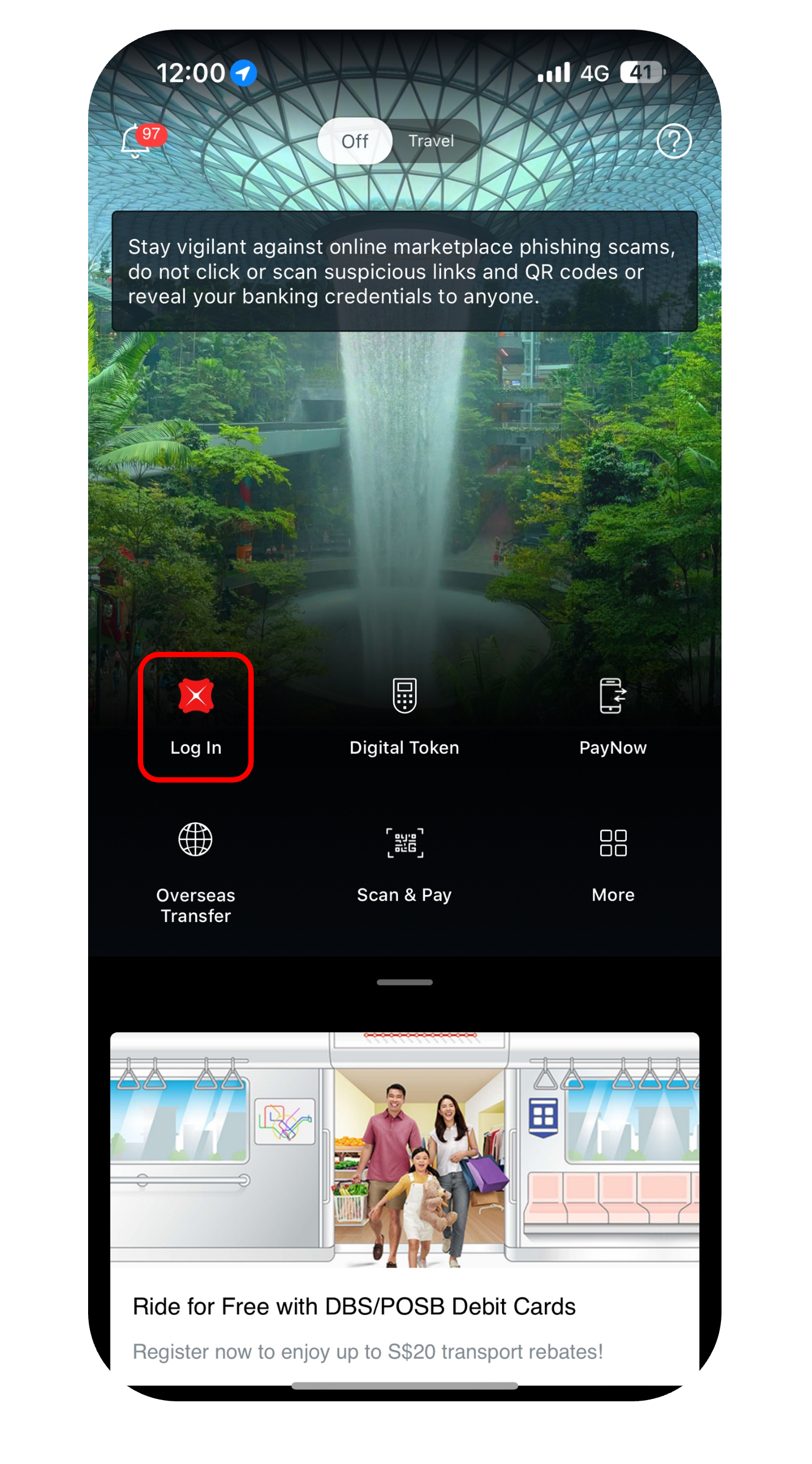
Step 1
Log in to digibank mobile with your Touch / Face ID or digibank User ID & PIN.
2
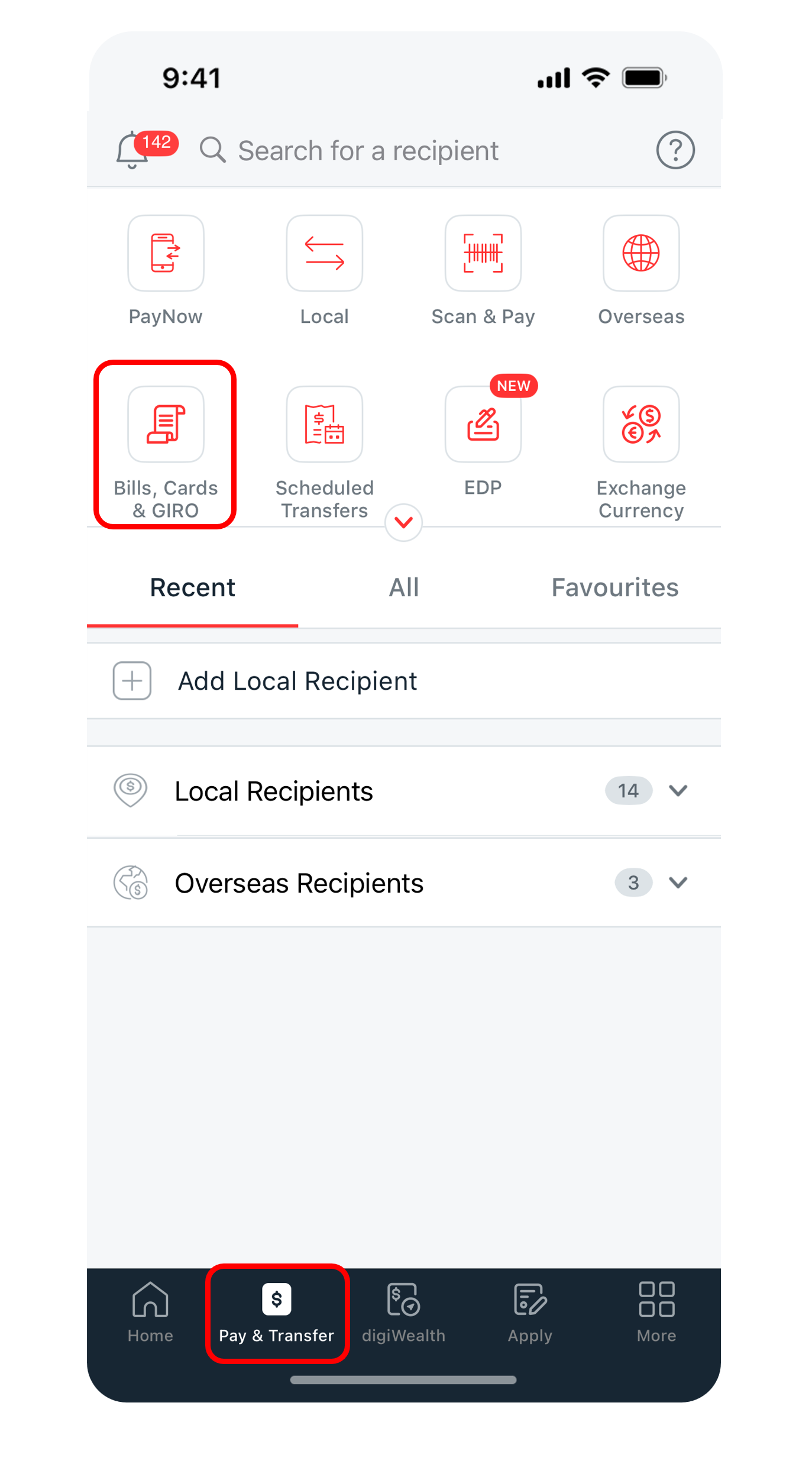
Step 2
Tap Pay & Transfer at the bottom and select Bills, Cards & GIRO.
3
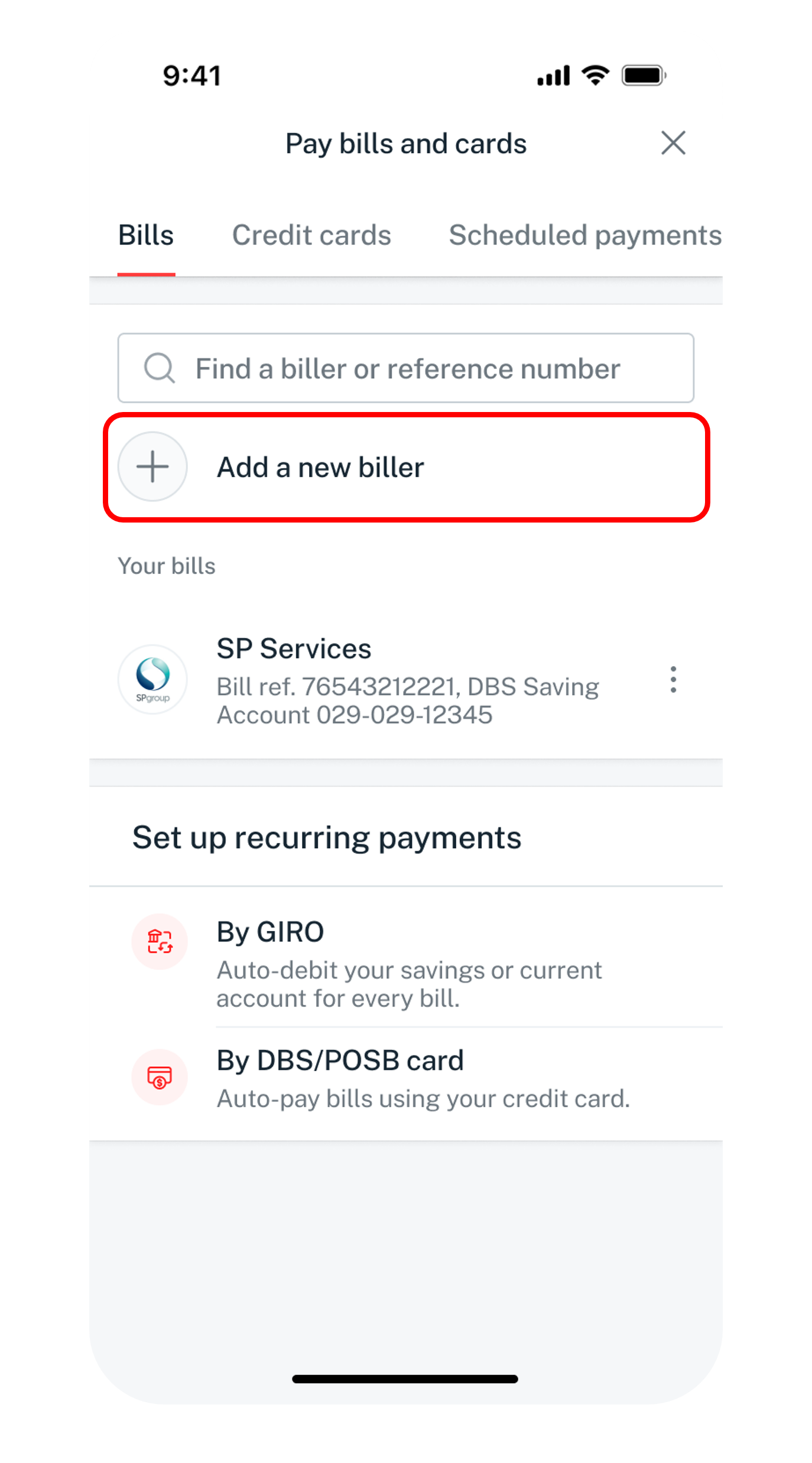
Step 3
Tap on Add a new biller.
4
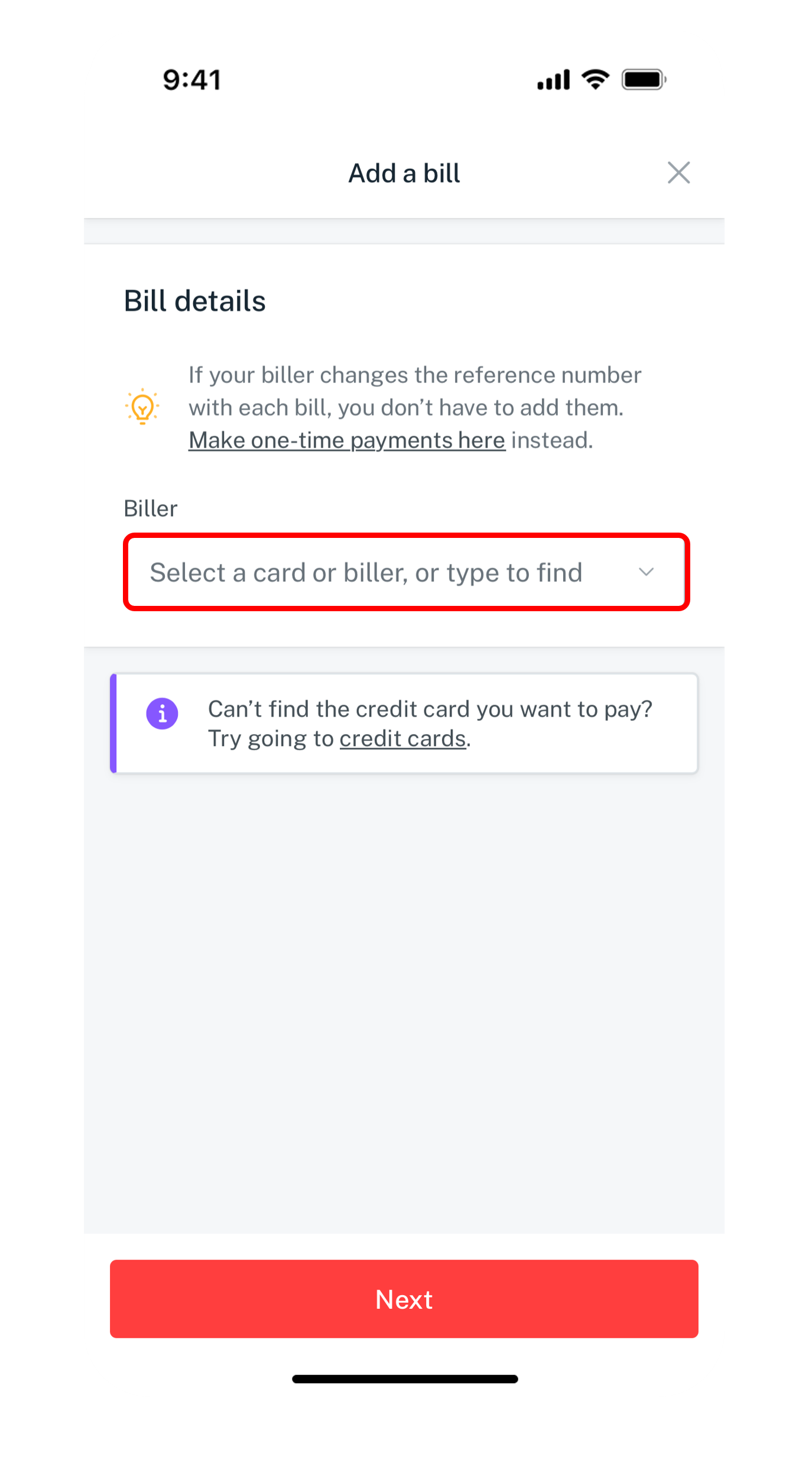
Step 4
Select or type the Billing organisation.
5
Step 5
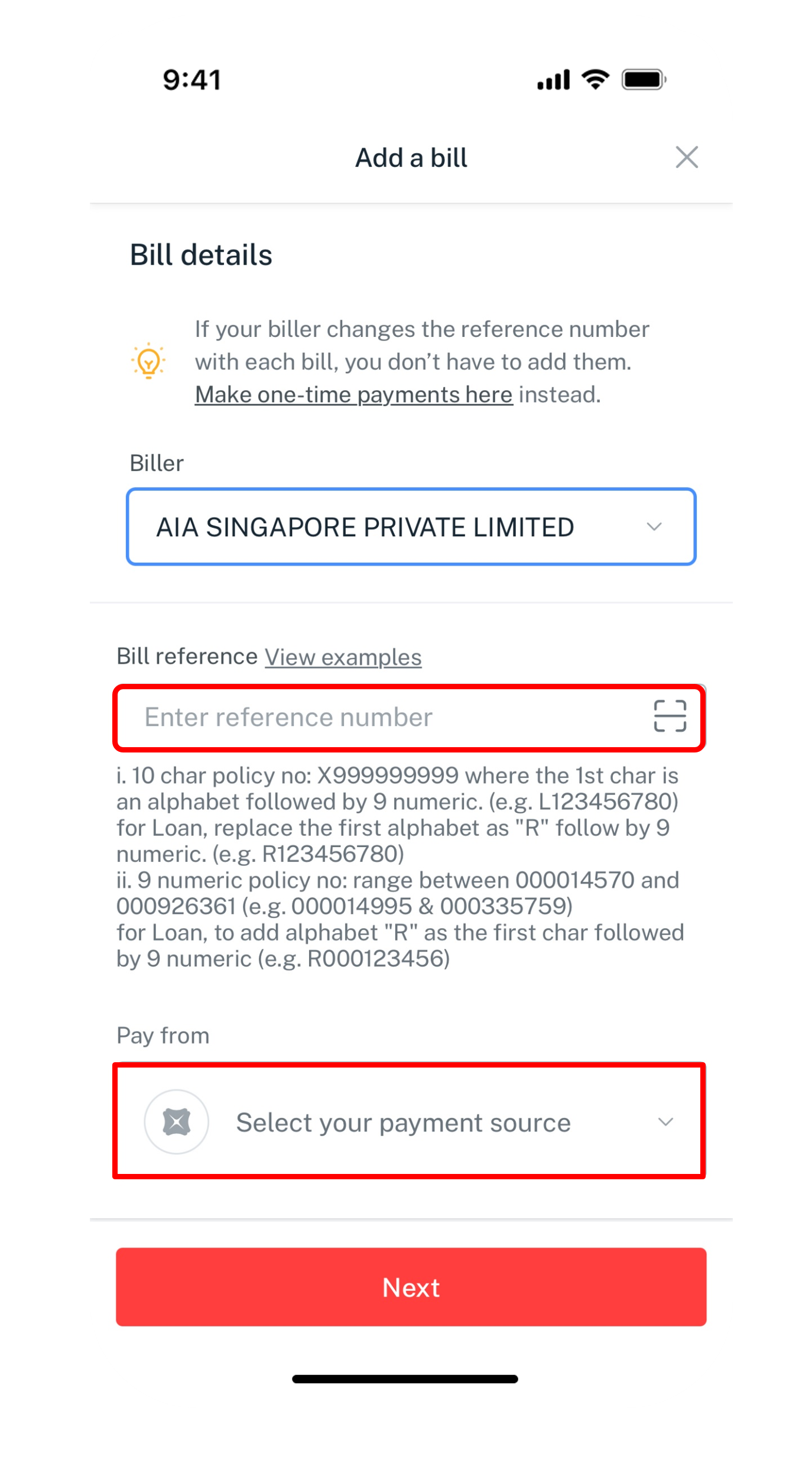
Enter your Bill reference number, select the Account to pay from and tap Next.
6
Step 6
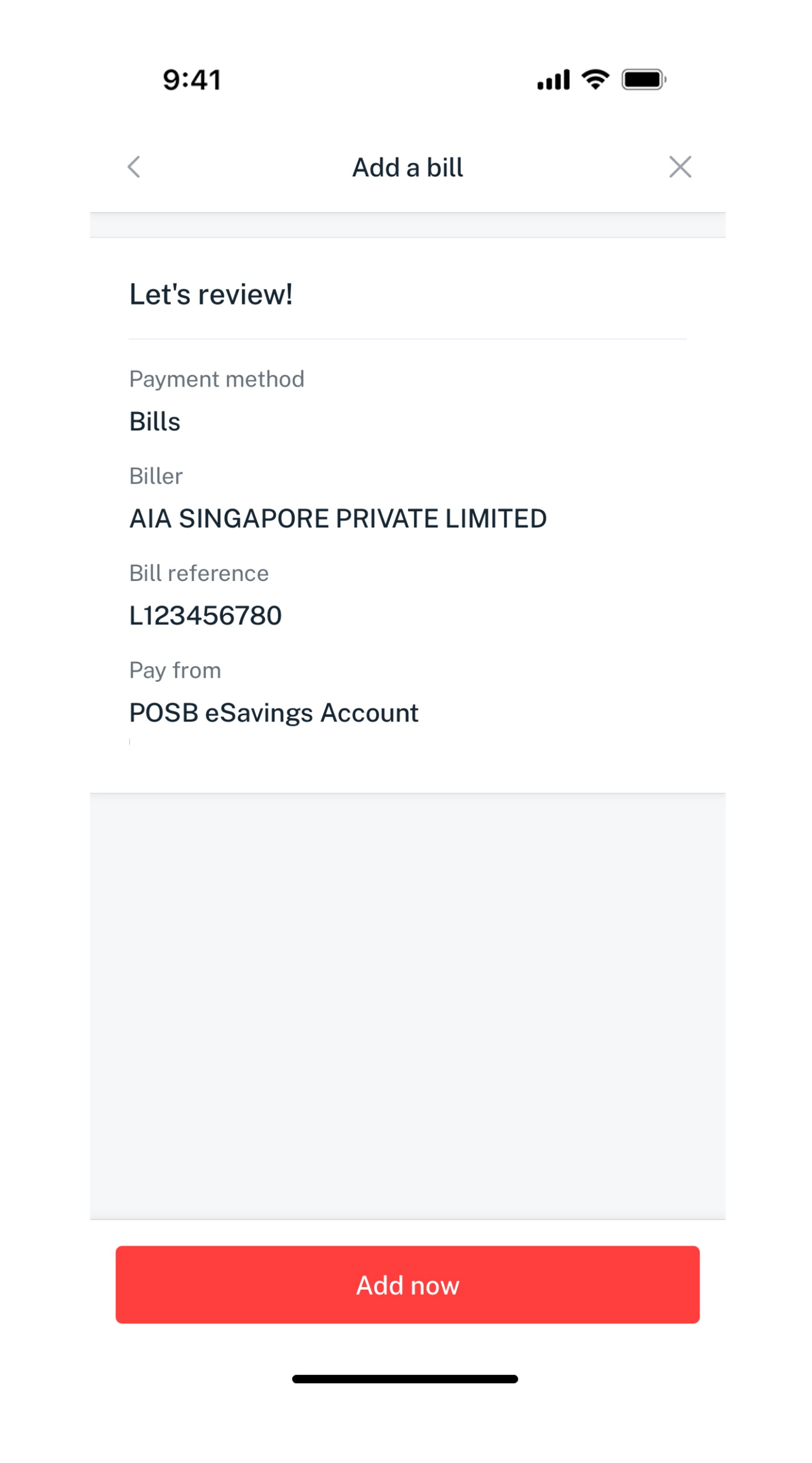
Verify your biller details and tap Add now.
7
Step 7
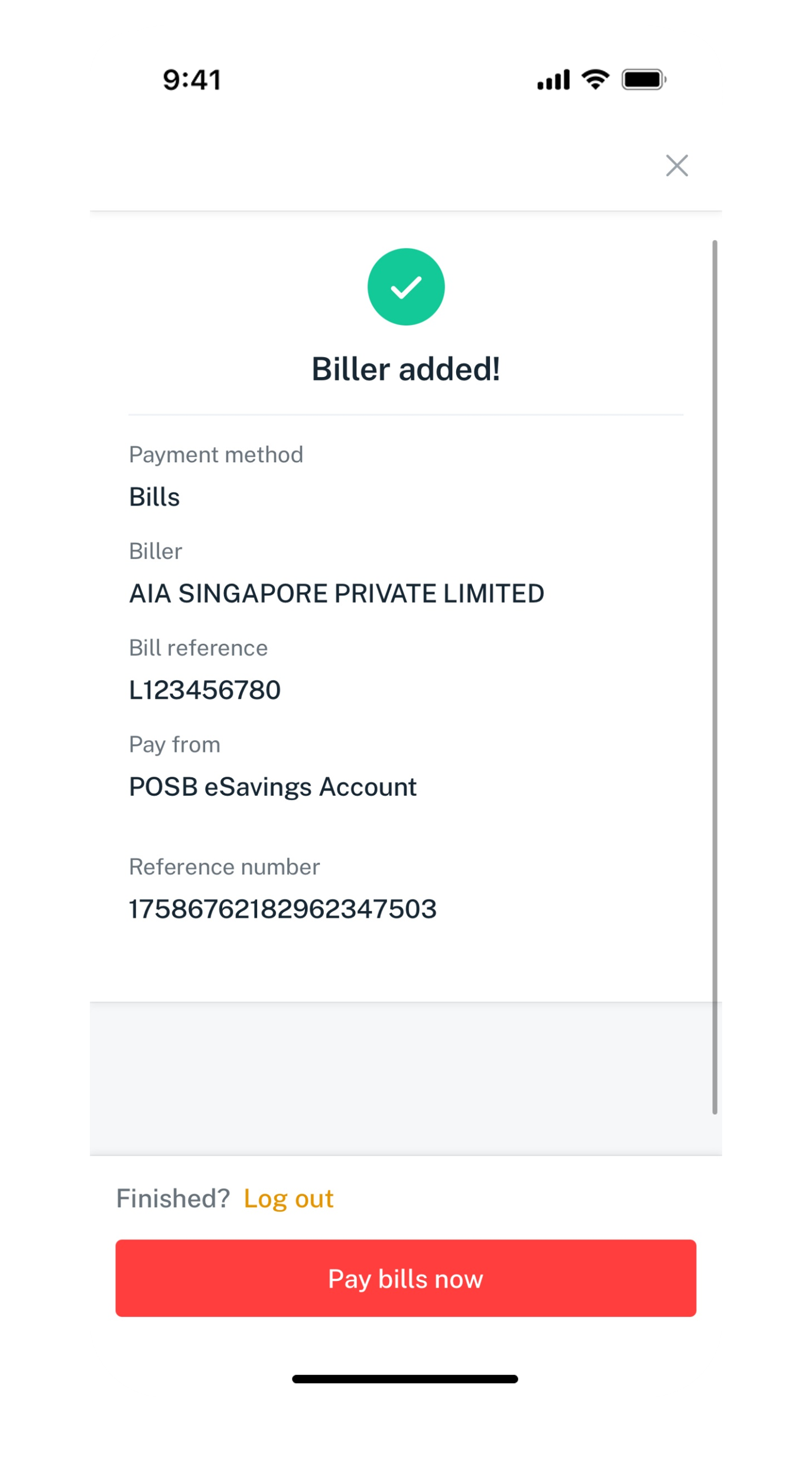
You have successfully added your biller for your bill payment.
Get the latest DBS digibank mobile app now!

laptop
login
authenticate
slider
slider
slider
slider
1
Step 1
Log in to digibank online with your User ID & PIN.
2
Step 2
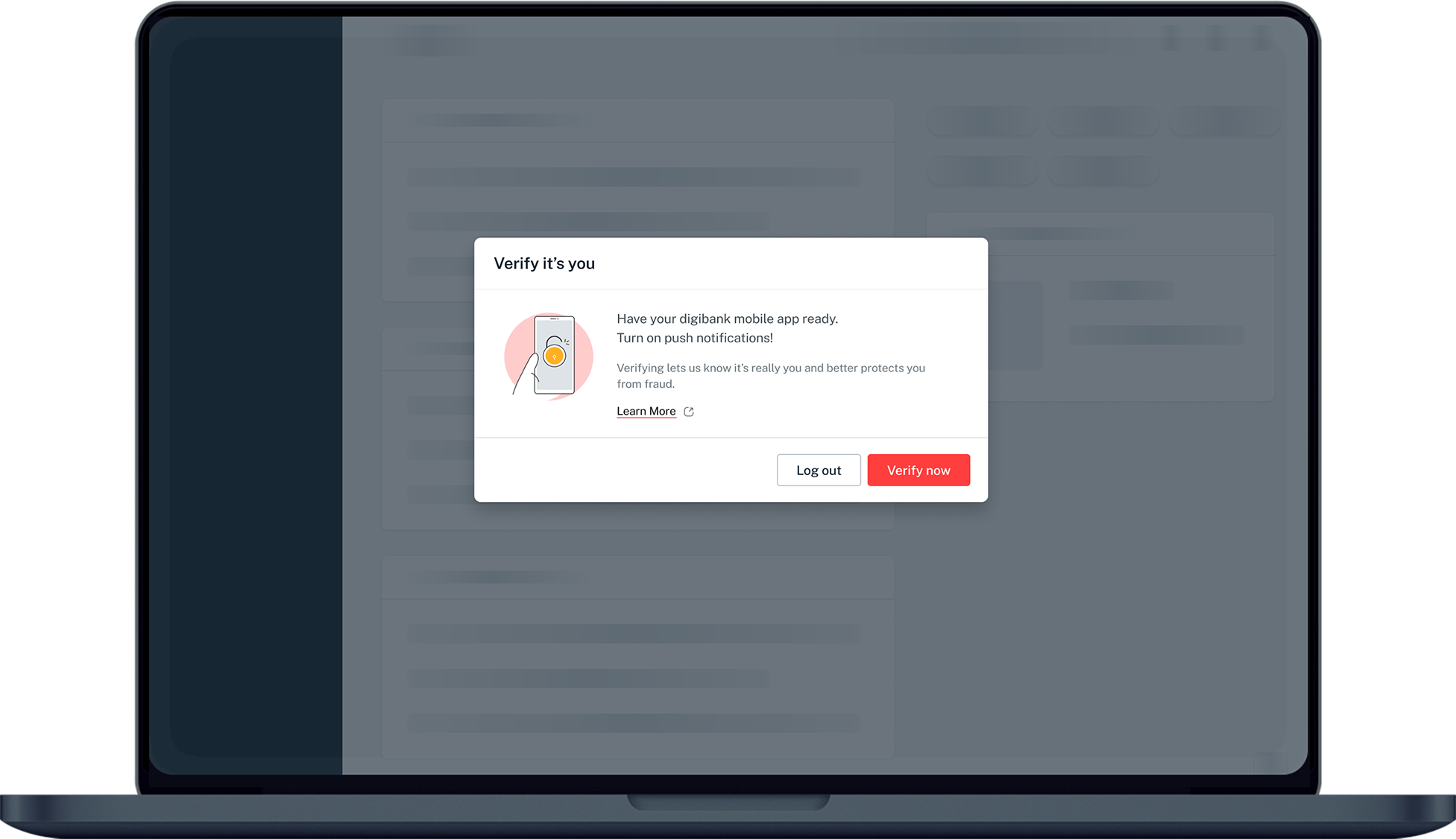
Complete the Authentication Process.
3
Step 3
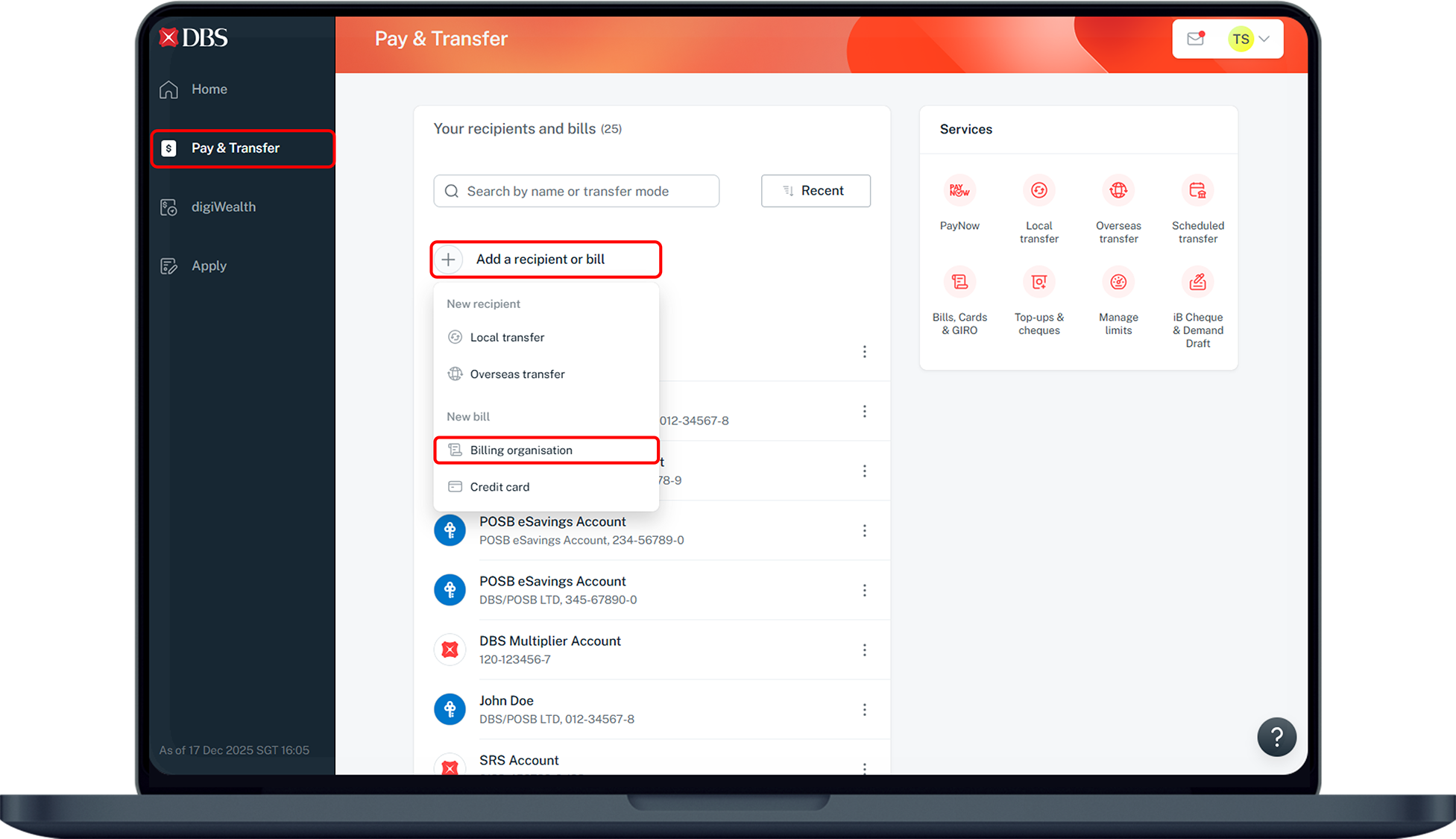
Click Pay & Transfer on the left menu and select Add a recipient or bill, followed by Billing organisation.
4
Step 4
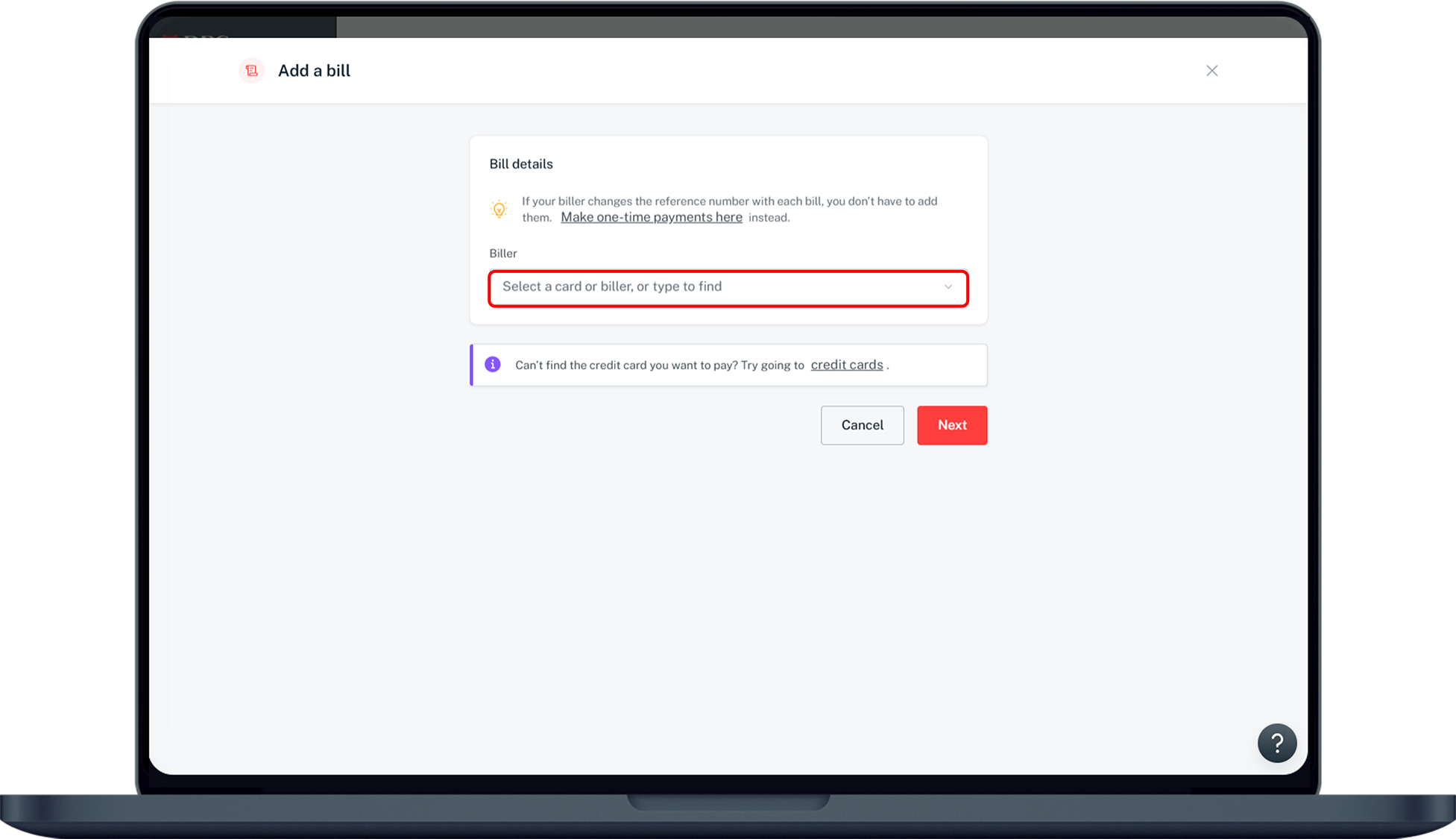
Select the Biller.
5
Step 5
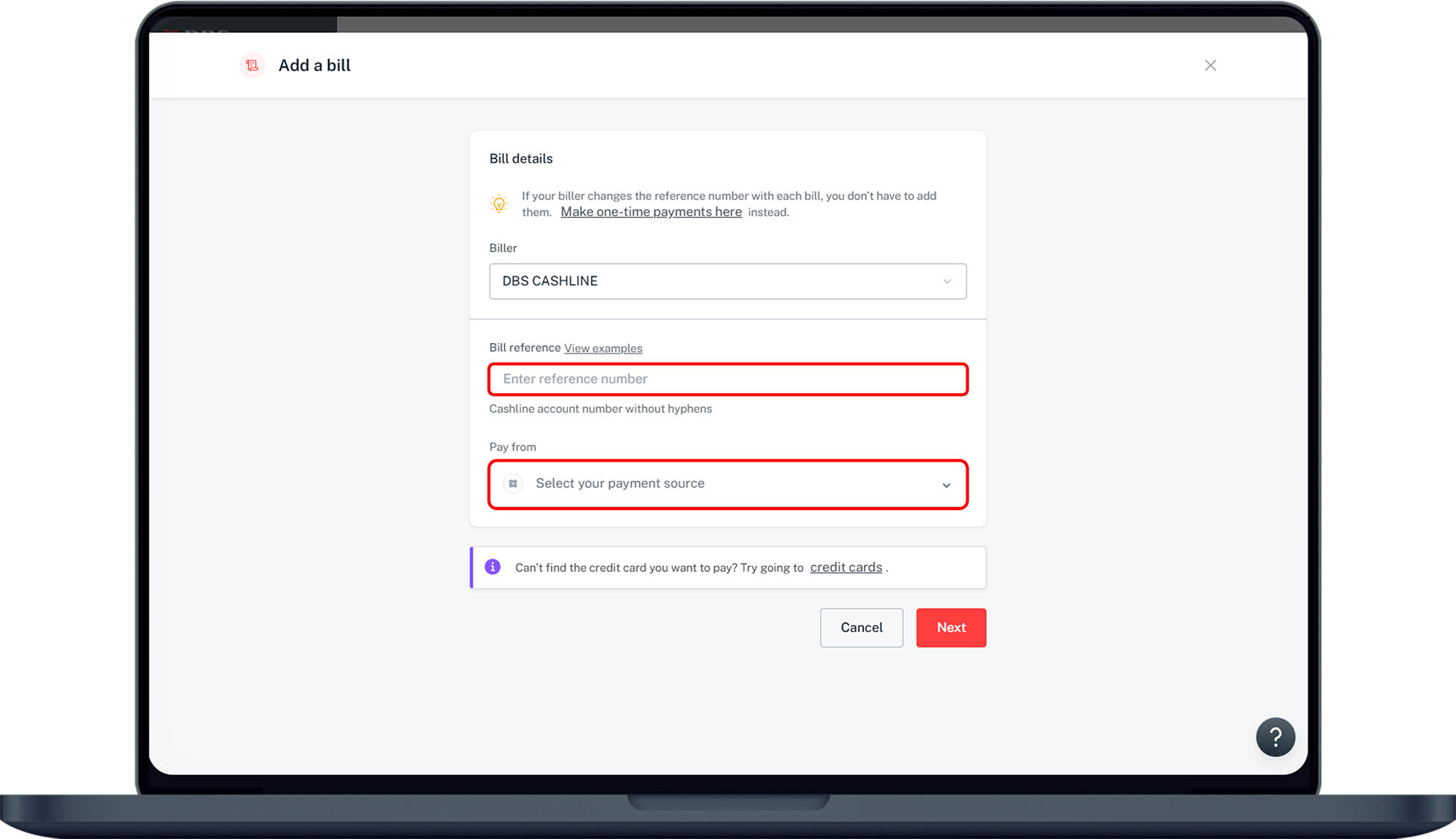
Enter your Bill reference number and select the Account to pay from. Click Next.
6
Step 6
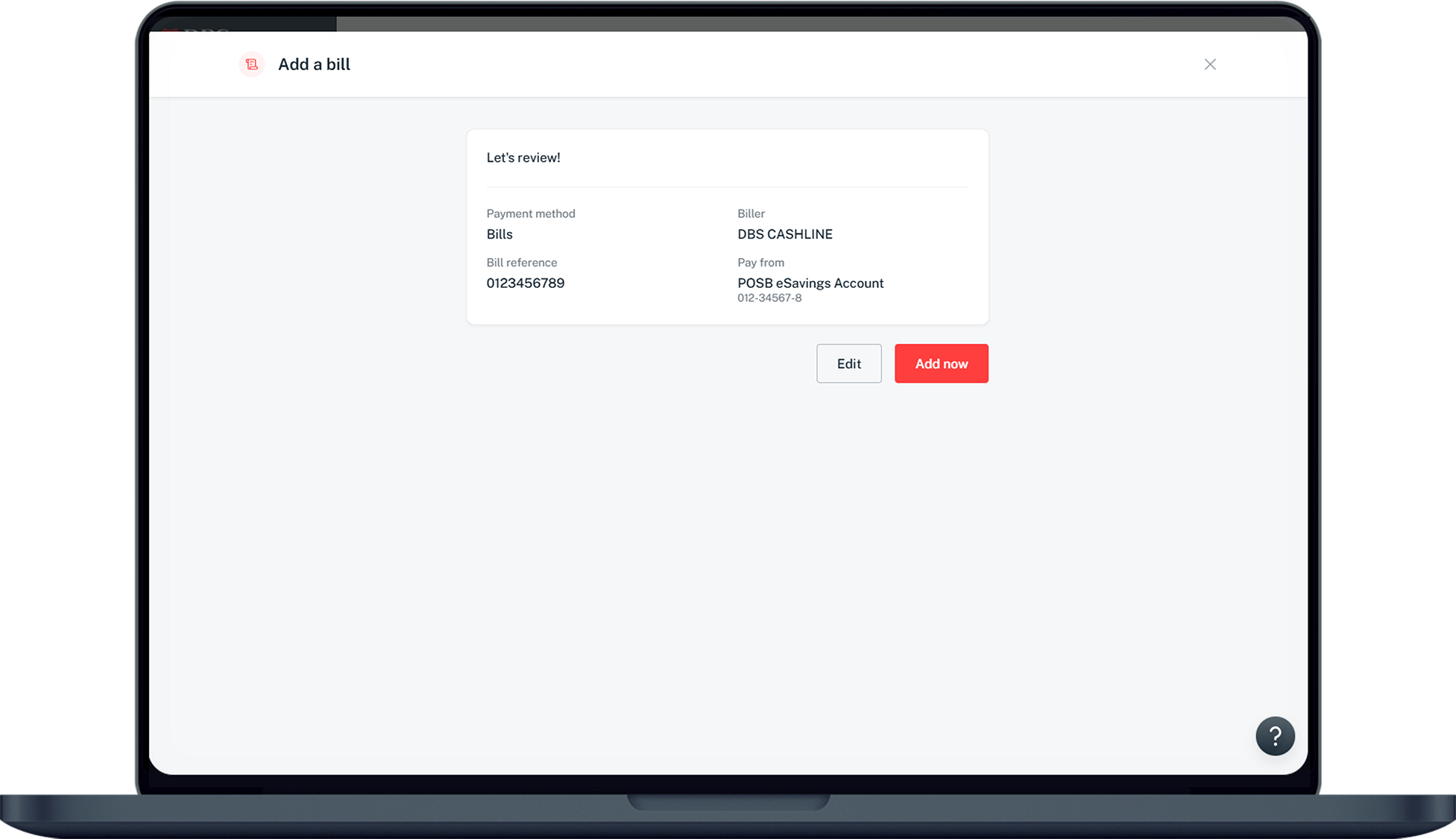
Verify your details and click Add now to add your Bill Payment Organisation.
Was this information useful?

We welcome your feedback

Information is easy to understand and find
Information is useful to answer your inquiries completely