Add Fund Transfer Recipient

Learn how you can add a DBS/POSB or other banks' fund transfer recipient easily using digibank.

Important information

  • Always check and ensure that you’re entering the correct account number.
  • The recipient's name you enter only serves as reference for you. The transfer is processed base on the account number you provided.

How to add fund transfer recipient

There are various channels which you may add fund transfer recipient with us. The most convenient method would be via digibank mobile.

digibank mobile

phone frame
login
pay and transfer dashboard
select account type
recipient details
verify details
1
Step 1
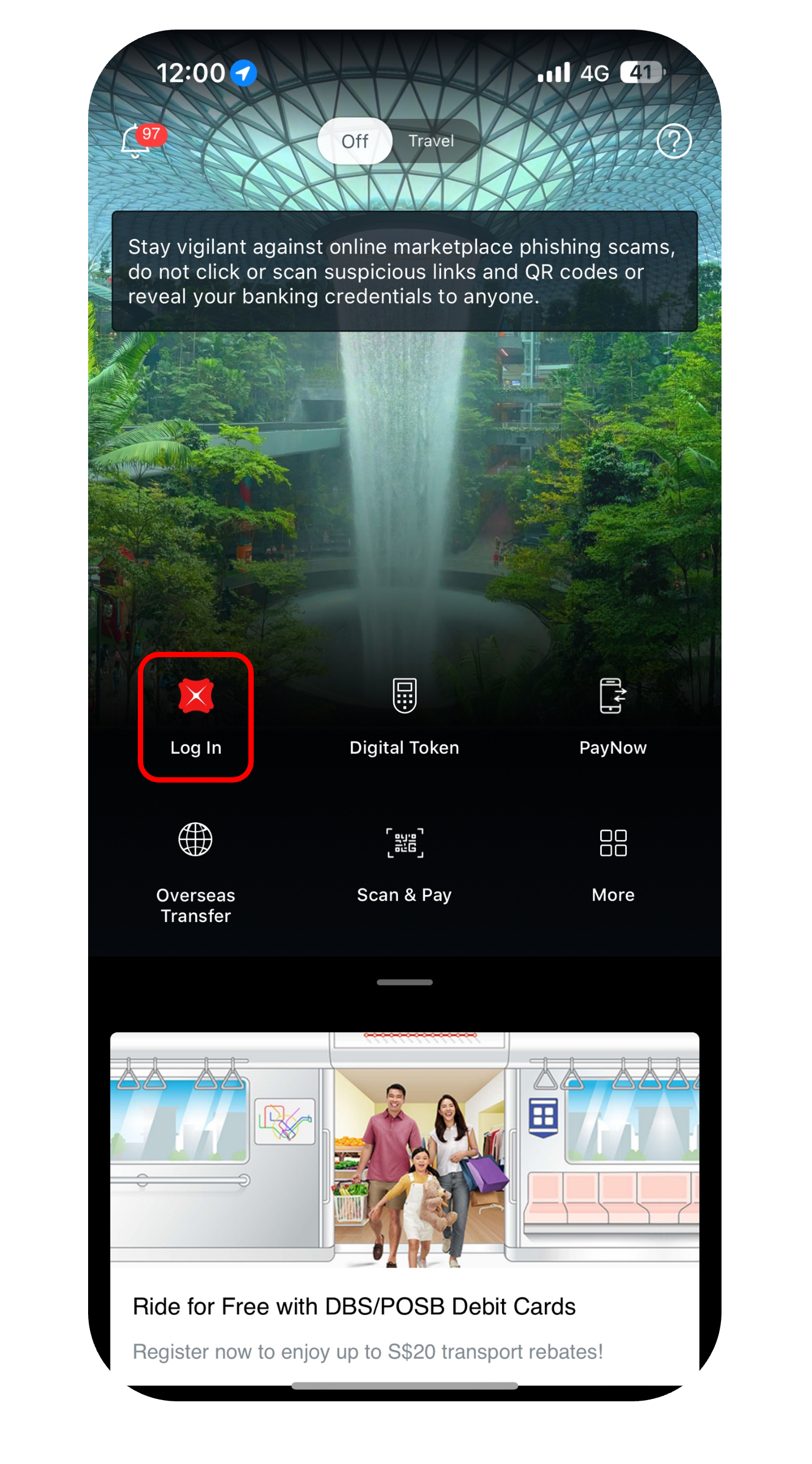
Log in to digibank mobile with your Touch / Face ID or digibank User ID & PIN.
2
Step 2
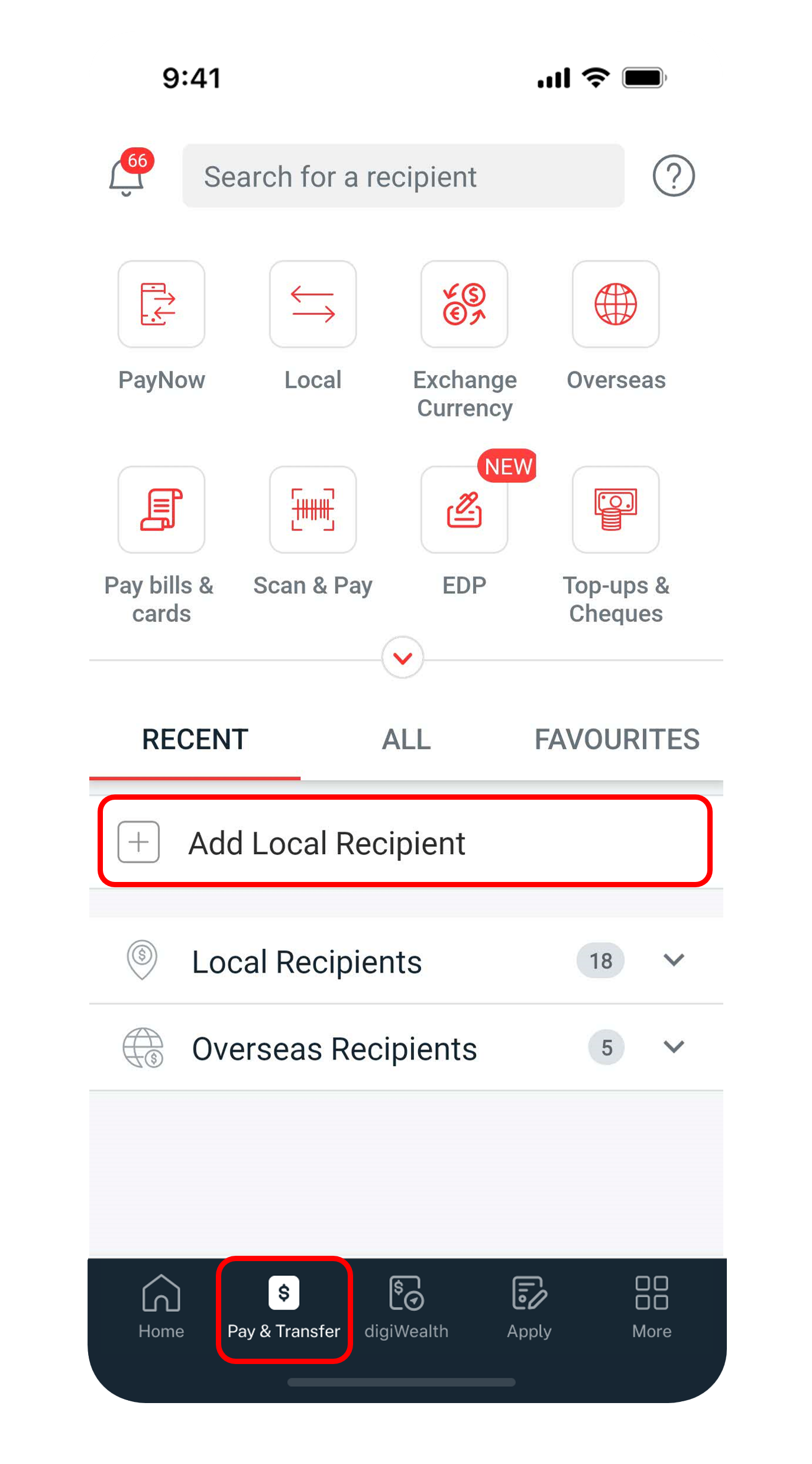
Tap on Pay & Transfer at the bottom and select Add Local Recipient.
3
Step 3
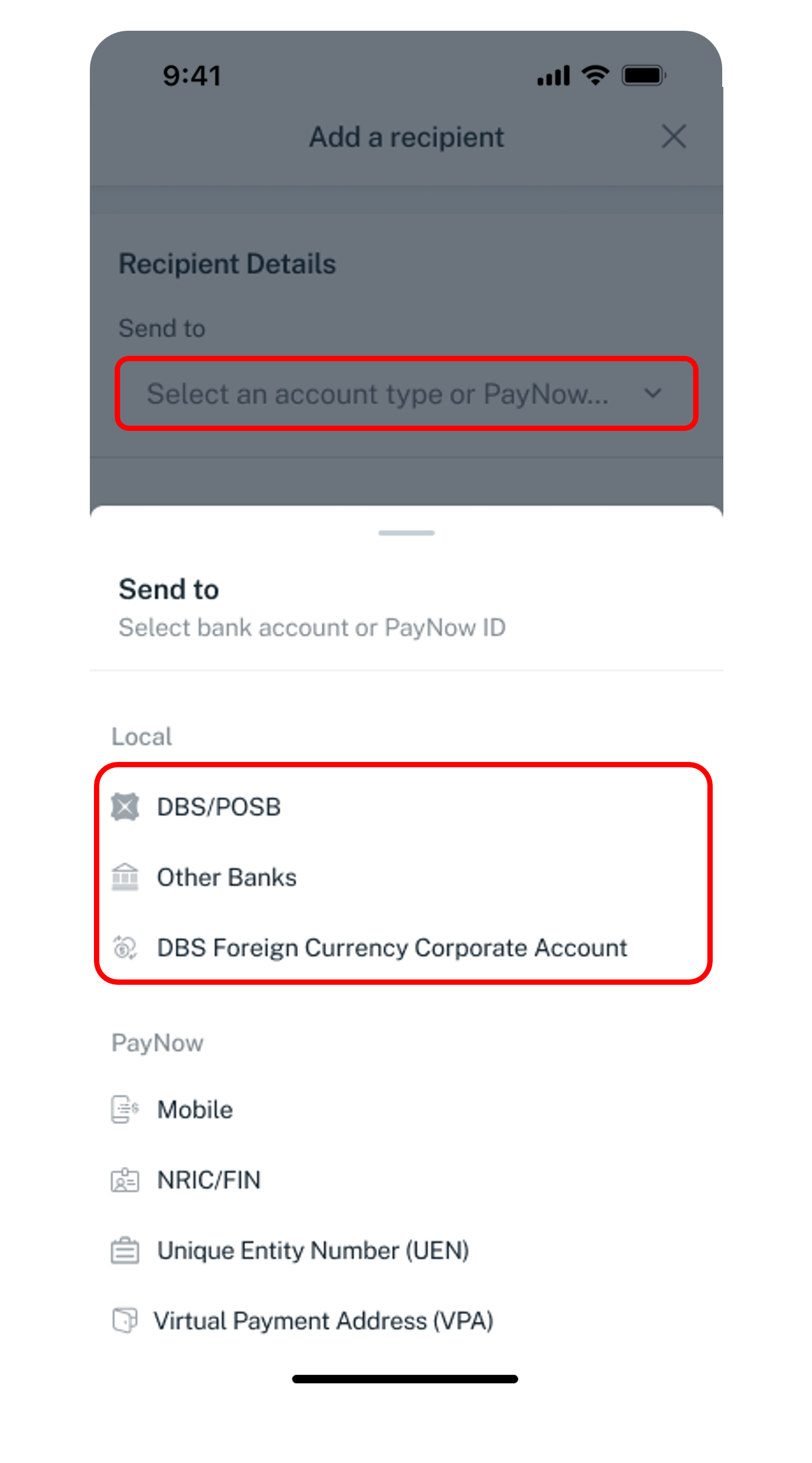
Select the Account Type from the dropdown list.
4
Step 4
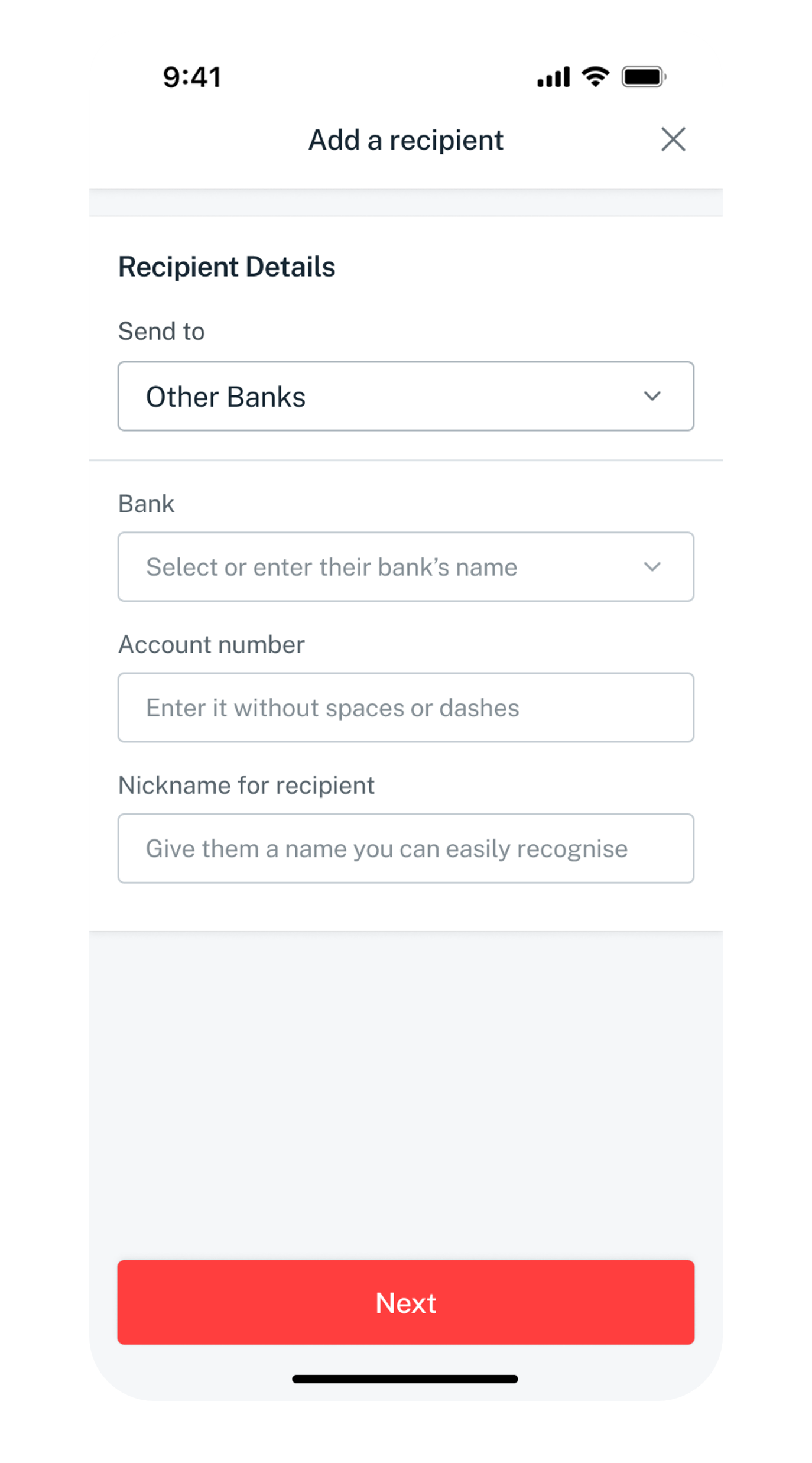
Select the Recipient's Bank, enter the Account number, create a nickname for recipient and tap Next.
5
Step 5
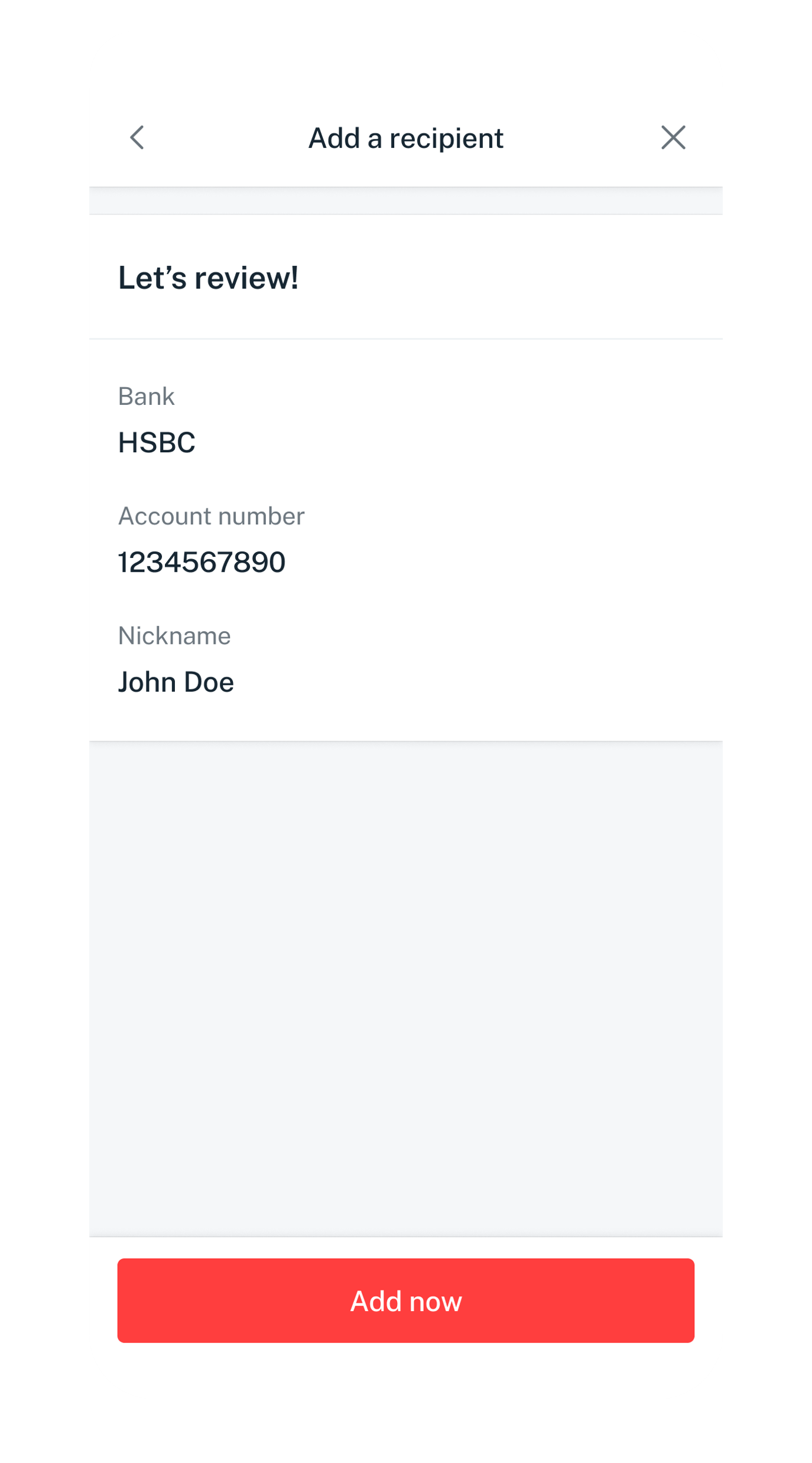
Verify your recipient's details, tap Add now and complete the 2-Factor Authentication to add your fund transfer recipient.
Get the latest digibank mobile app now!

laptop
slider
slider
slider
slider
slider
slider
1
Step 1
Log in to digibank online with your User ID & PIN.
2
Step 2
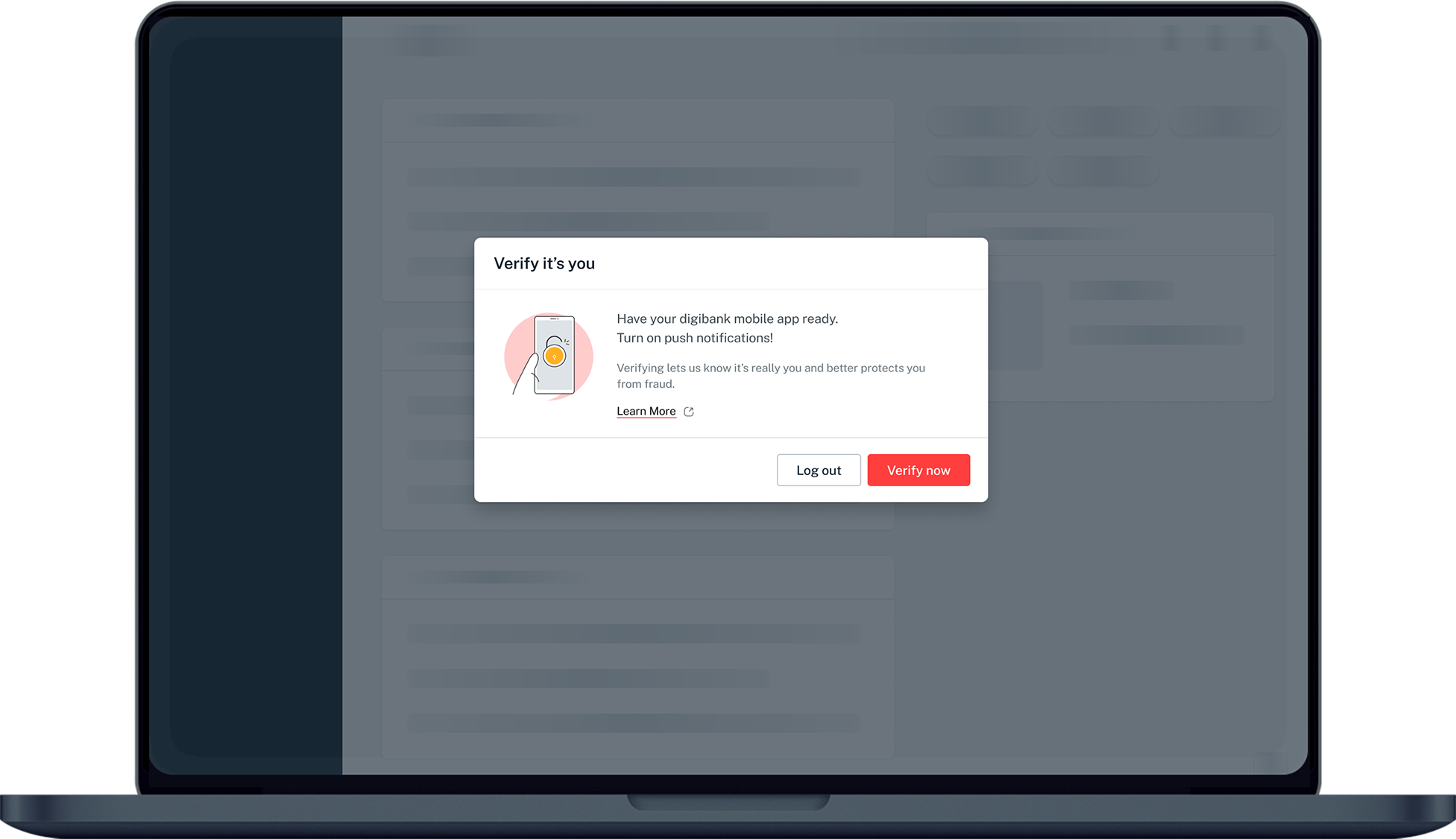
Complete the Authentication Process.
3
Step 3
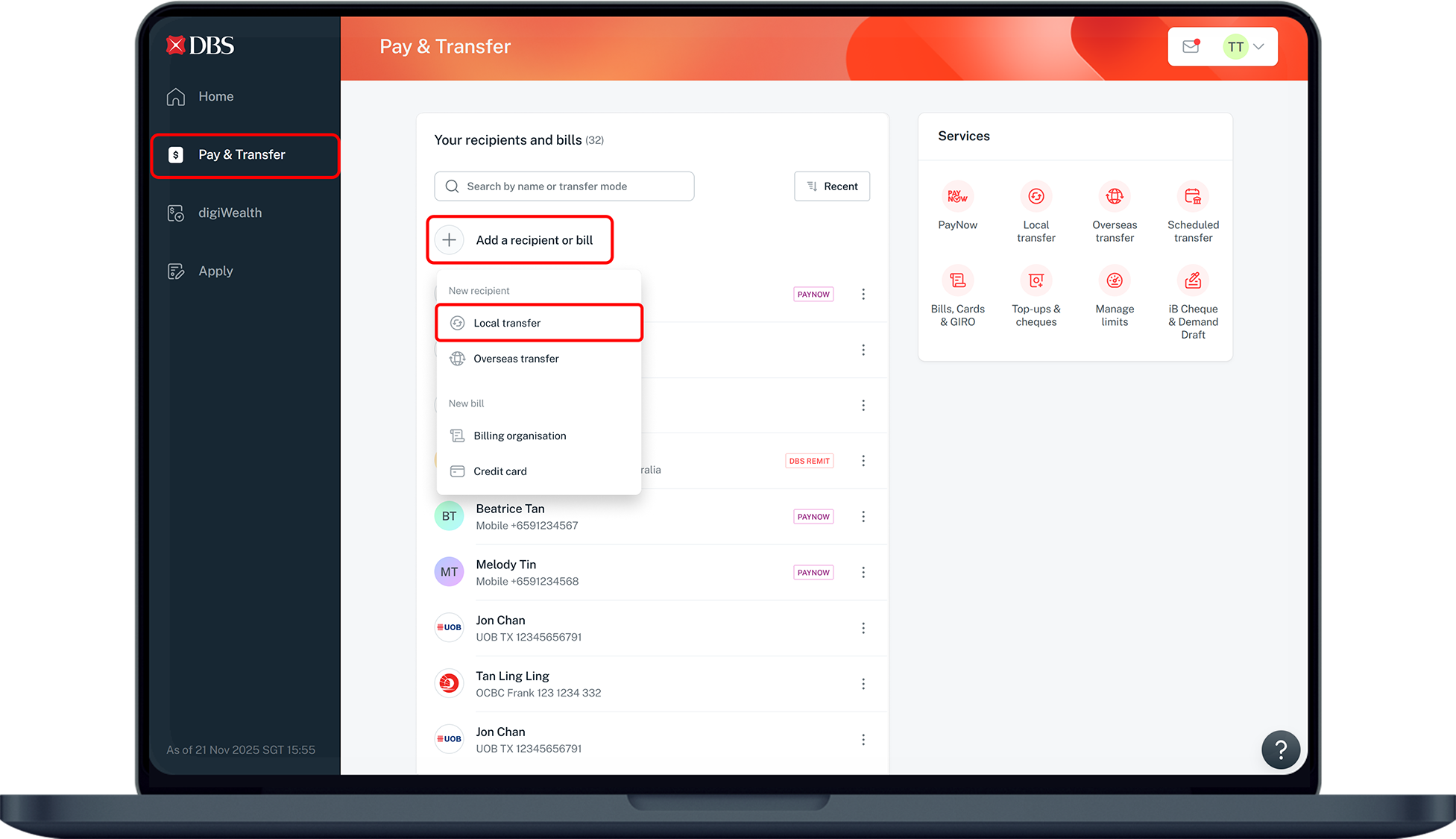
Click on Pay & Transfer on the left menu and select + Add a recipient or bill, followed by Local transfer.
4
Step 4
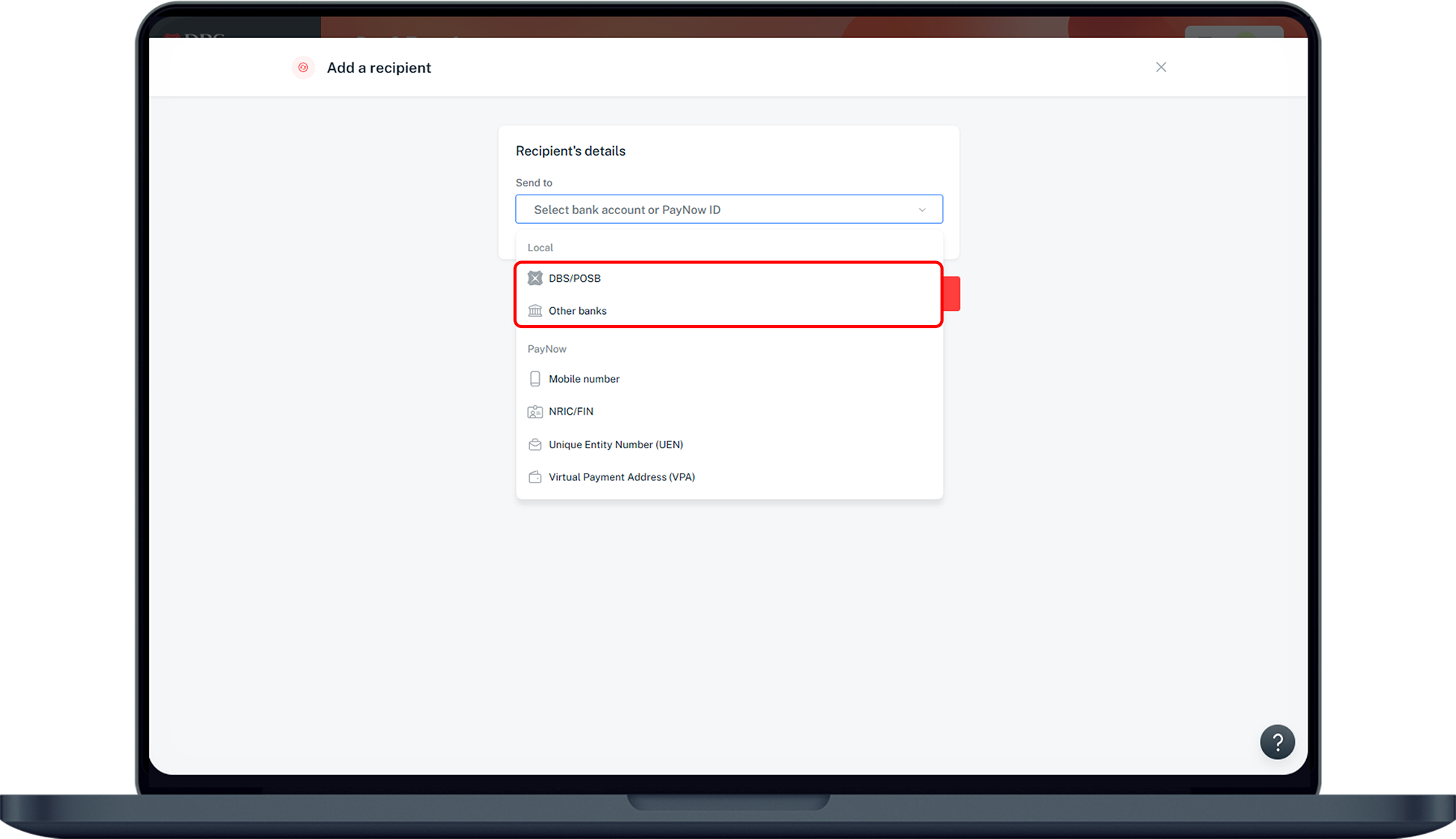
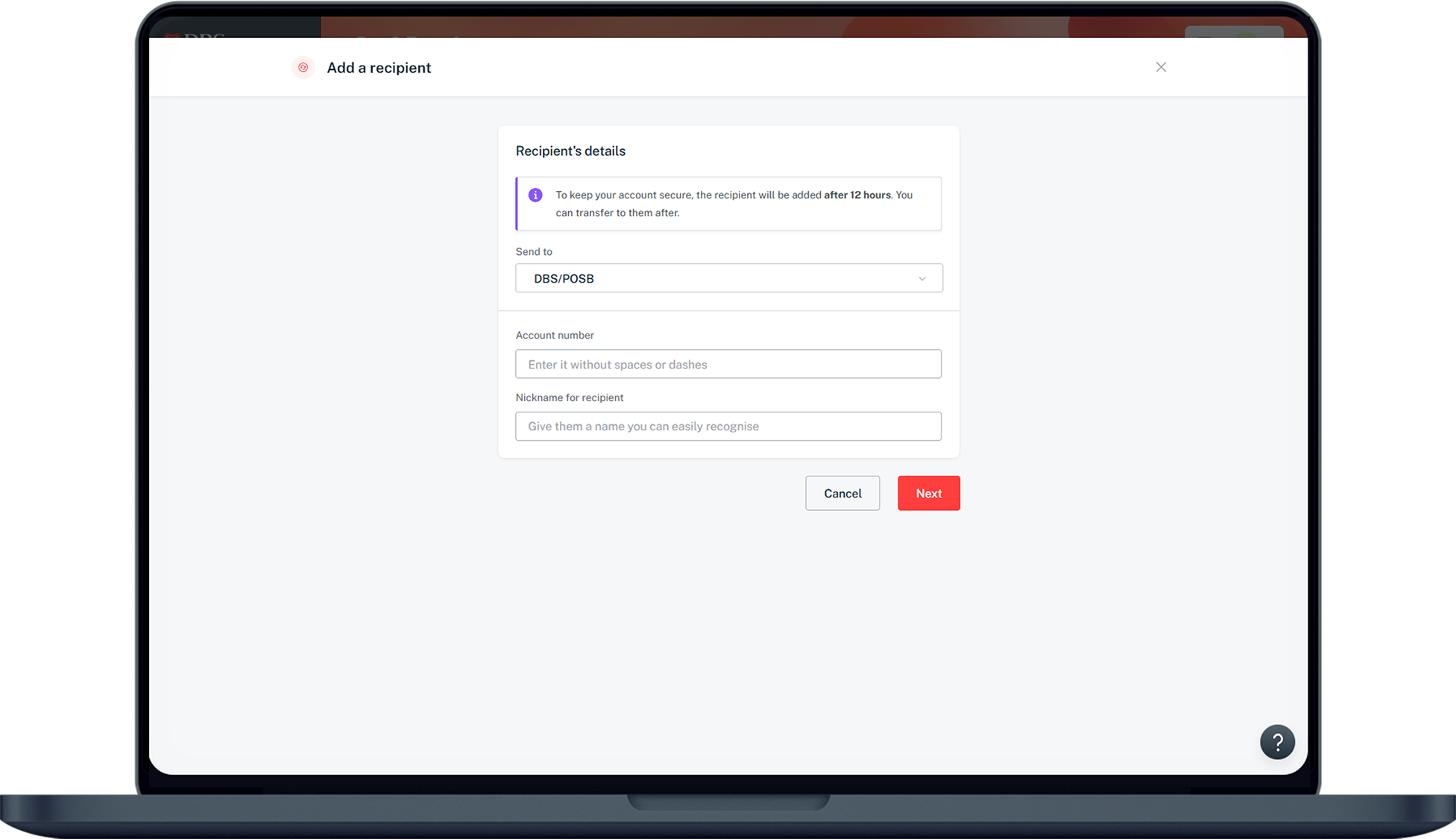
Select DBS/POSB or Other banks.
5
Step 5
For Other banks's recipient, select the recipient's Bank from the dropdown list. Enter the Account number and the Nickname for the recipient you wish to add. Click Next.
6
Step 6
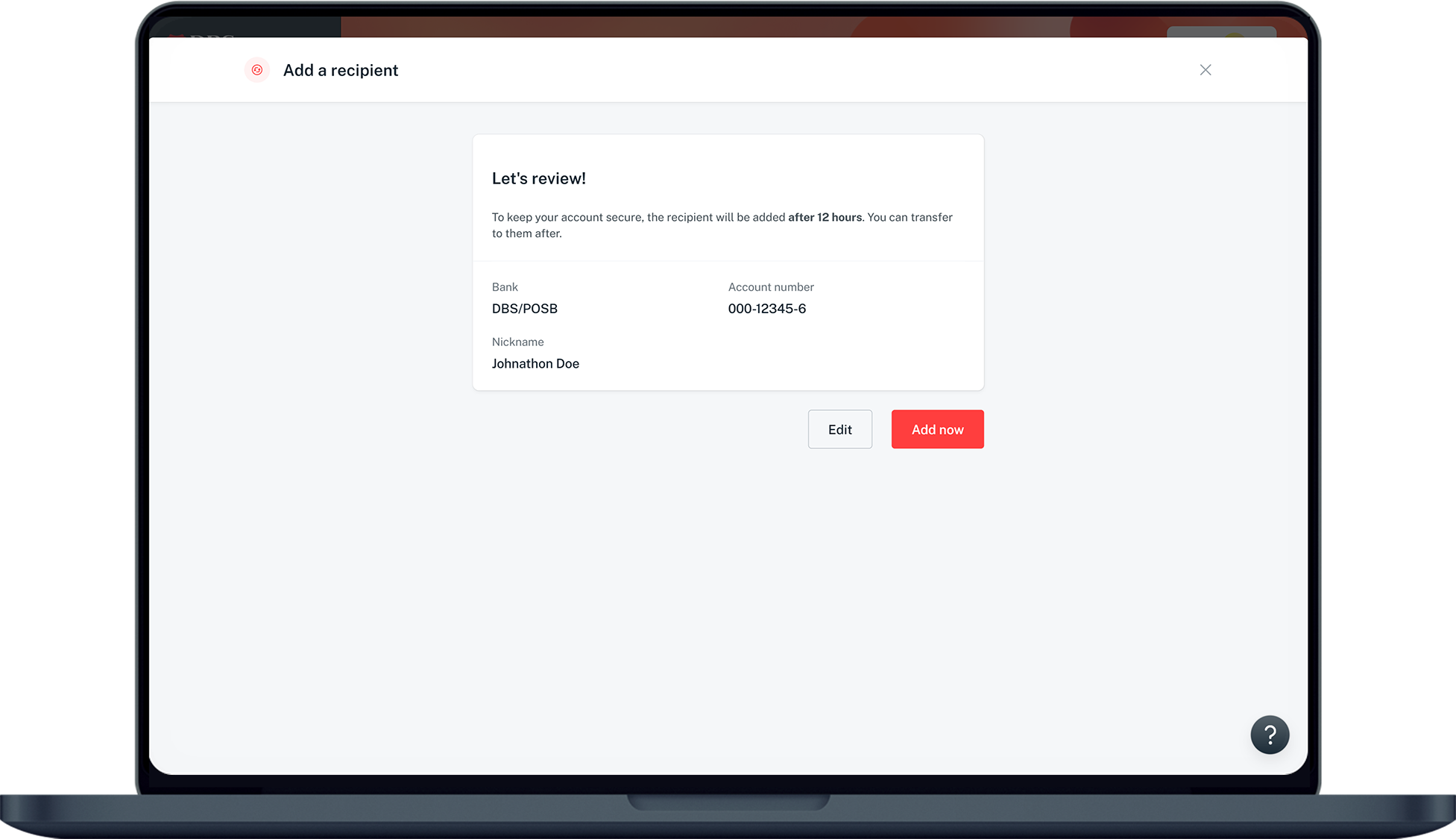
Verify your recipient's details, click on Add now and complete the 2-factor Authentication to add your fund transfer recipient.

More information

  • You can add up to a maximum of 50 individuals in your list of payees.
Was this information useful?

We welcome your feedback

Information is easy to understand and find
Information is useful to answer your inquiries completely