Check Credit Card Transaction Details

You can check your credit card transactions, including any that pending or declined in digibank. See details like the category, payment type, and approval code, for up to past 6 months.

How to check credit card transaction details

There are various channels which you may use to view your credit card transaction details. The most convenient method would be via digibank mobile.

digibank mobile

phone frame
slider
slider
slider
slider
slider
1
Step 1
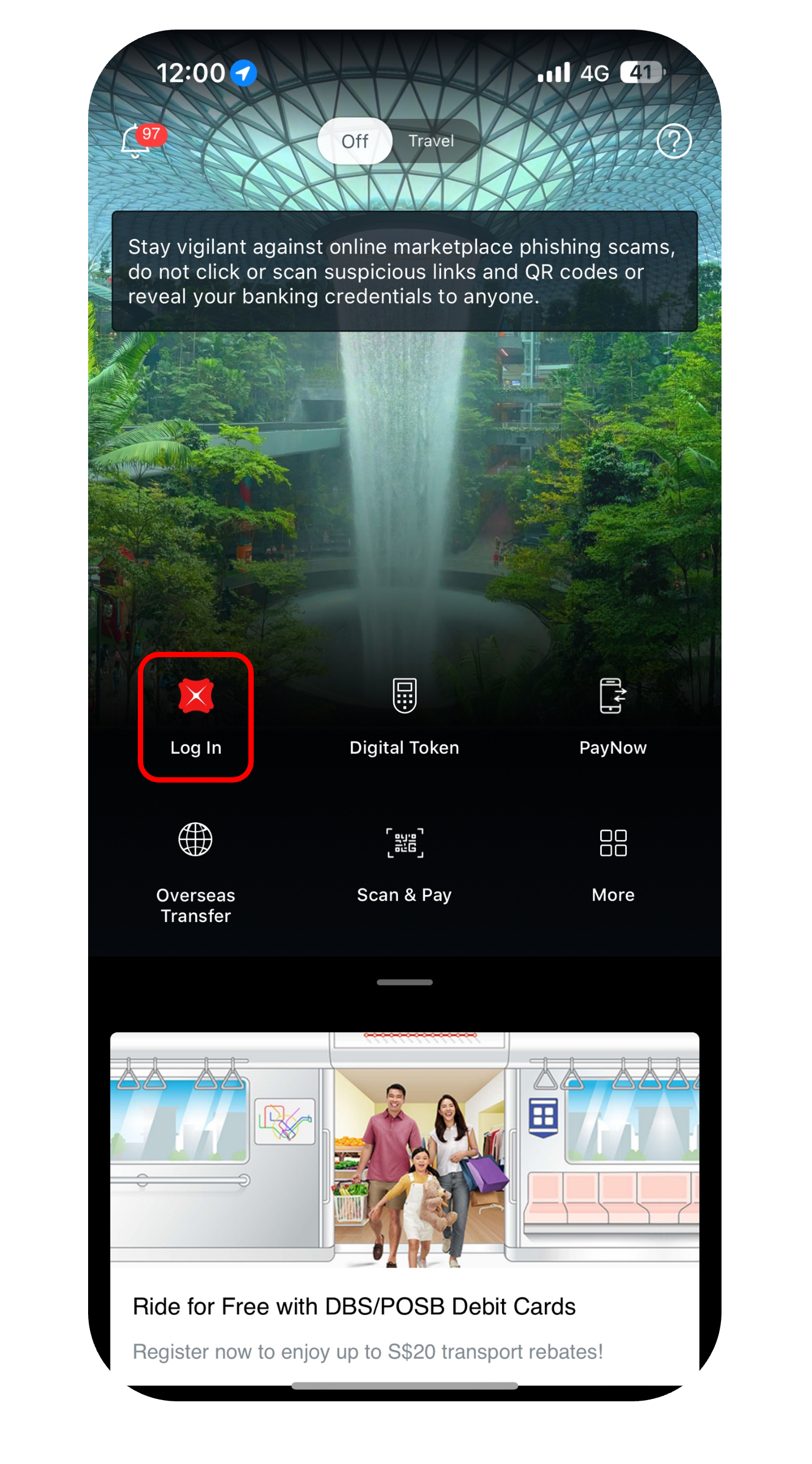
Log in to digibank mobile with your Touch / Face ID or digibank User ID & PIN.
2
Step 2
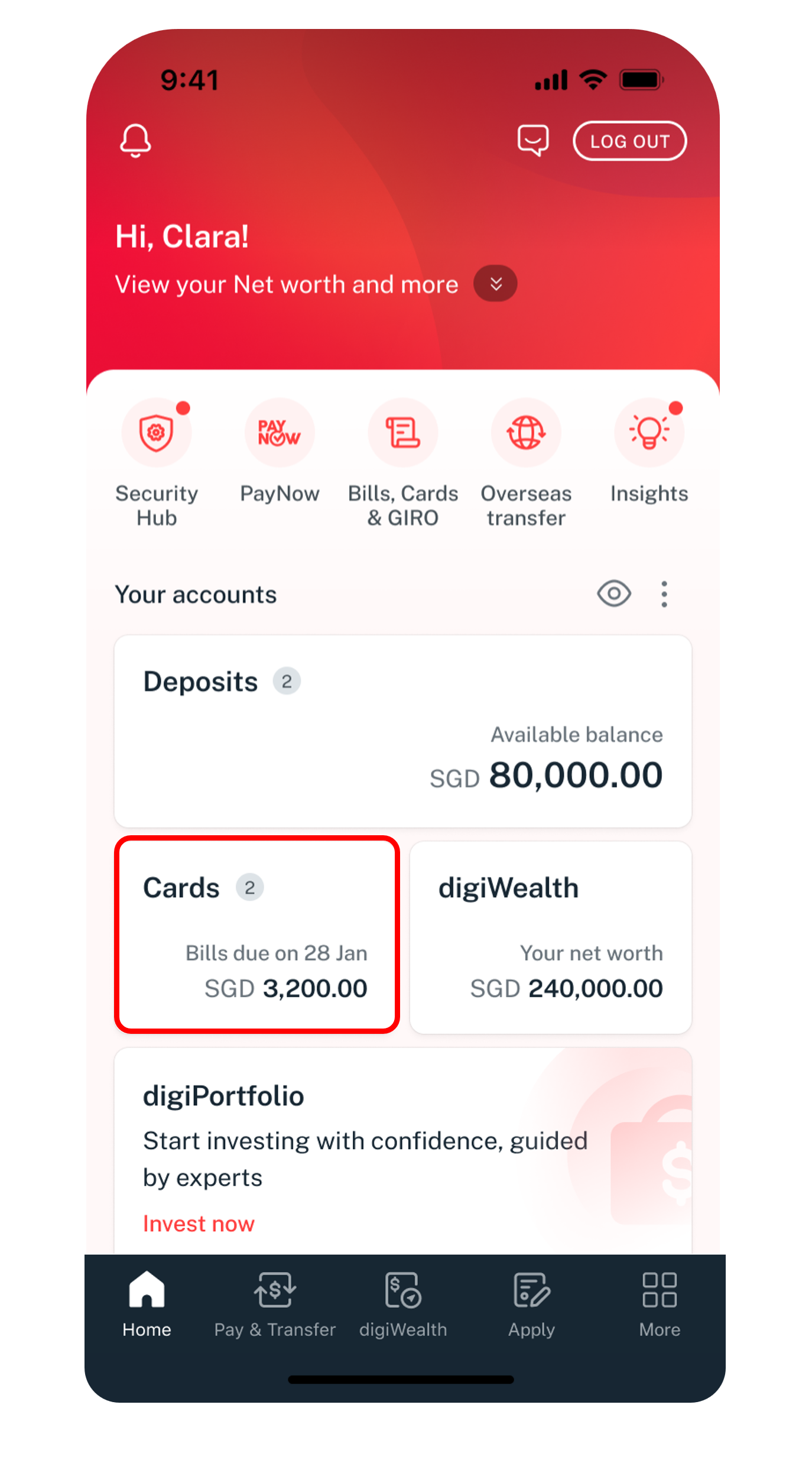
Under Home, tap on Cards and select the card that you wish to view.
3
Step 3
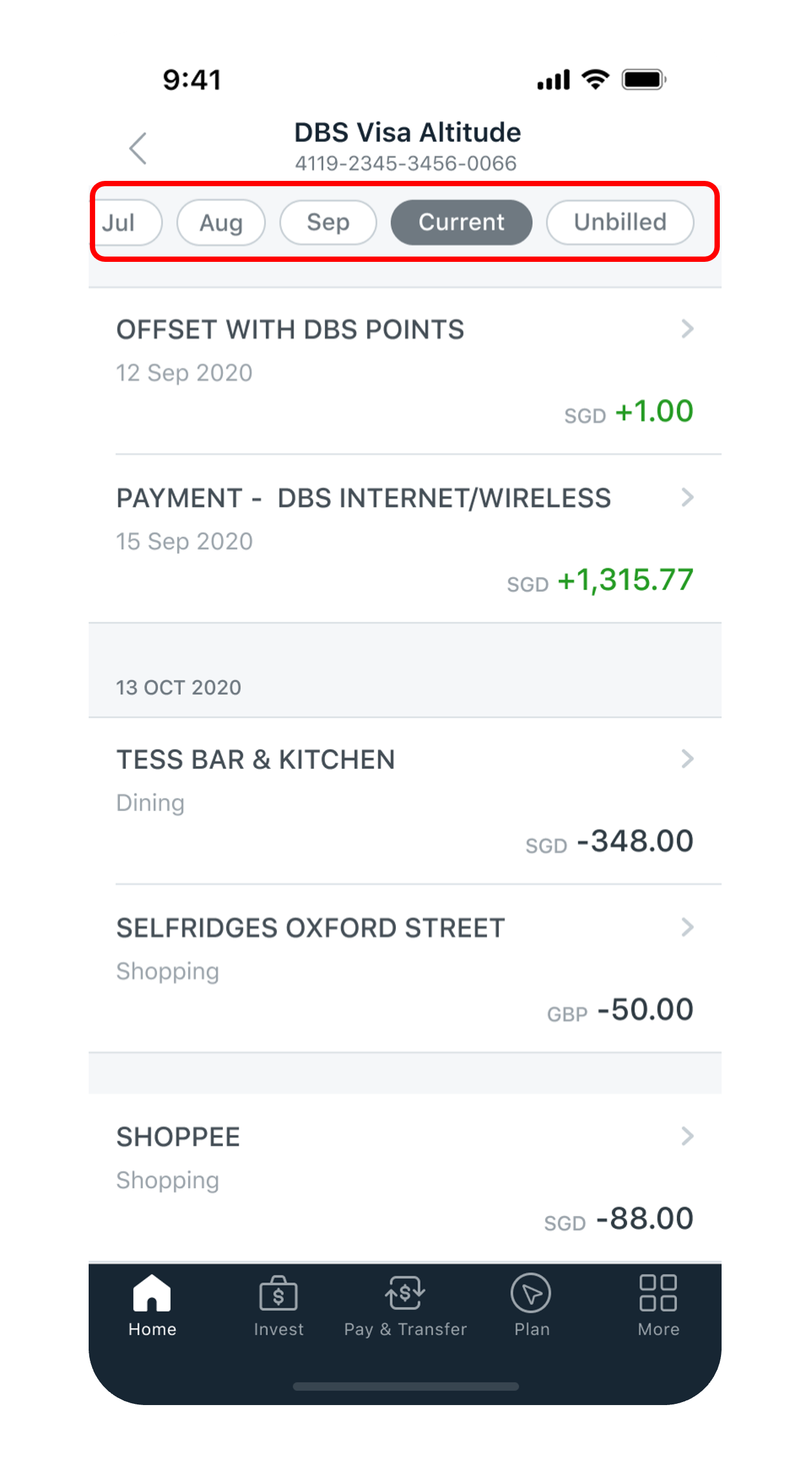
You may now view up to Past 6 Months of Transaction History.
Learn more about the meaning of the Transaction Codes & Descriptions.
4
Step 4
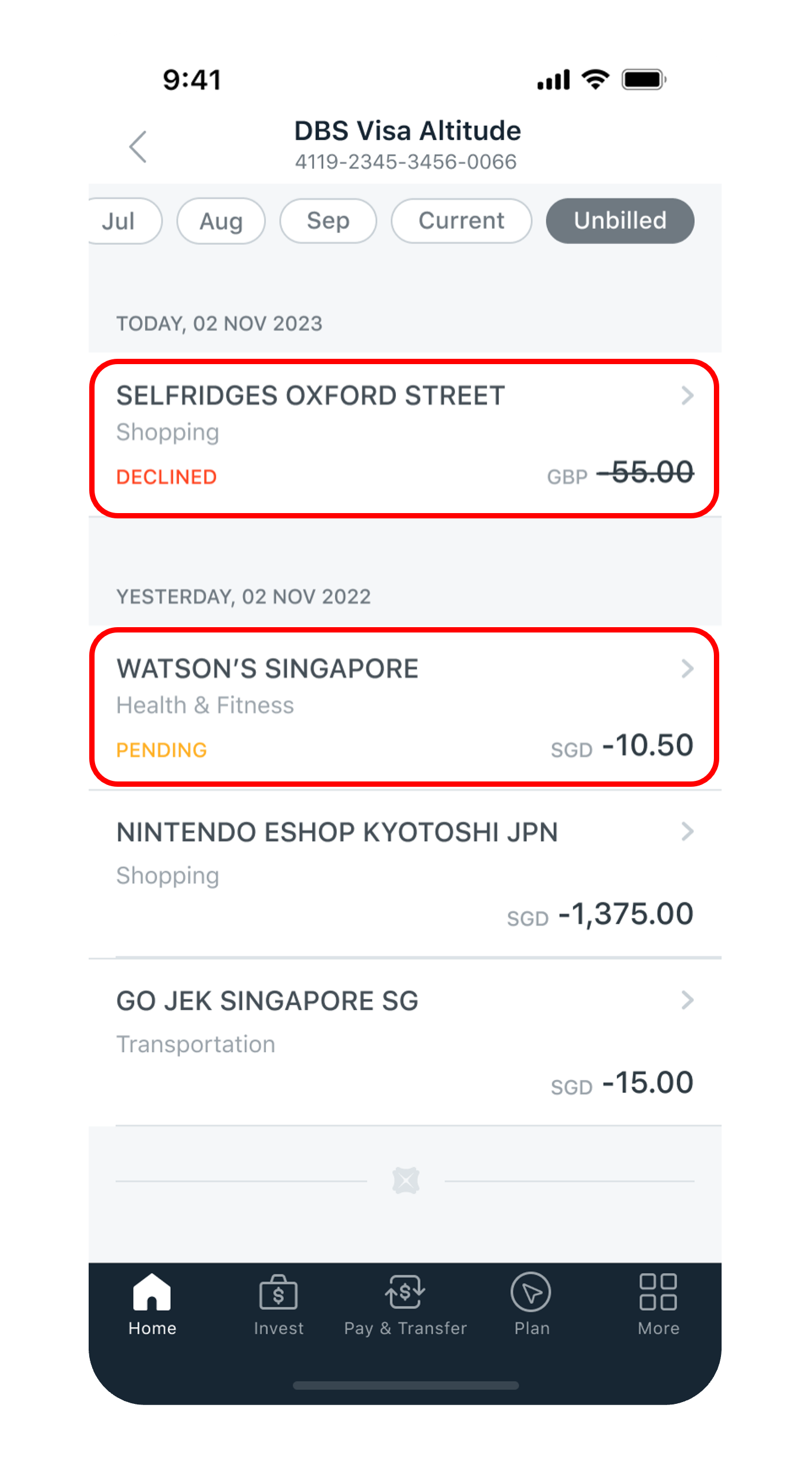
You may also view your Pending/Declined Transactions under the Unbilled Tab. Tap to view more details.
5
Step 5
Details of your transaction will be displayed.
Get the latest digibank mobile app now!

laptop
login
authenticate
home dashboard
transaction history
transaction details
1
Step 1
Log in to digibank online with your User ID & PIN.
2
Step 2
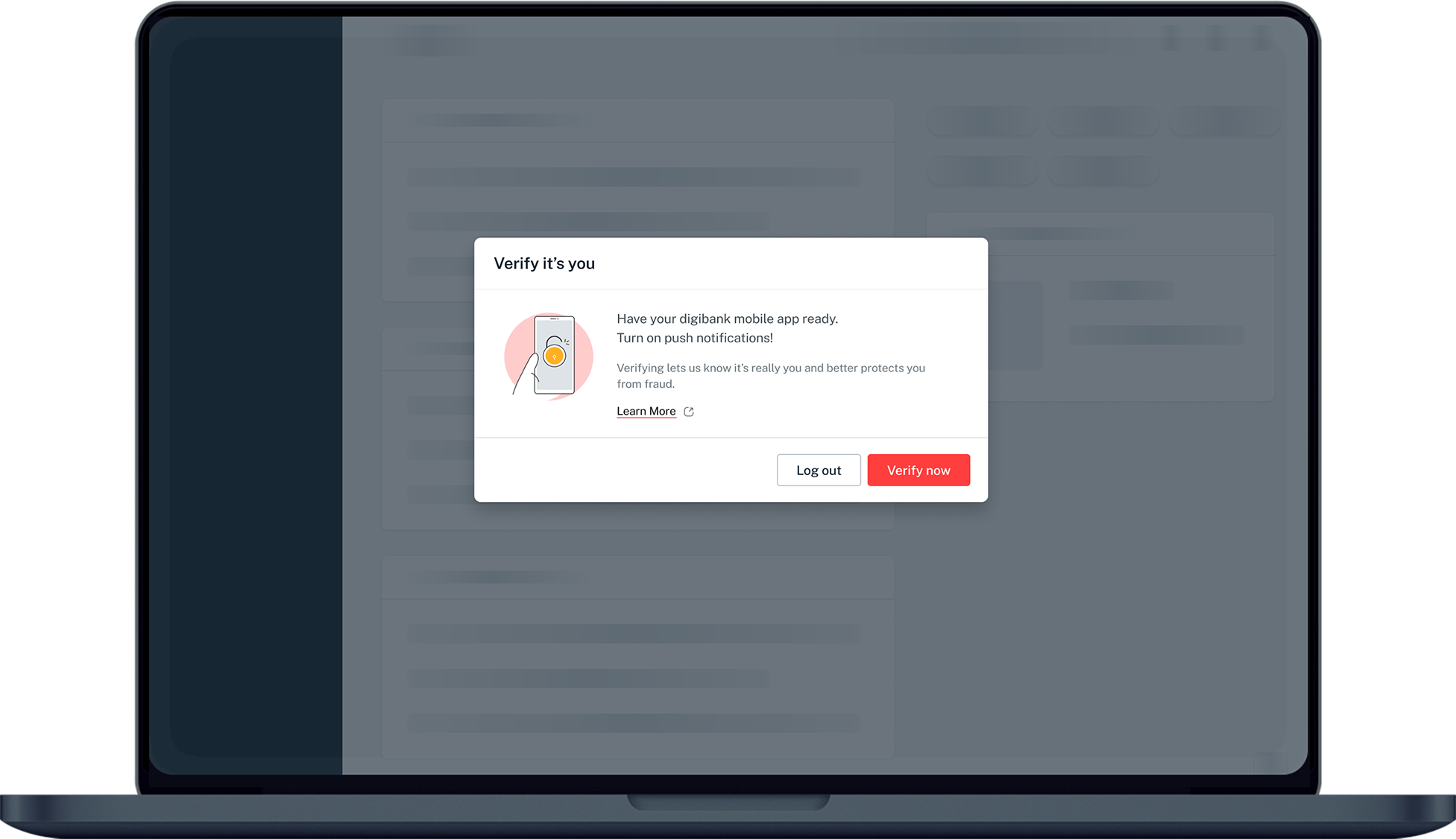
Complete the Authentication Process.
3
Step 3
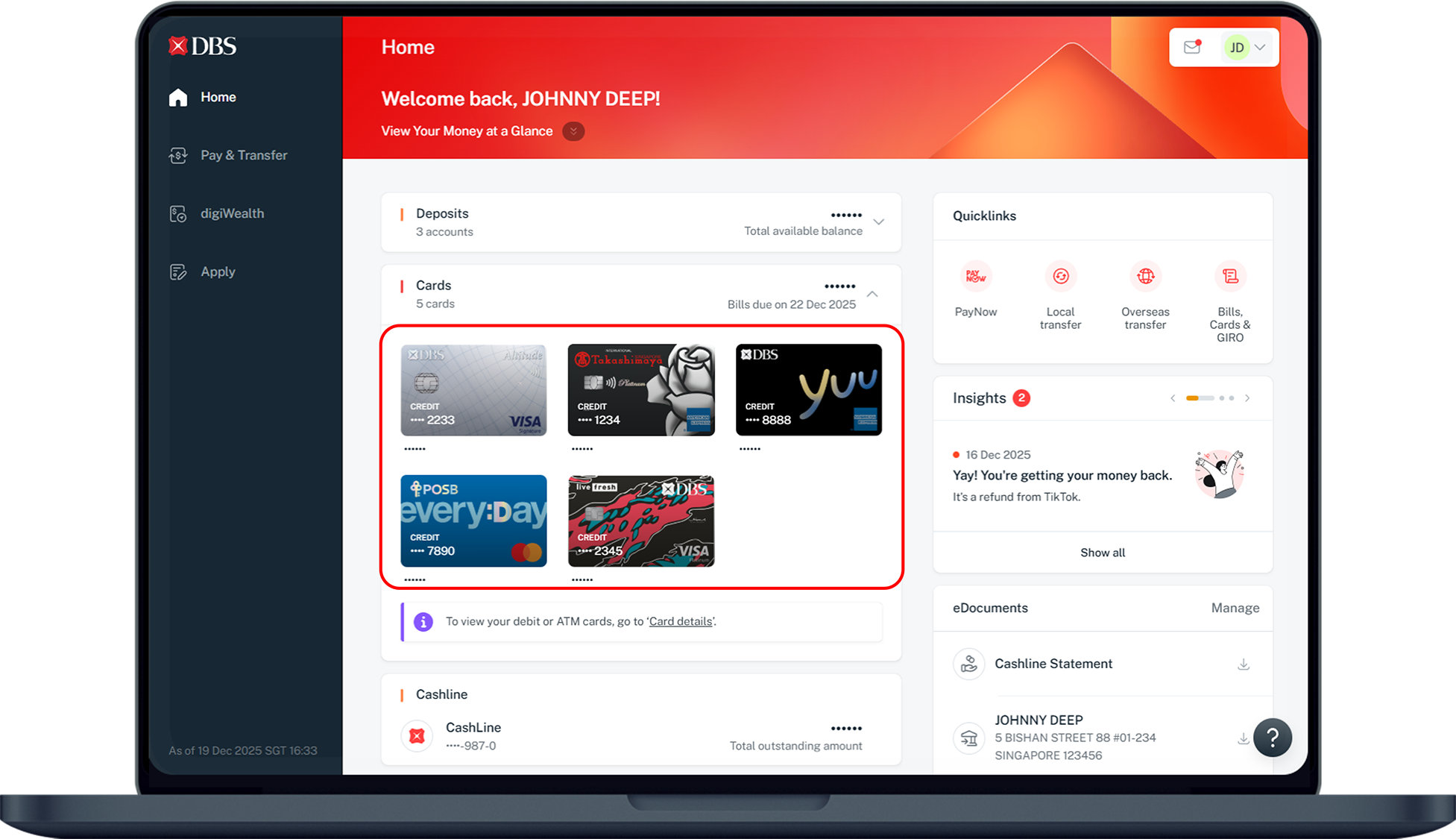
Under Home, click on Cards and select the Credit Card that you wish to check on.
4
Step 4
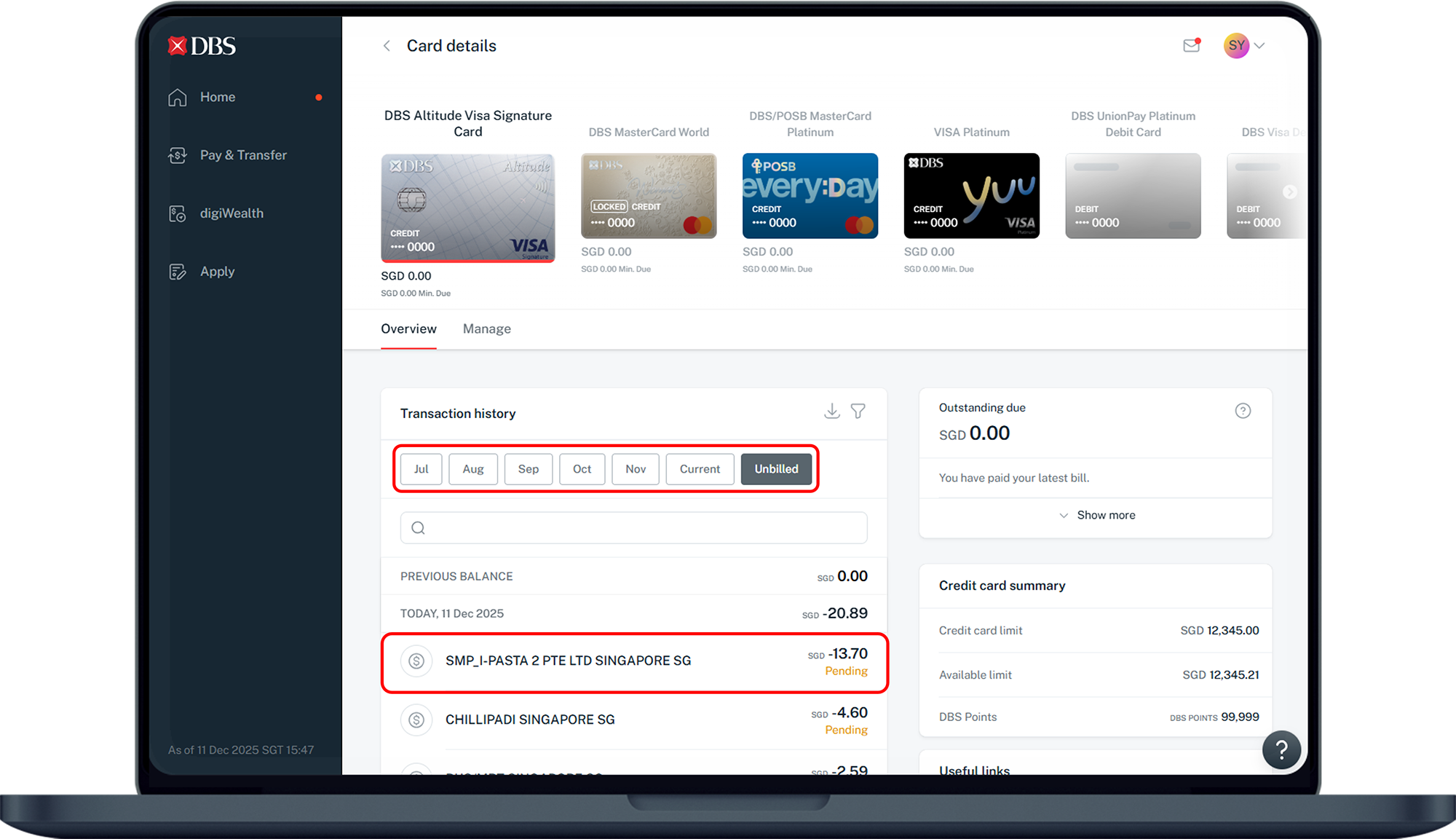
Scroll down to view your transaction history. You may now view up to past 6 months of transaction history or pending/declined transactions under the Unbilled tab. Click on the transaction to view more details.
5
Step 5
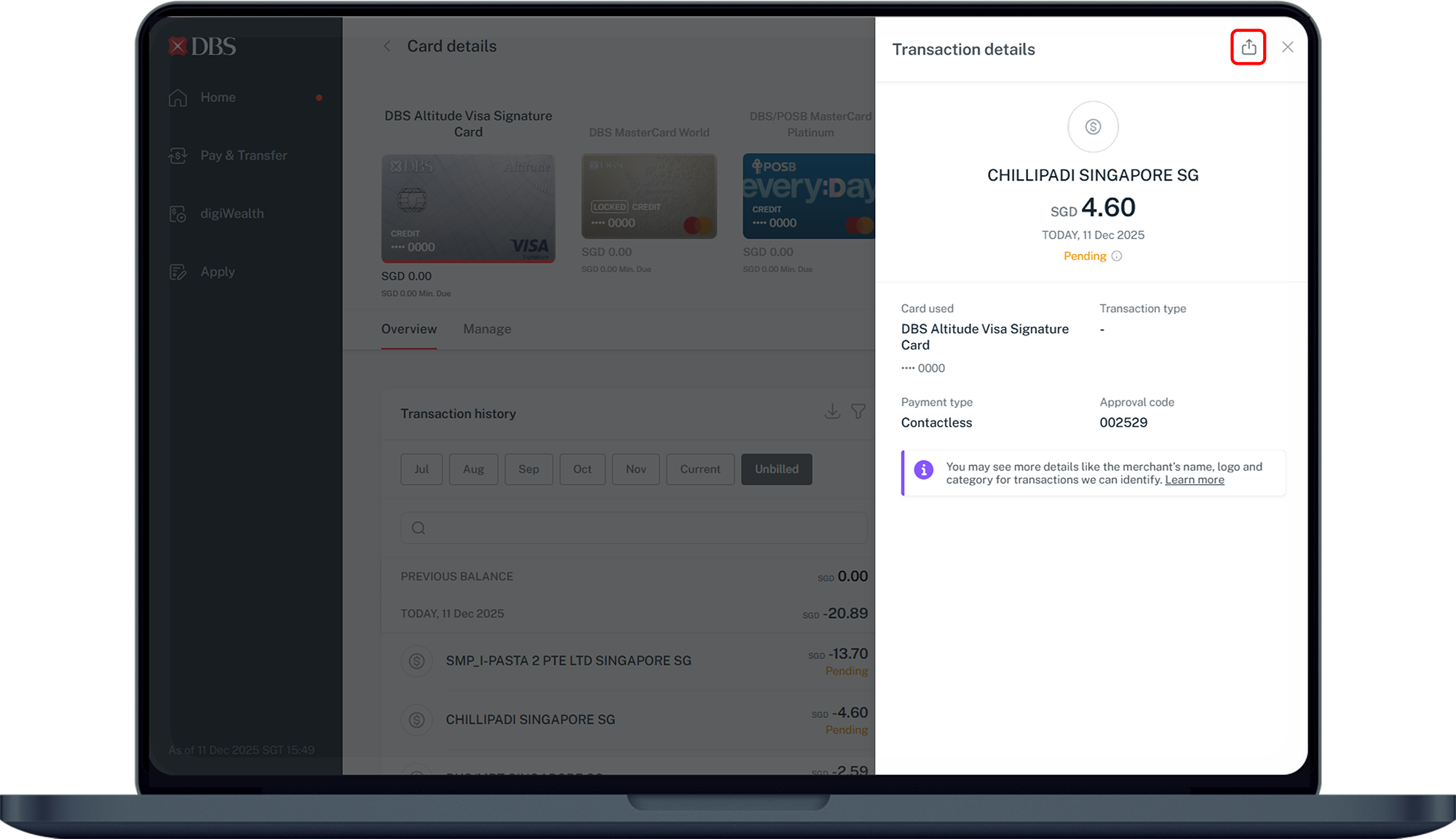
Details of your transaction will be displayed. If you wish to share your transaction details, click on the Download icon at the top right.
phone frame
slider
slider
slider
slider
slider
slider
slider
1
Step 1
Click on located at the bottom right.
2
Step 2
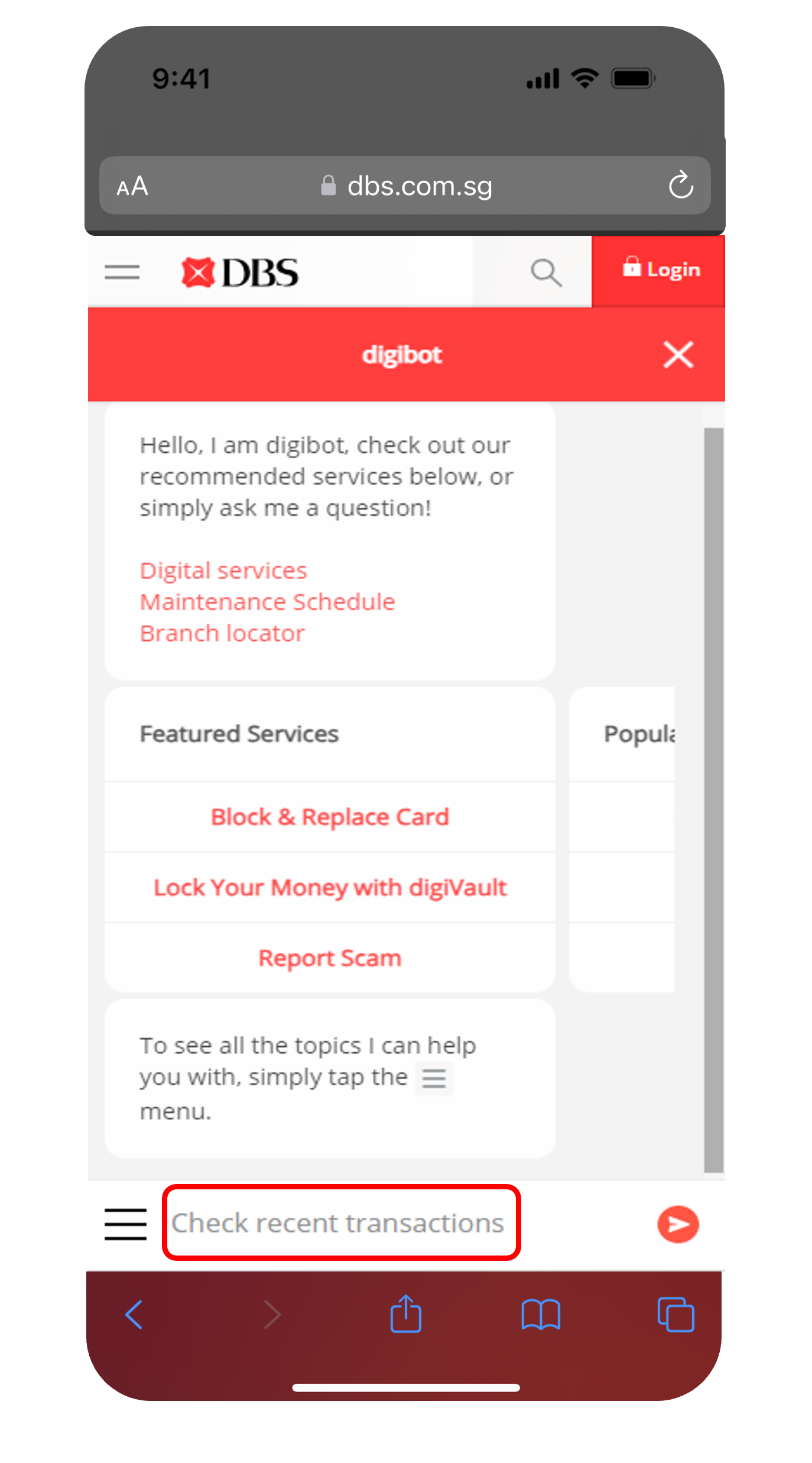
Type Check Recent Transactions into the chat and click Proceed to Check Recent Transactions.
3
Step 3
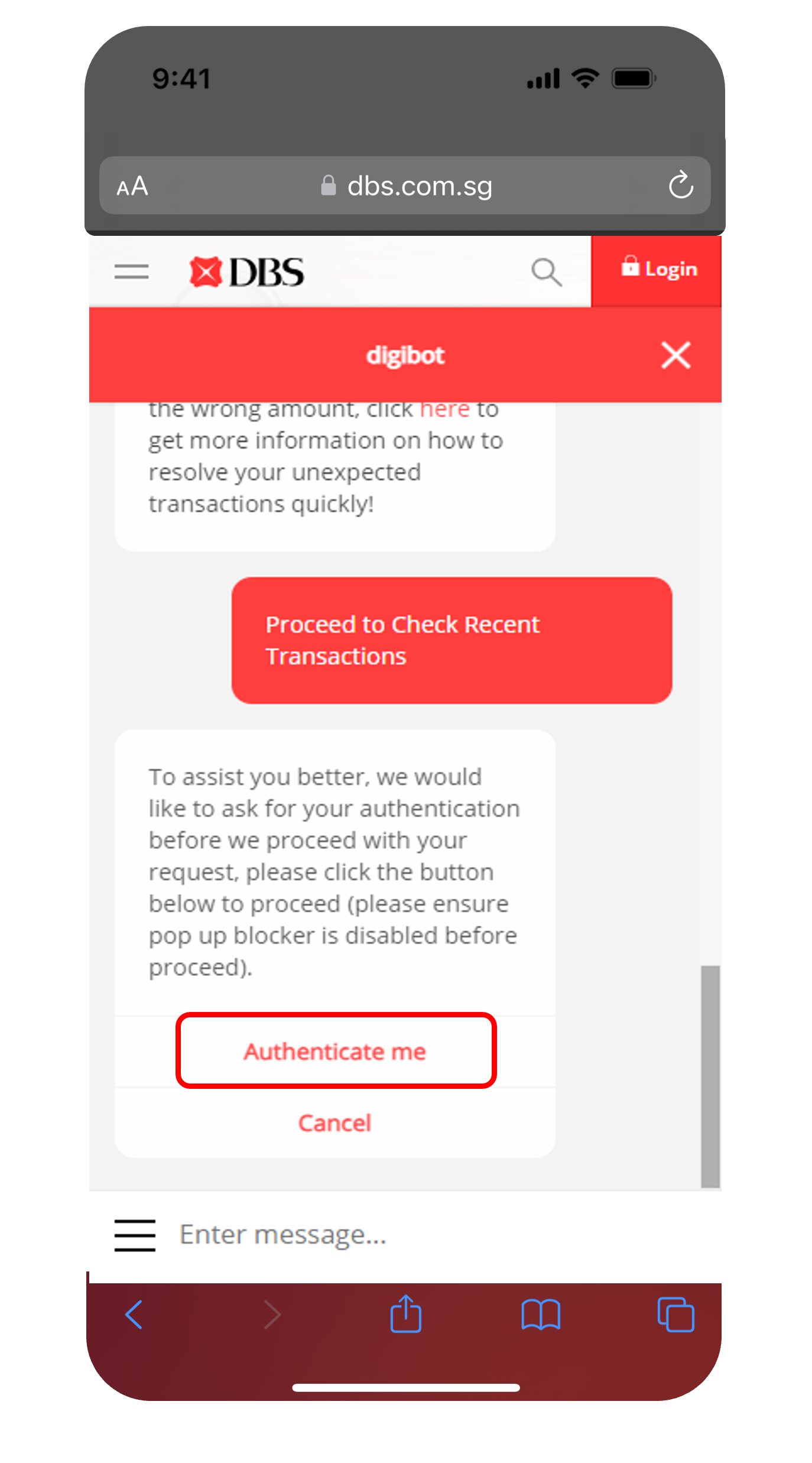
Tap Authenticate me to complete the authentication using either your digibank Login or Card & PIN.
4
Step 4
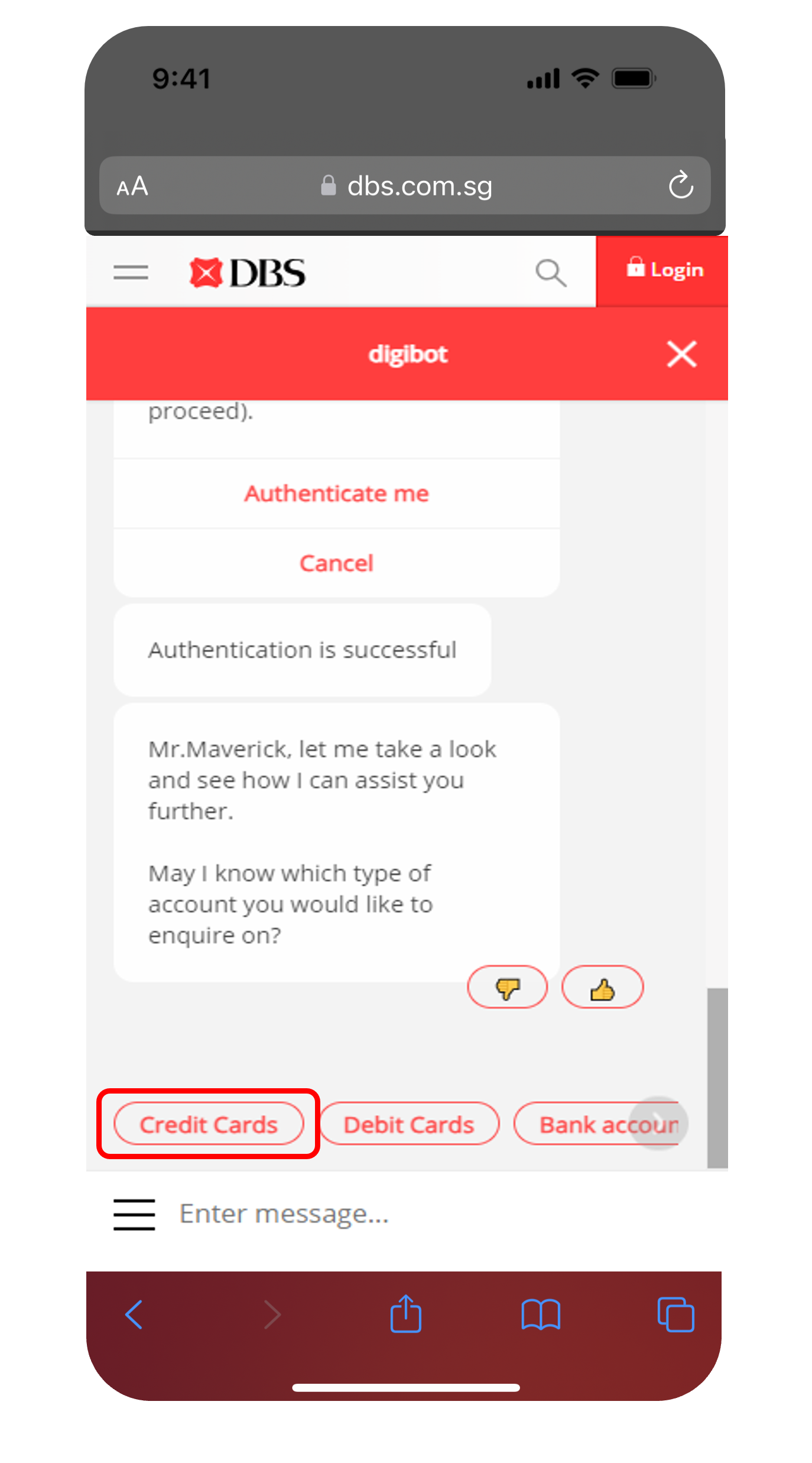
Tap on Credit Cards as the type of account you wish to enquire on.
5
Step 5
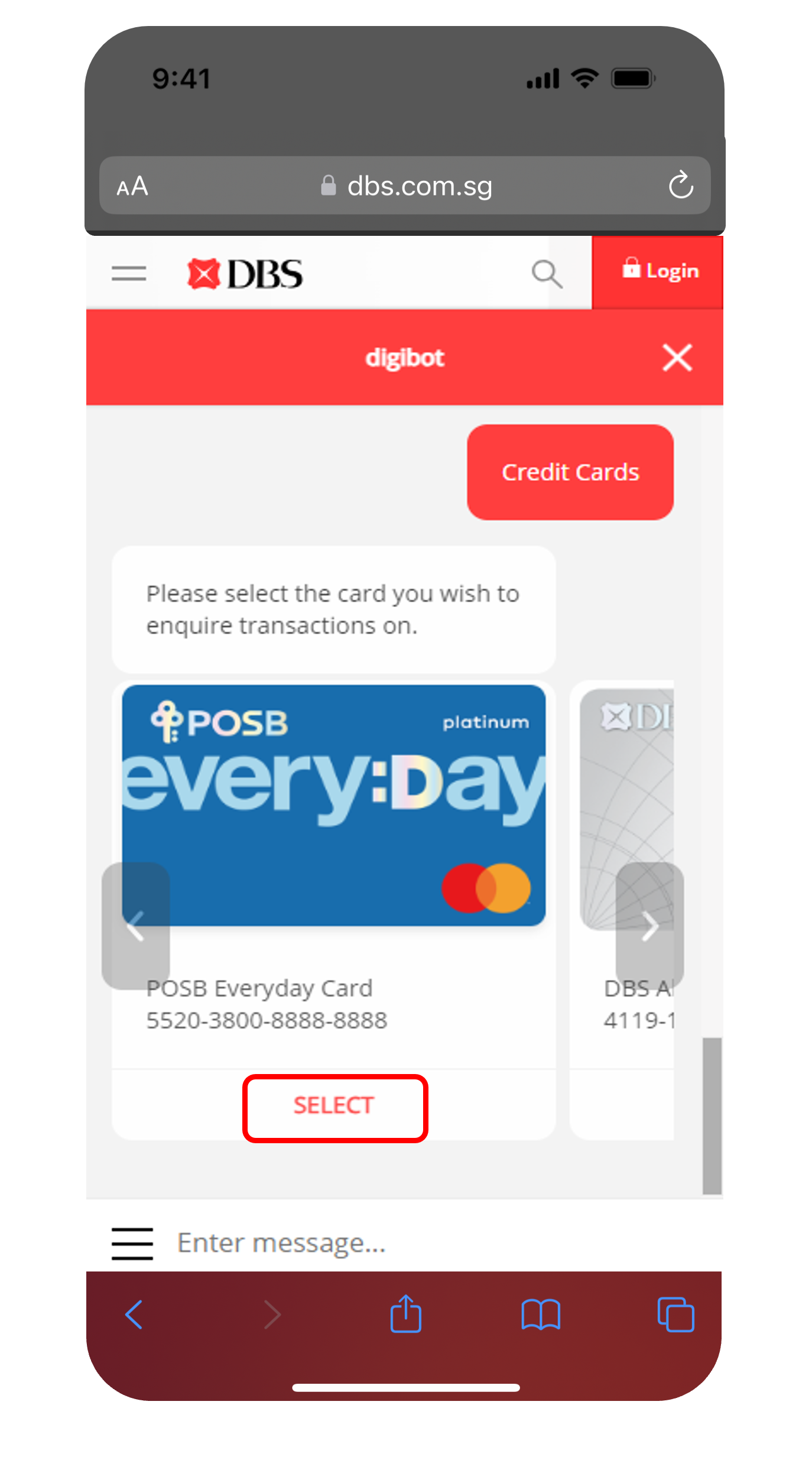
Select the Credit Card that you wish to check on and tap on View Transaction History.
6
Step 6
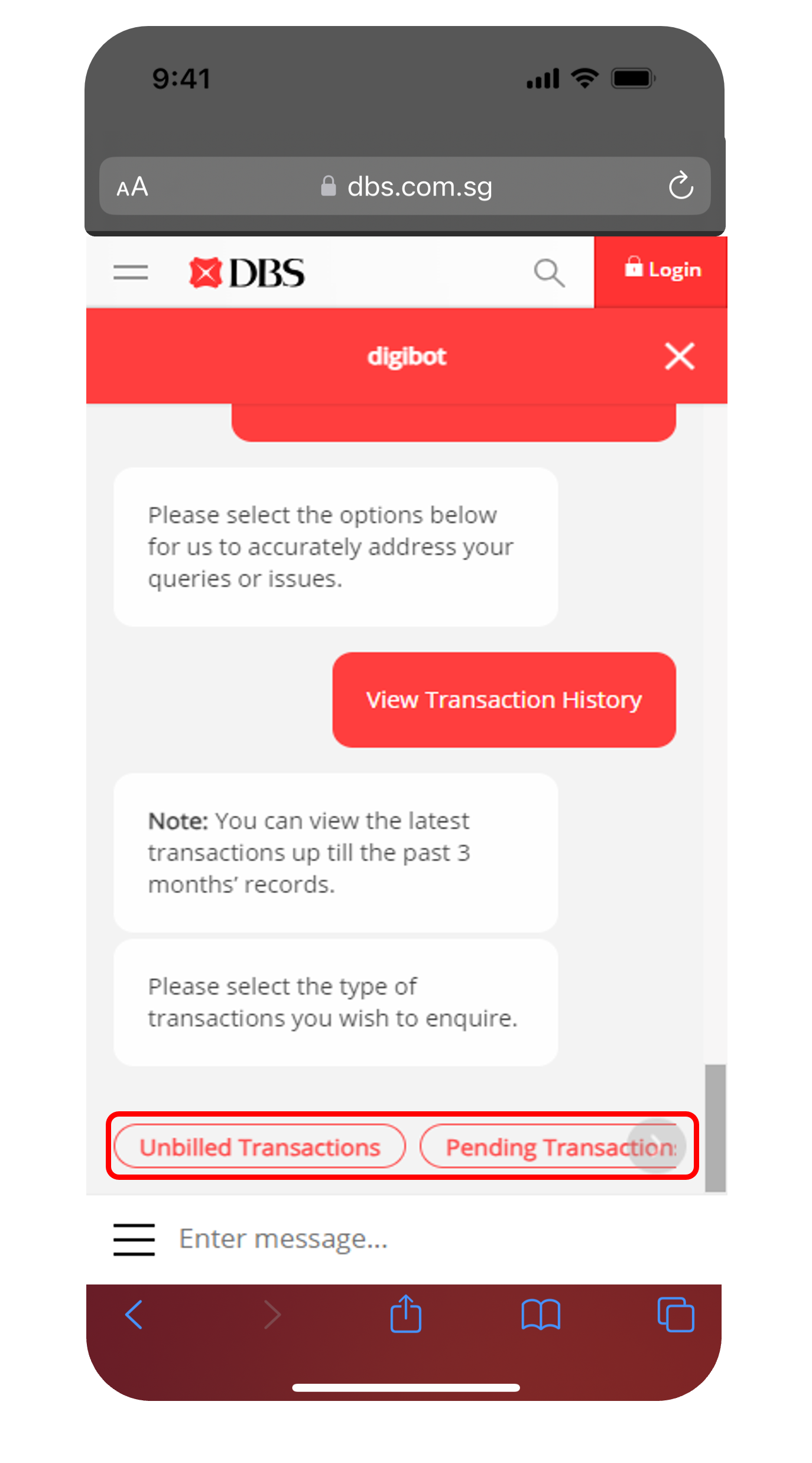
Select Unbilled Transactions or Billed Transactions to view up to Past 3 Months of Transaction History.
If you have just made a transaction, select Pending Transactions or Declined Transactions to view more details.
7
Step 7
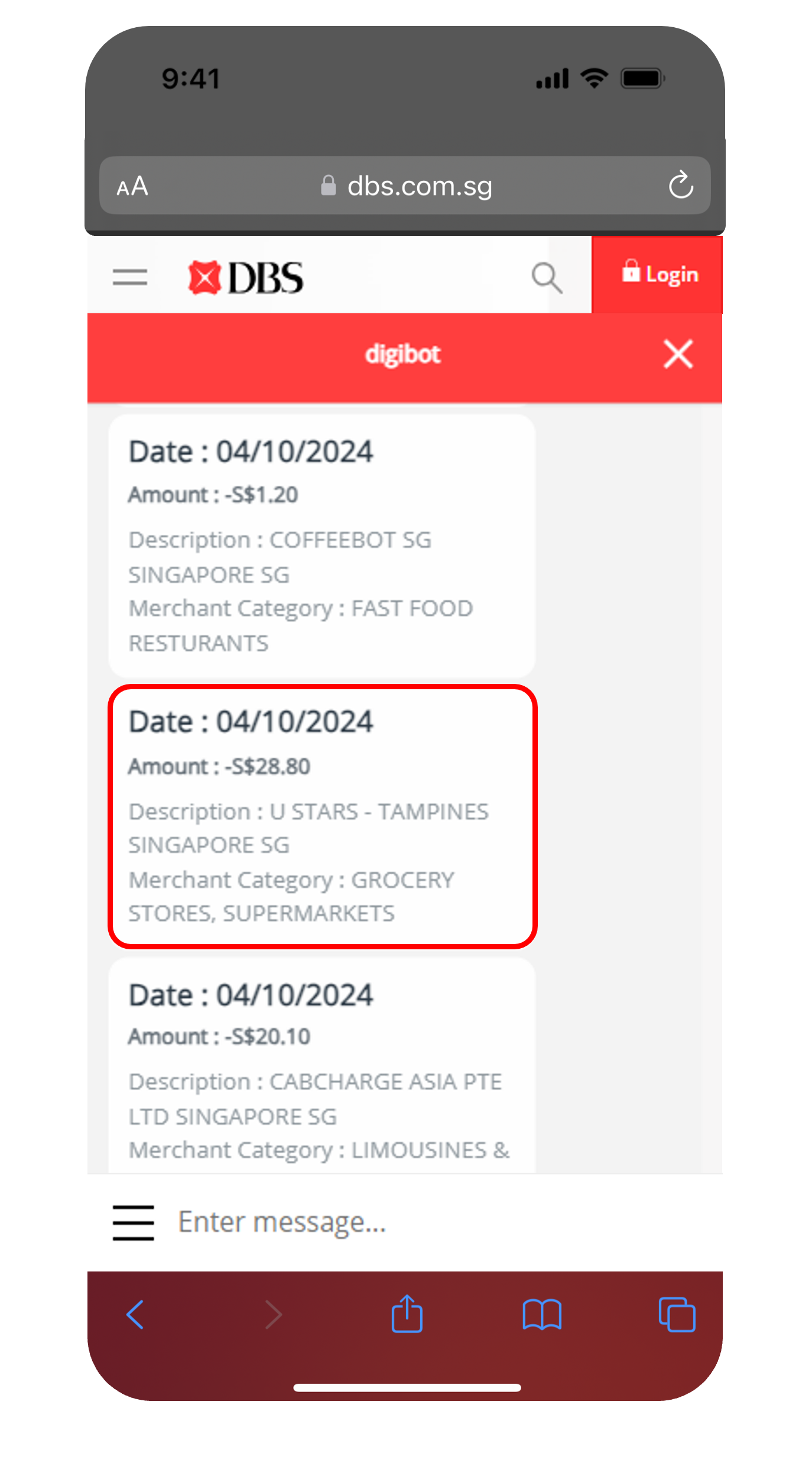
Details of your transaction will be displayed.
(You may retrieve useful transaction information such as description and merchant category, and reason for decline.)

Frequently Asked Questions

Unbilled transactions are completed transactions which will be reflected in your next statement.
Pending transactions are your most recent transactions. Payment has been sent to the merchant, but the merchant has not processed the payment.
Billed transactions are completed transactions which have been reflected in your statement and due for payment. Learn more about how you can check your statements here.
Declined transactions are failed transactions where payment was unsuccessful and the merchant did not receive the payment.
Was this information useful?

We welcome your feedback

Information is easy to understand and find
Information is useful to answer your inquiries completely