Transfer to Overseas Visa Card

You can transfer funds to an Overseas Visa card via digibank online.

Part of: Guides > Your Guide to Overseas Funds Transfer

How to transfer to overseas Visa card

digibank online

laptop
slider
slider
slider
slider
slider
slider
slider
1
Step 1
Log in to digibank online with your User ID & PIN.
2
Step 2
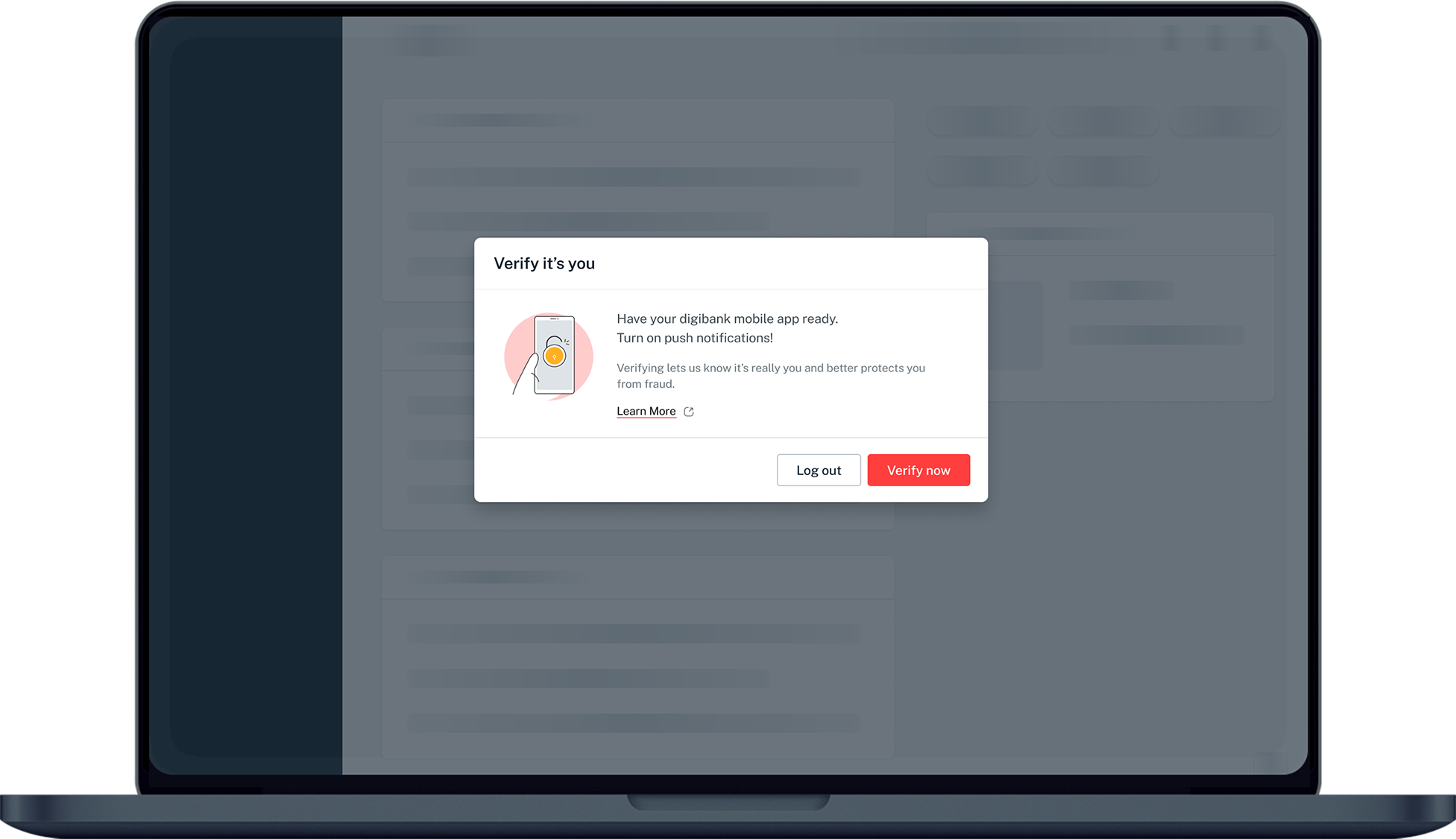
Complete the Authentication Process.
3
Step 3
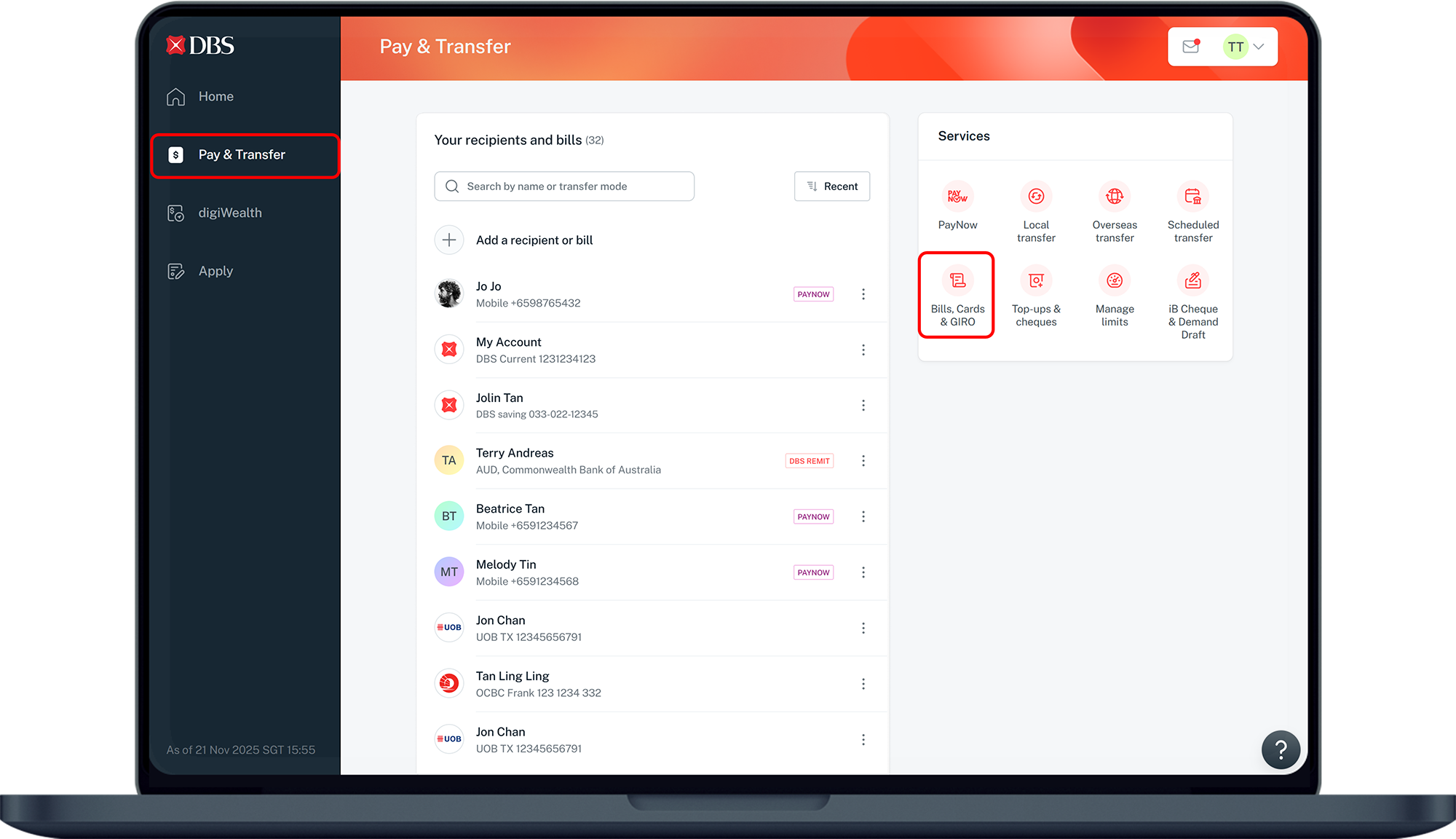
Click Pay & Transfer on the left menu and under Services, click on Bills, Cards & GIRO.
4
Step 4
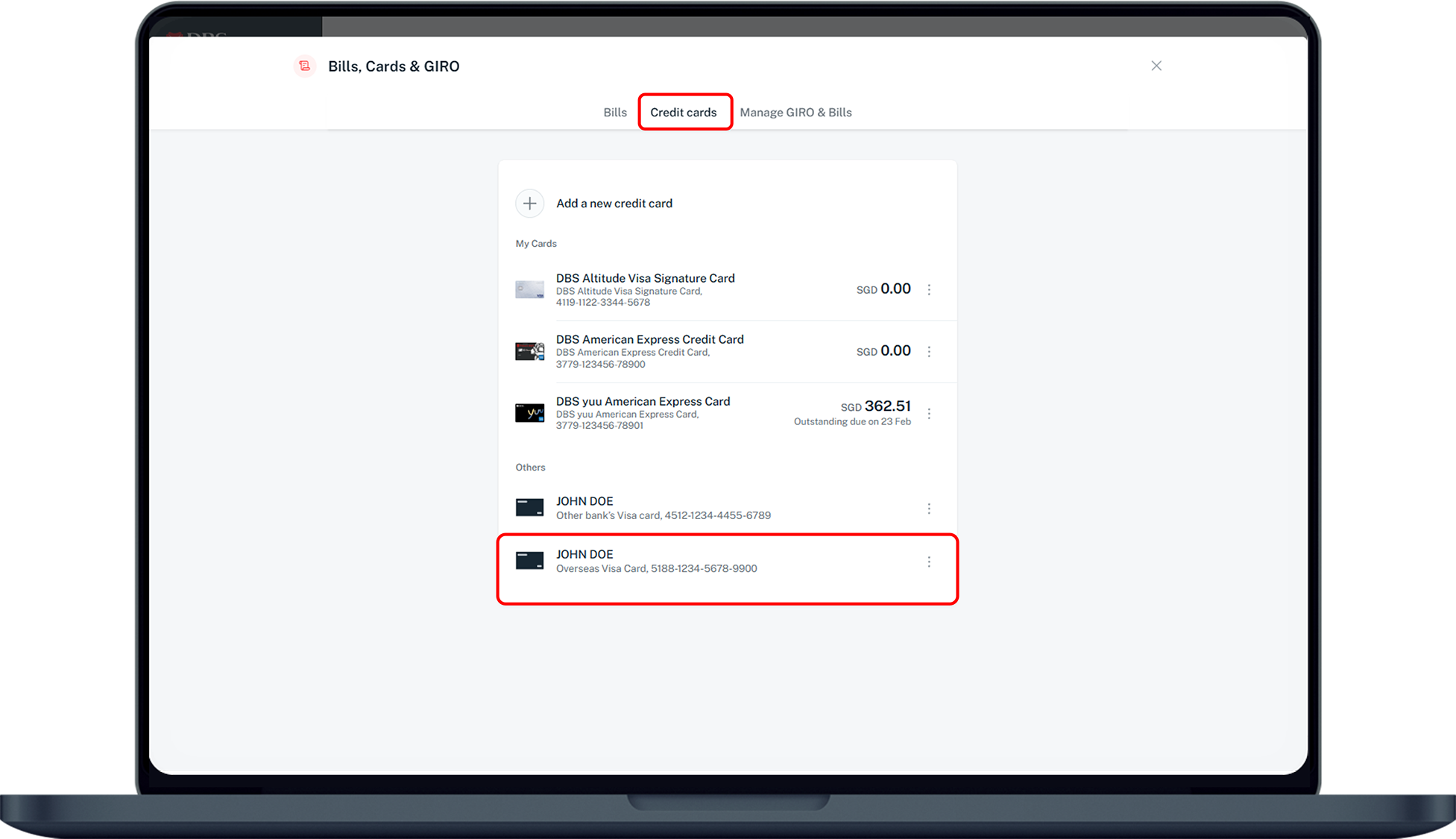
Under Credit cards, select the Overseas Visa Card you wish to make payment to.
(If the Credit Card Recipient is not in your recipients list, learn how to add new overseas Visa card recipient below).
5
Step 5
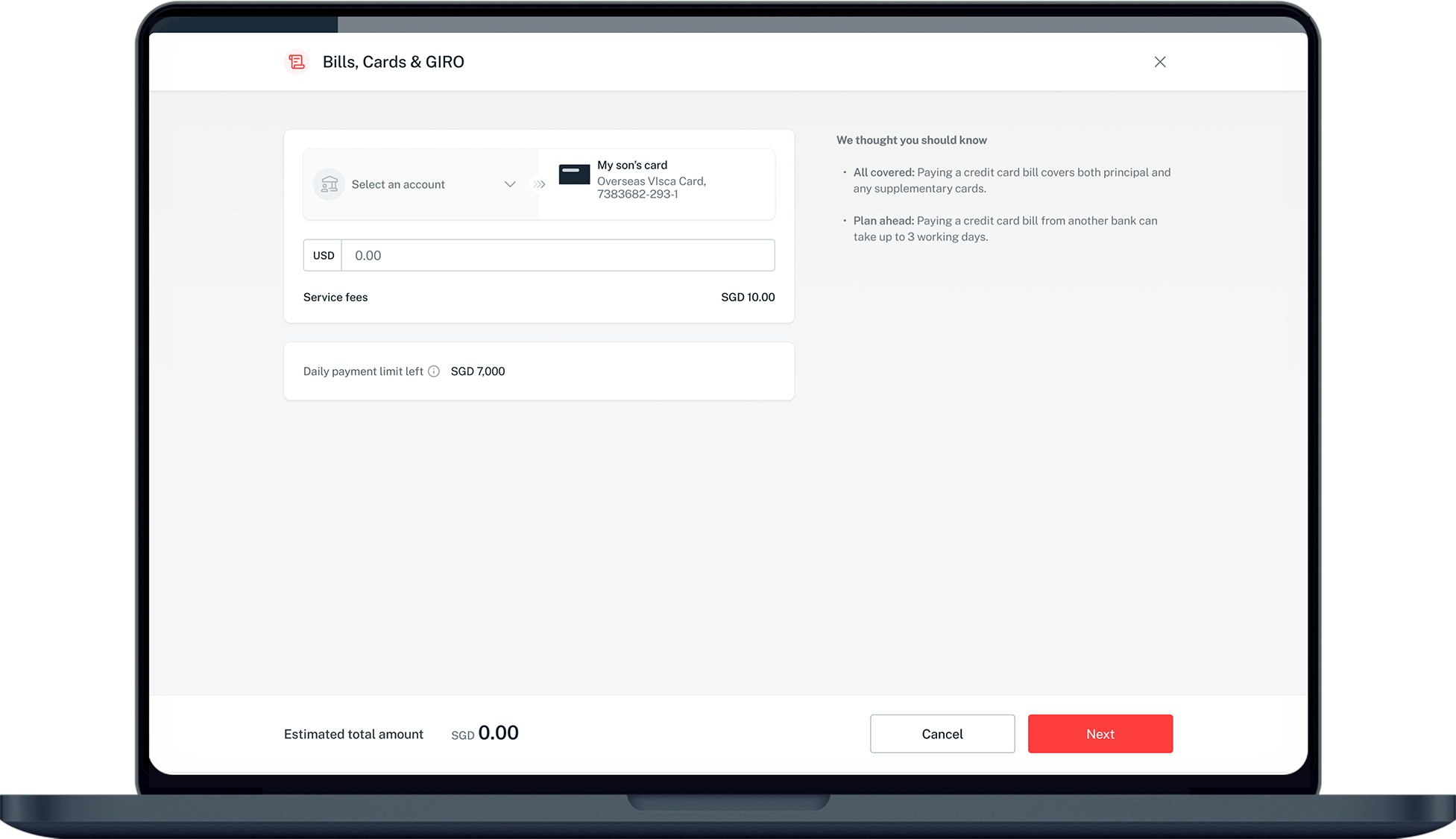
Select your preferred Account to pay from, enter the Amount you wish to pay and click Next.
6
Step 6
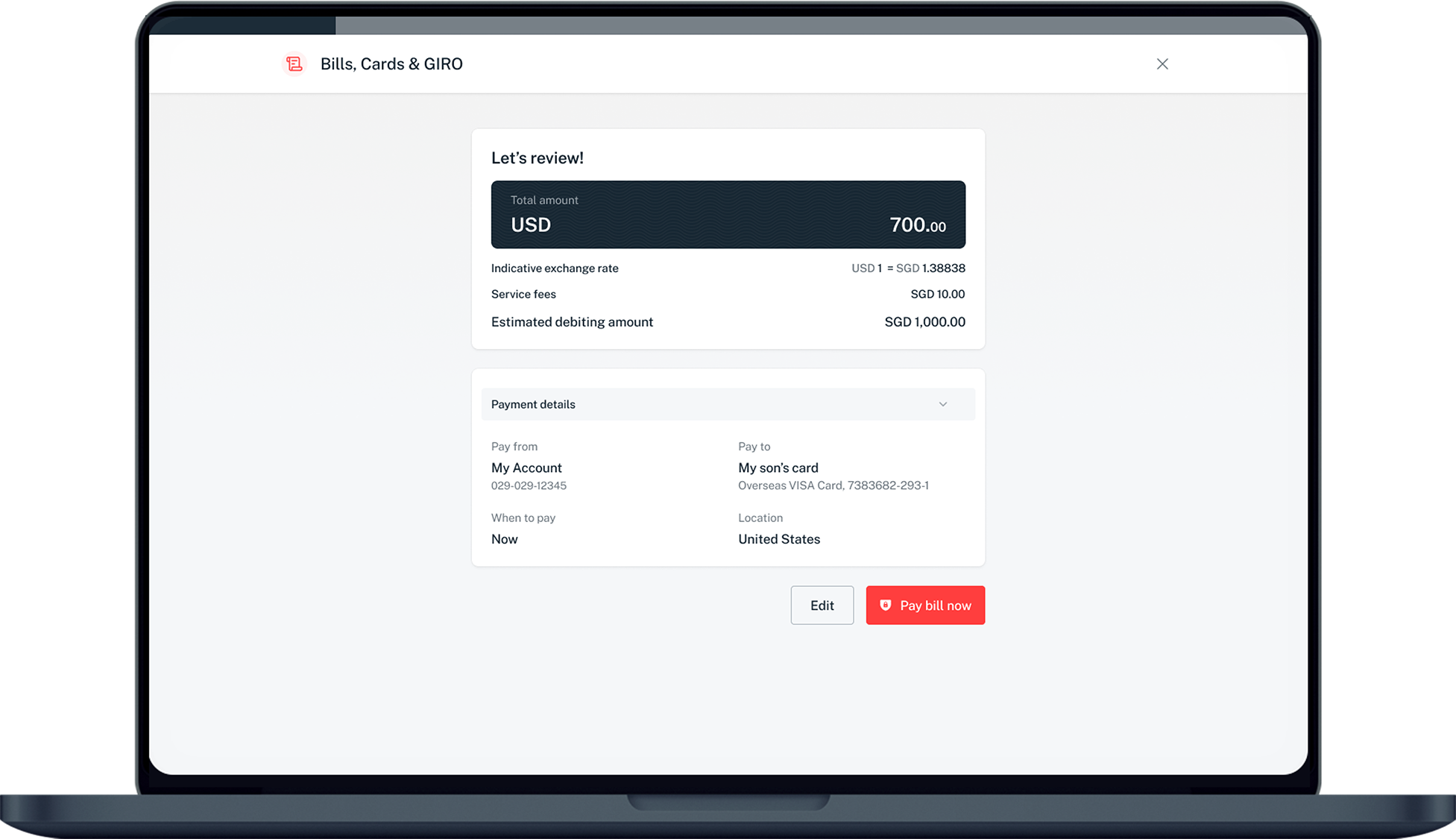
Verify your details and click Pay Bill to make payment.
7
Step 7
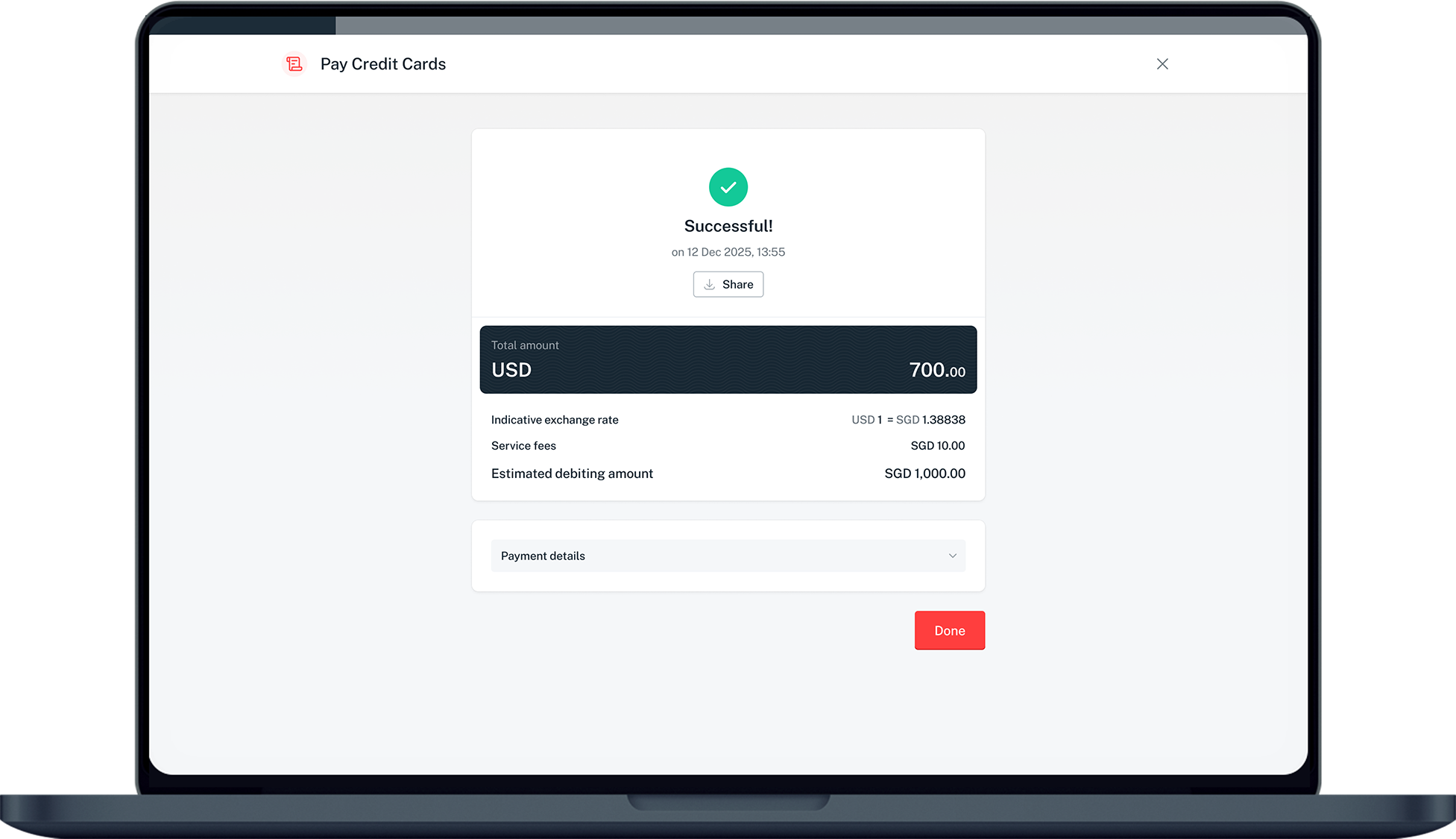
You make a payment to your Overseas Visa Card successfully.​

More information

  • Do check with the recipient's issuer to see if receipt of funds from overseas is allowed.
  • Funds will be successfully transferred within 3 working days.
  • Funds will be deducted in SGD from your desired DBS or POSB account and amount will be converted to and sent in the currency that the recipient Visa Card is denominated in.
  • You will be informed of the applicable service fee after keying in the amount you wish to transfer.
  • The maximum limit is set at SGD$2,500 (in foreign currency equivalent) per transaction and per day, including the service fee charged per transaction

How to transfer to add new recipients for overseas Visa card

laptop
slider
slider
slider
slider
slider
slider
slider
1
Step 1
Log in to digibank online with your User ID & PIN.
2
Step 2
Complete the Authentication Process.
3
Step 3
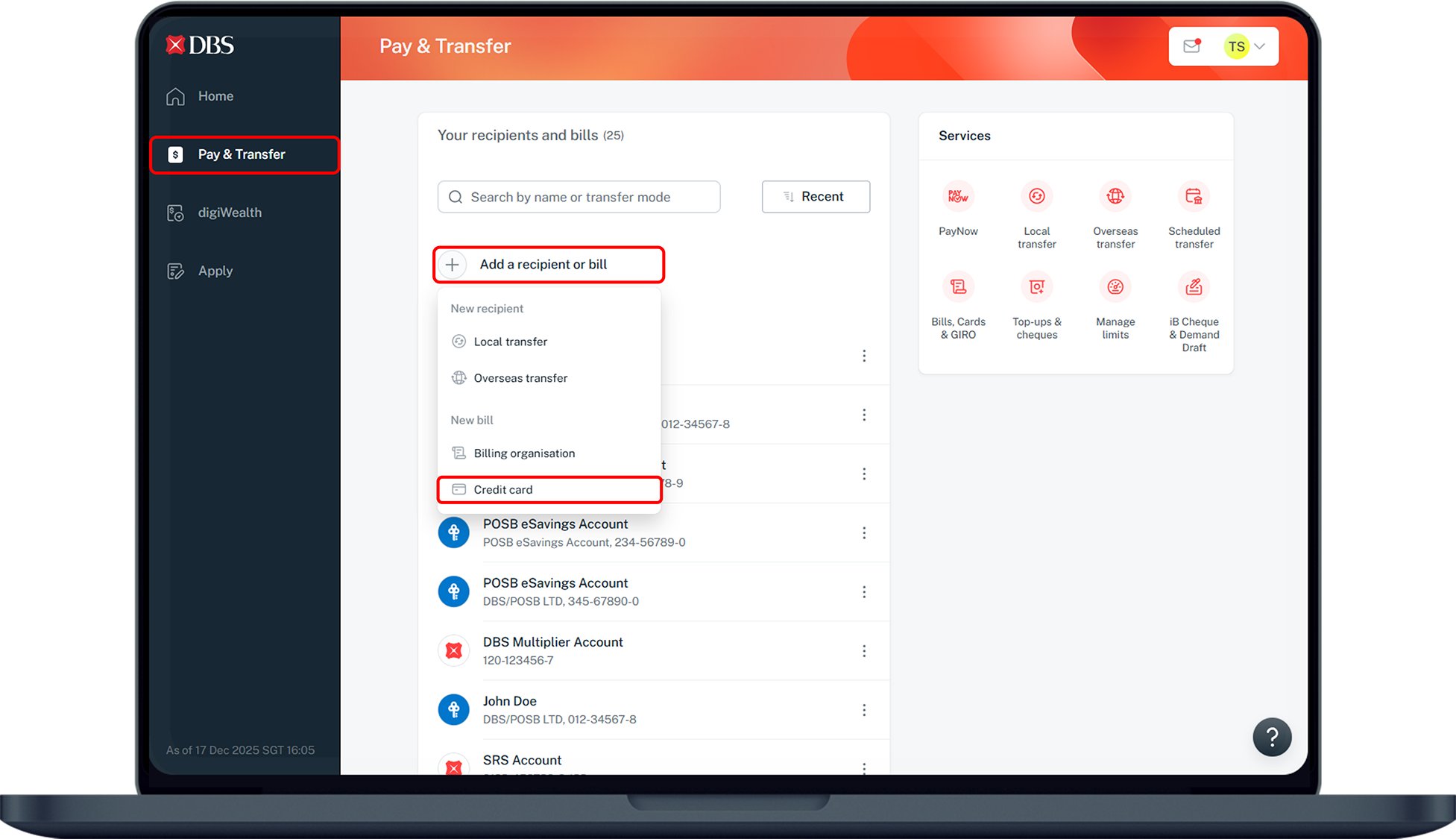
Click on Pay & Transfer on the left menu, then click on Add a reciepent or bill and select Credit Card from the dropdown list.
4
Step 4
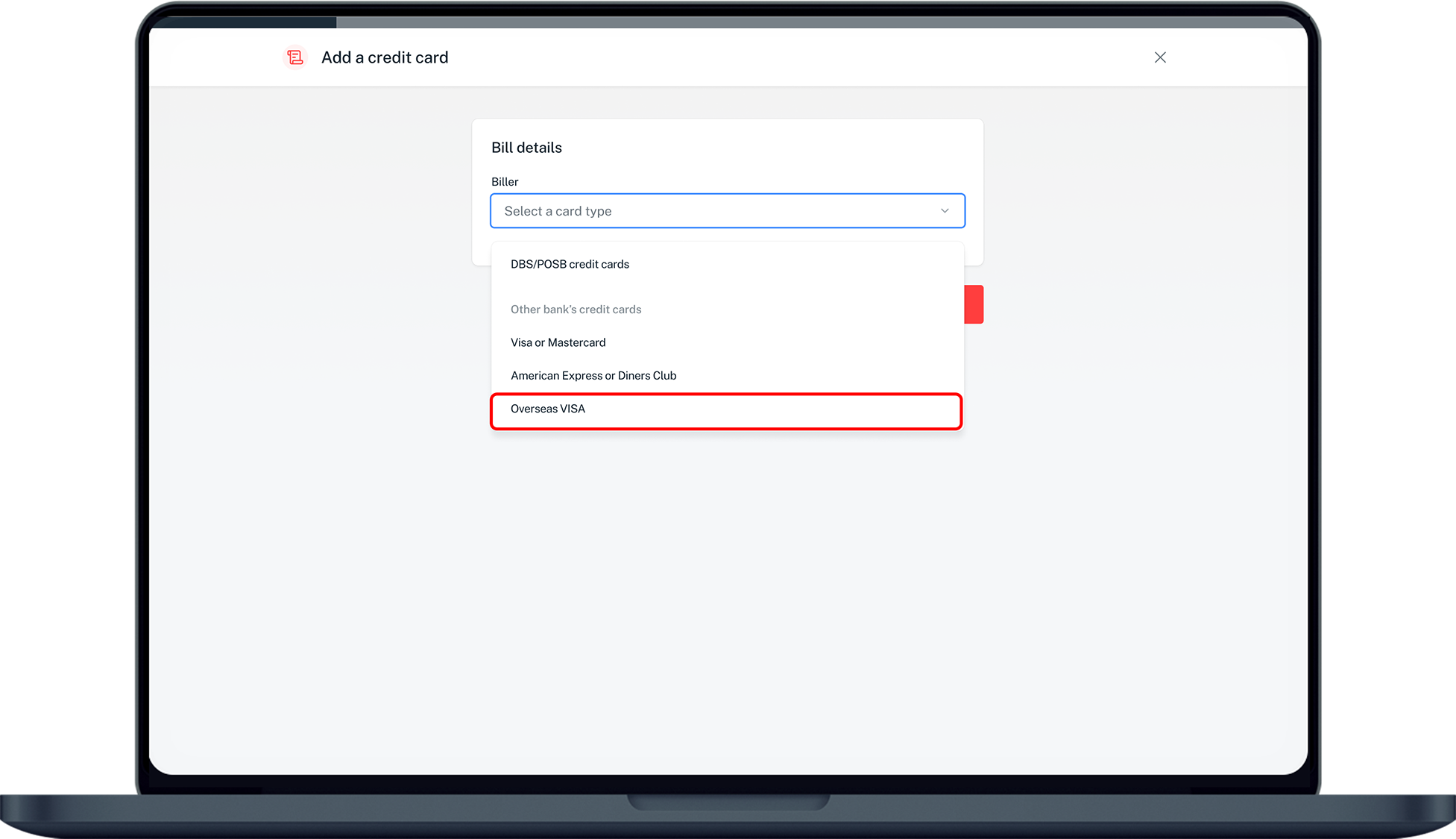
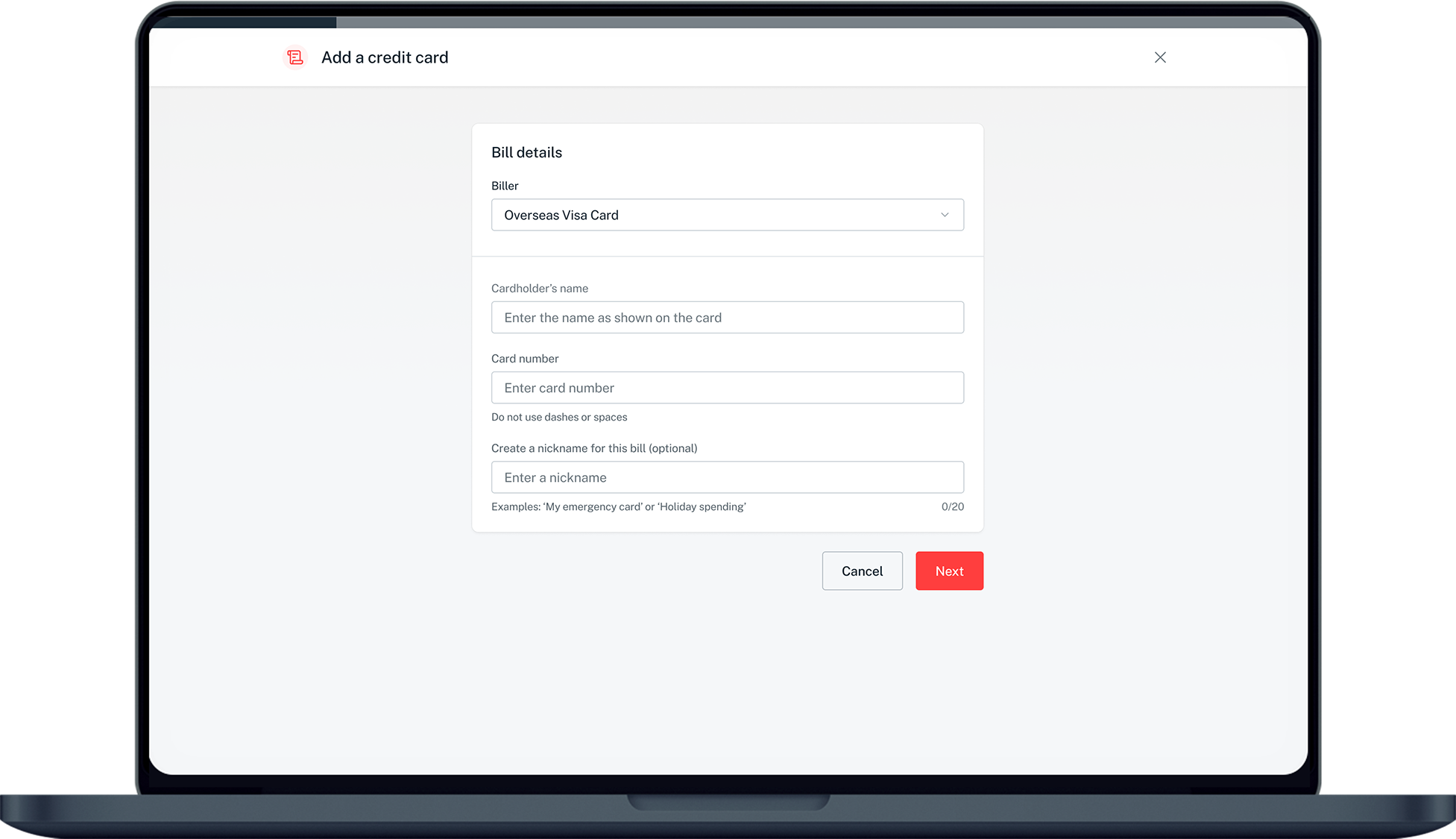
Select the Overseas VISA from the dropdown list.
5
Step 5
Enter your Card Details and click Next.
6
Step 6
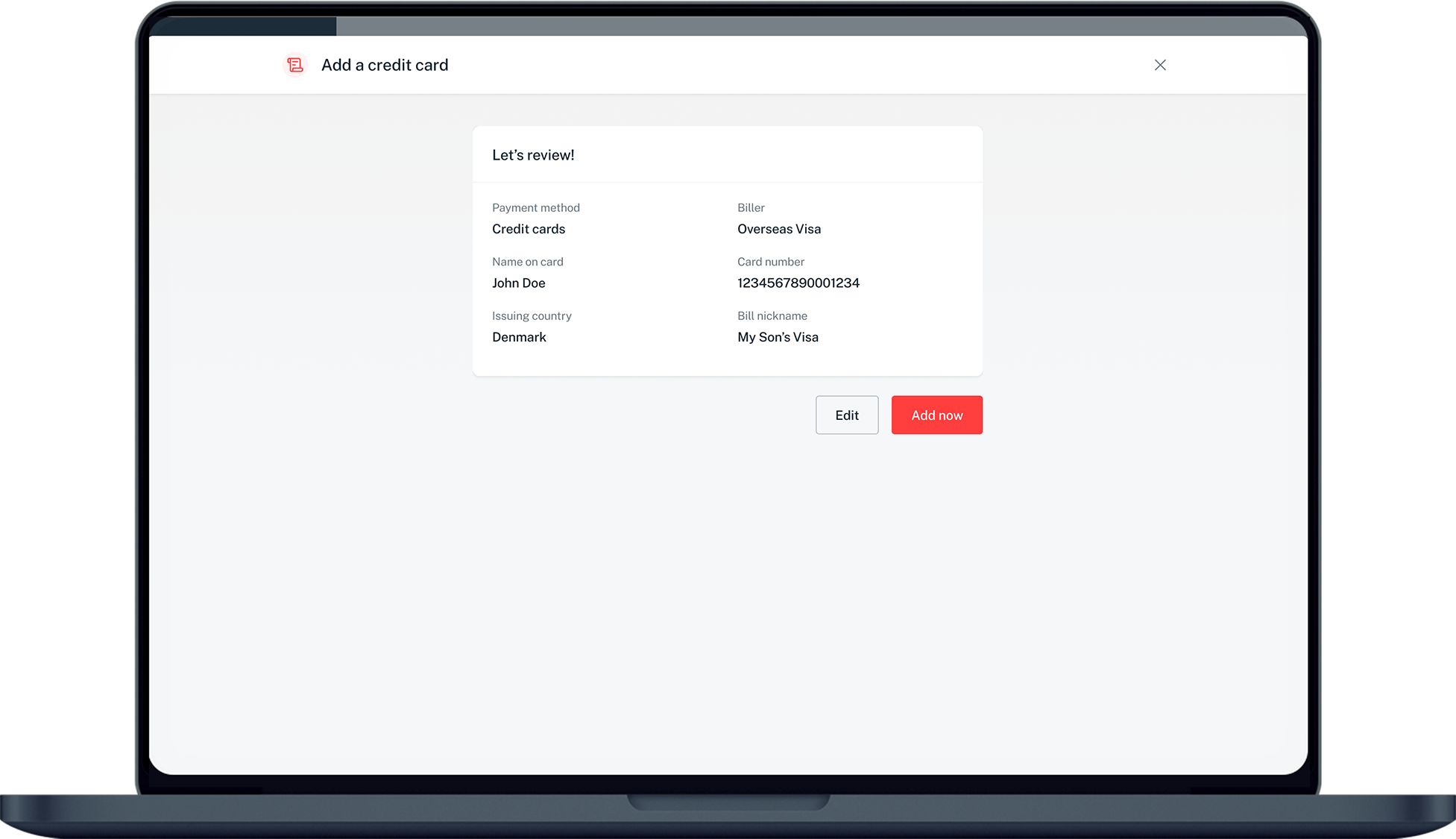
Verify your details, click Add now and complete the 2-Factor Authentication to add your Overseas VISA card recipient.
7
Step 7
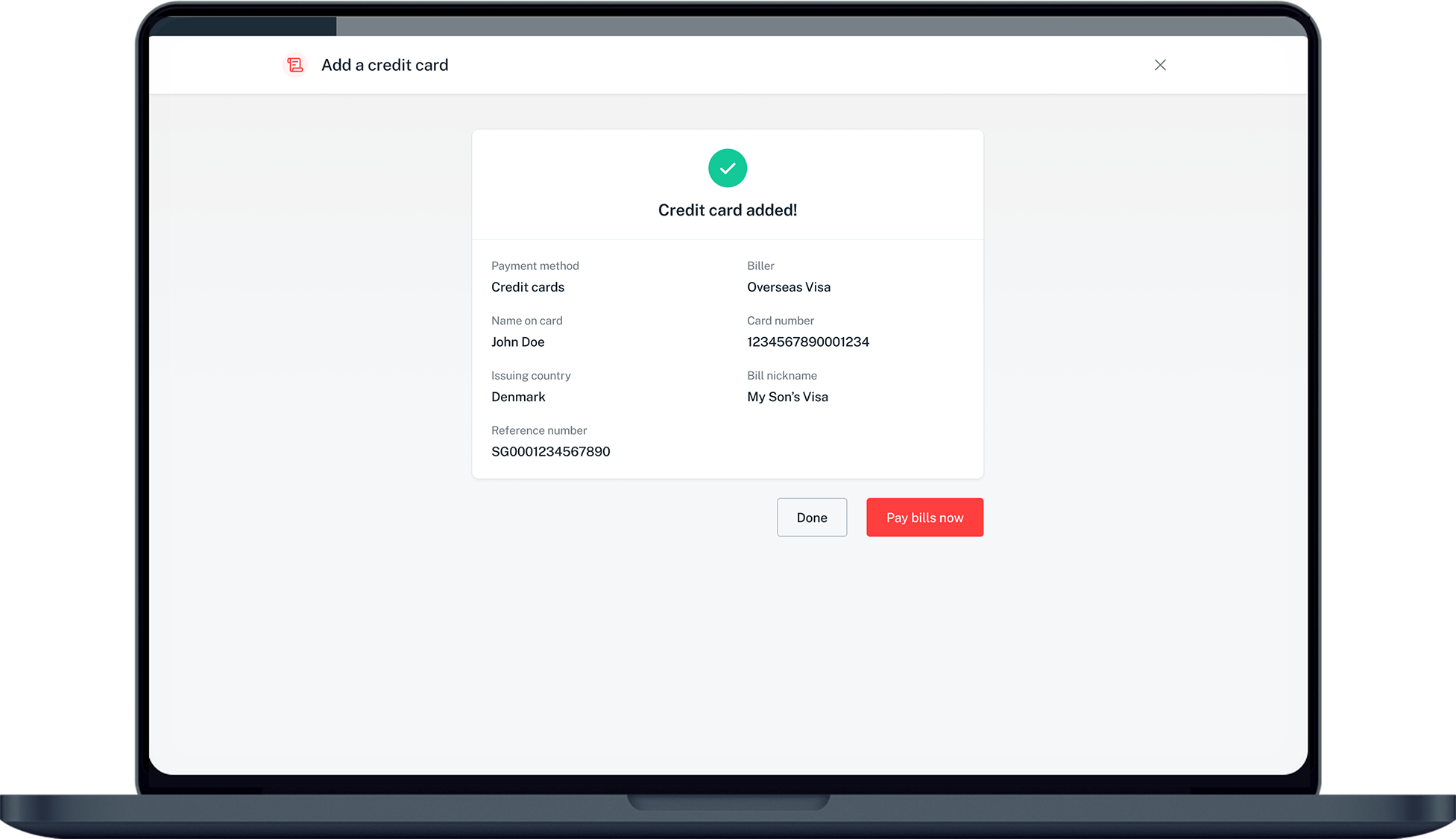
You have added overseas Visa card recipient successfully.
Was this information useful?

We welcome your feedback

Information is easy to understand and find
Information is useful to answer your inquiries completely