Update Mobile Number
Changed your mobile number? Here’s how you can get it updated.
How to update mobile number
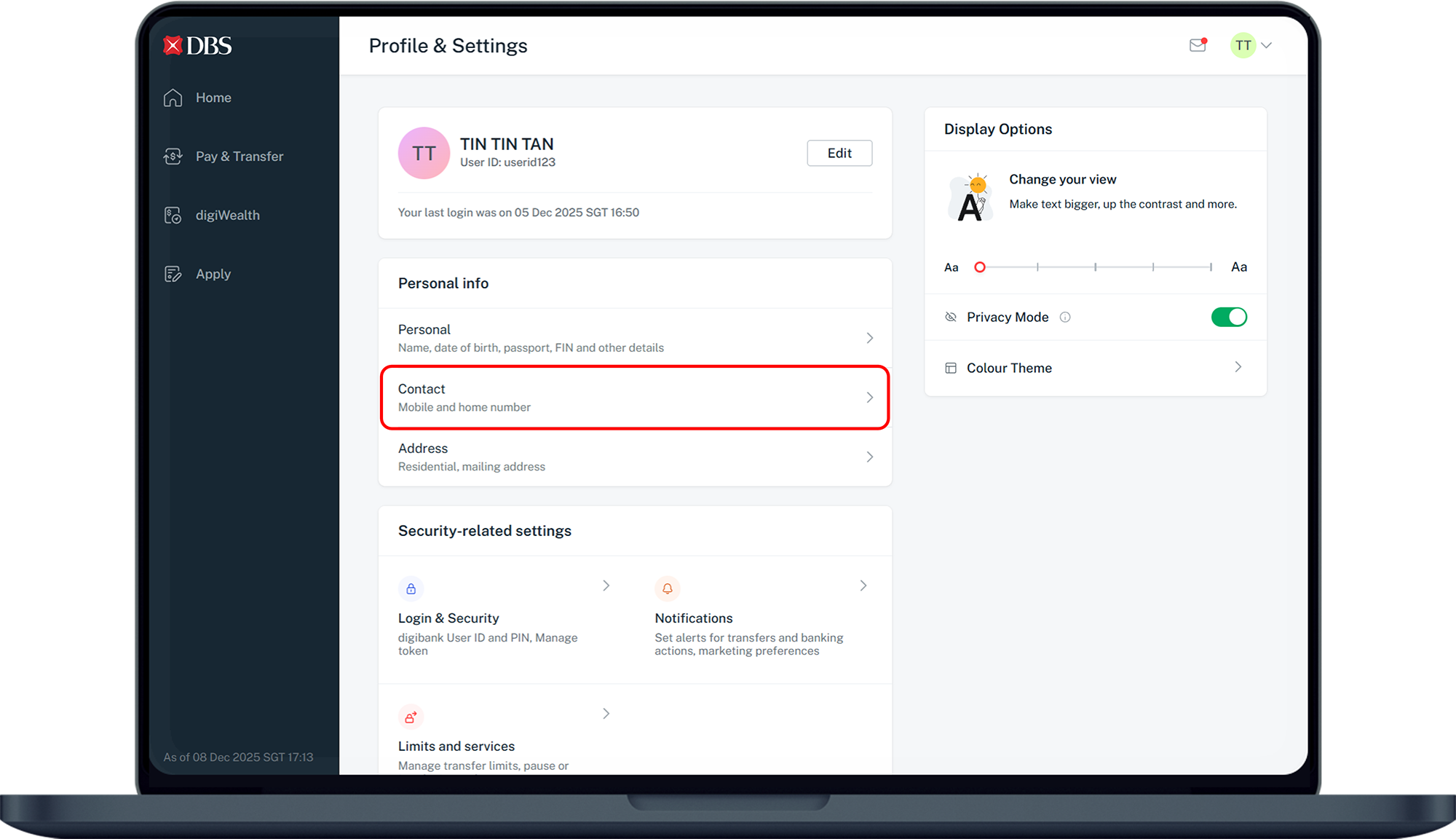
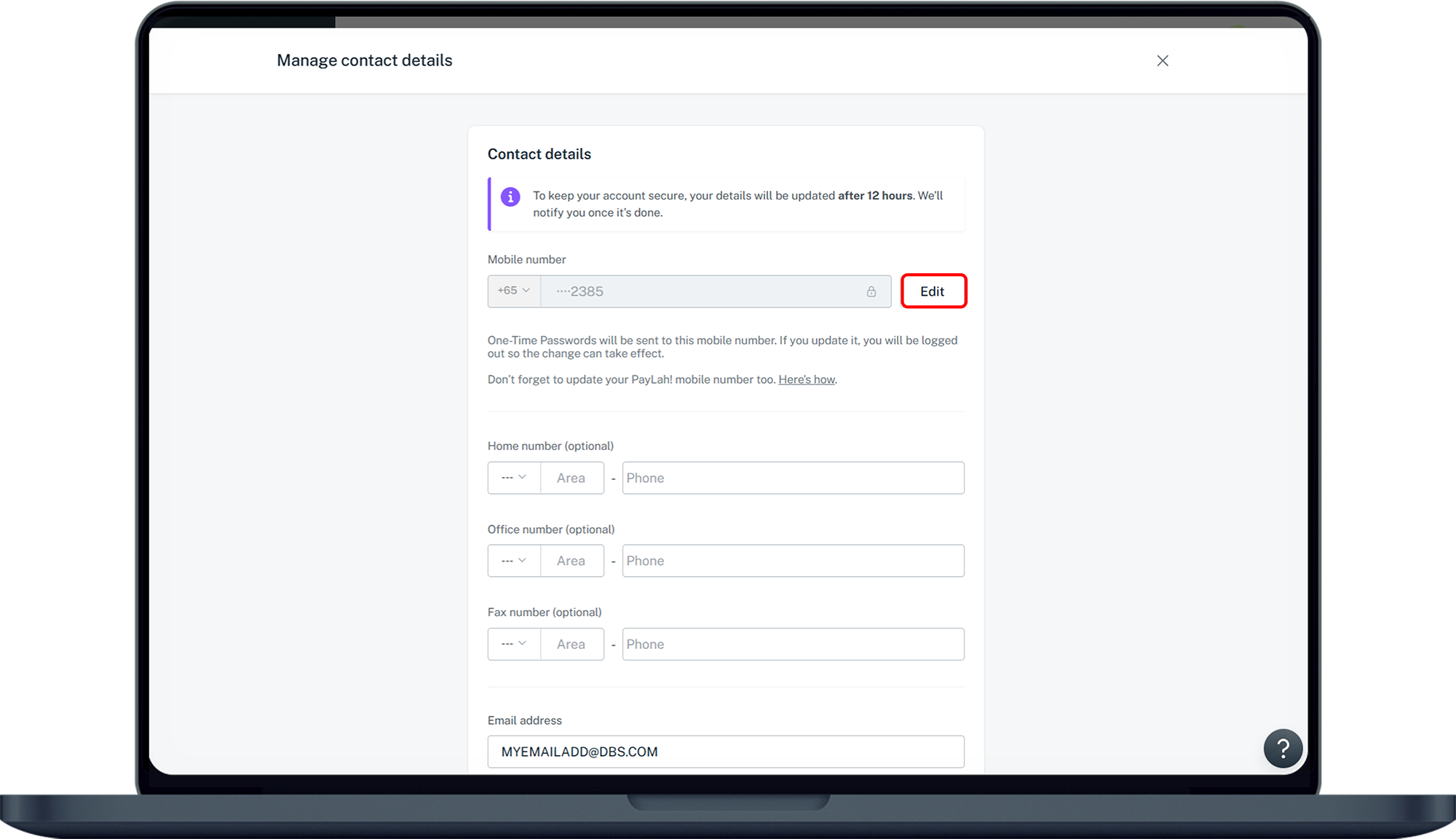
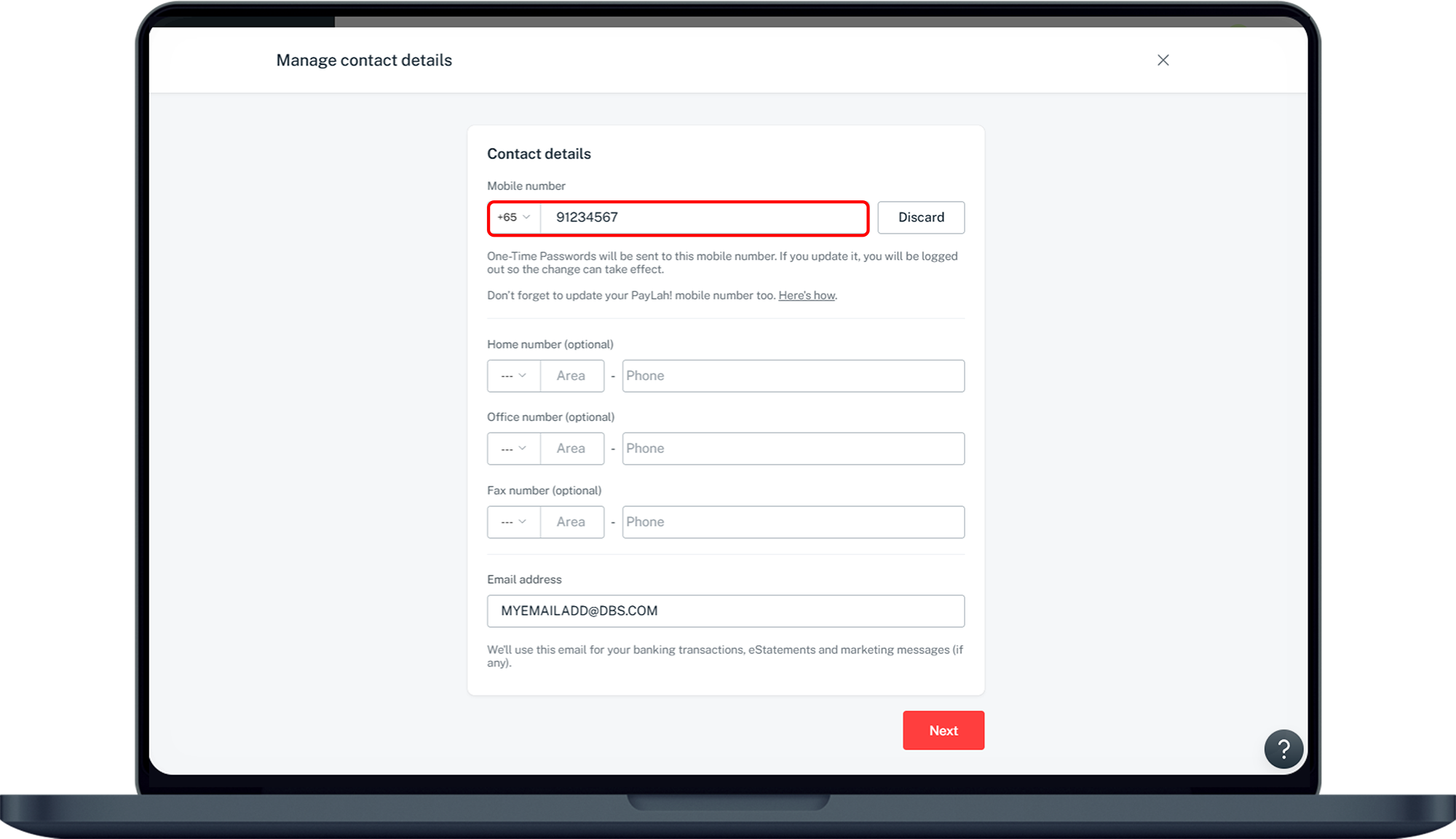
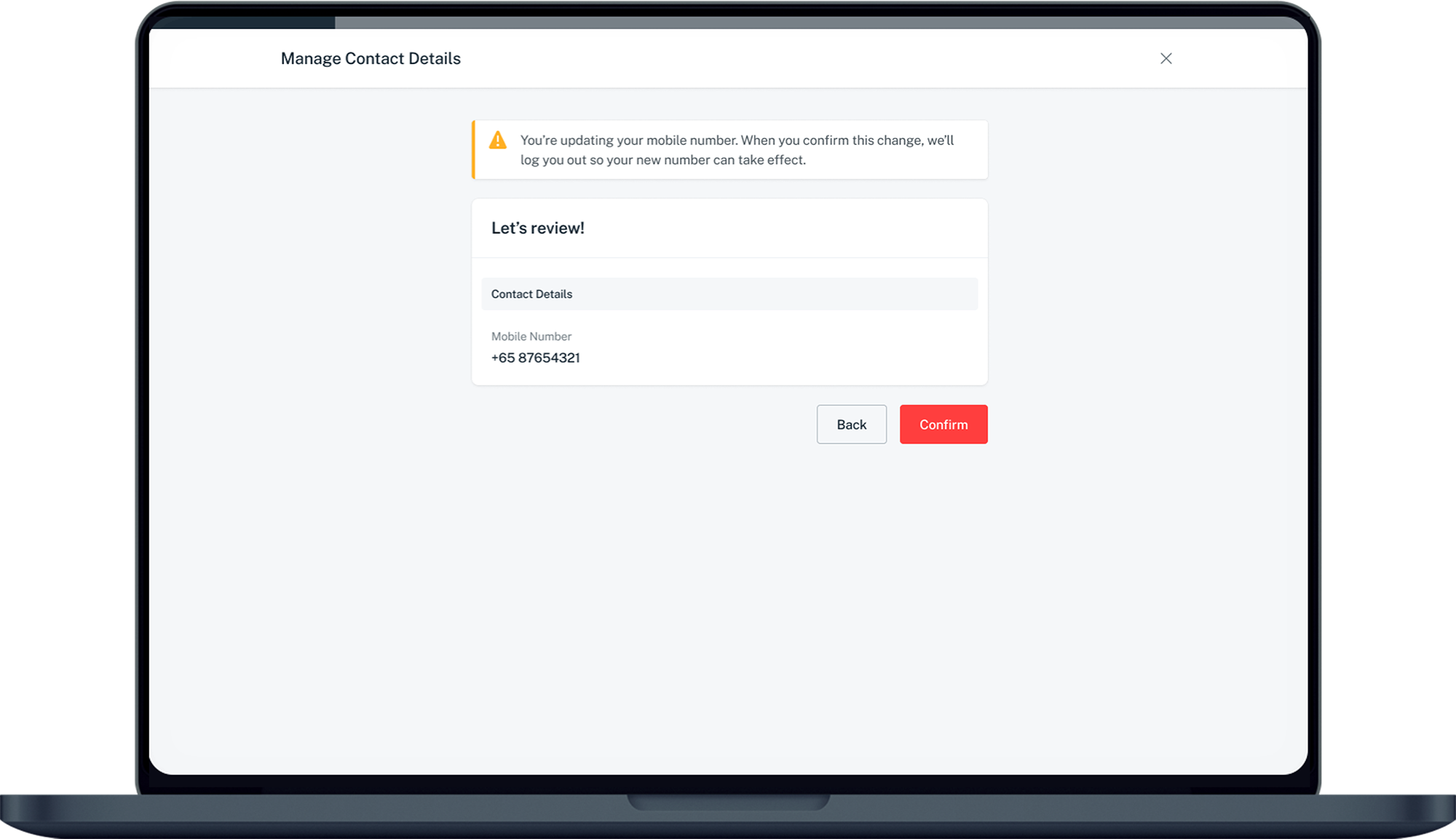
There are various channels which you may update mobile number with us. The most convenient method would be via digibank mobile.
digibank mobile
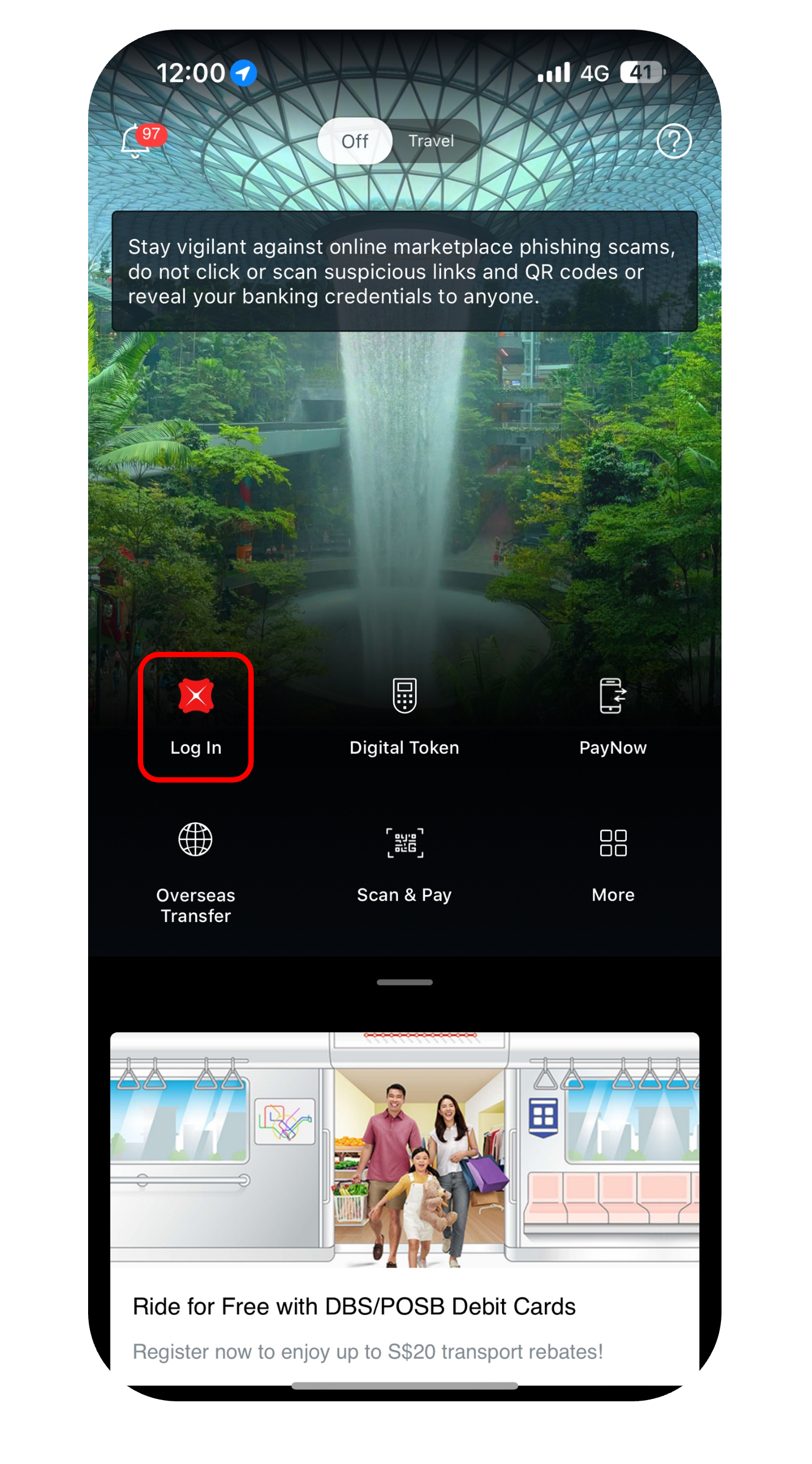

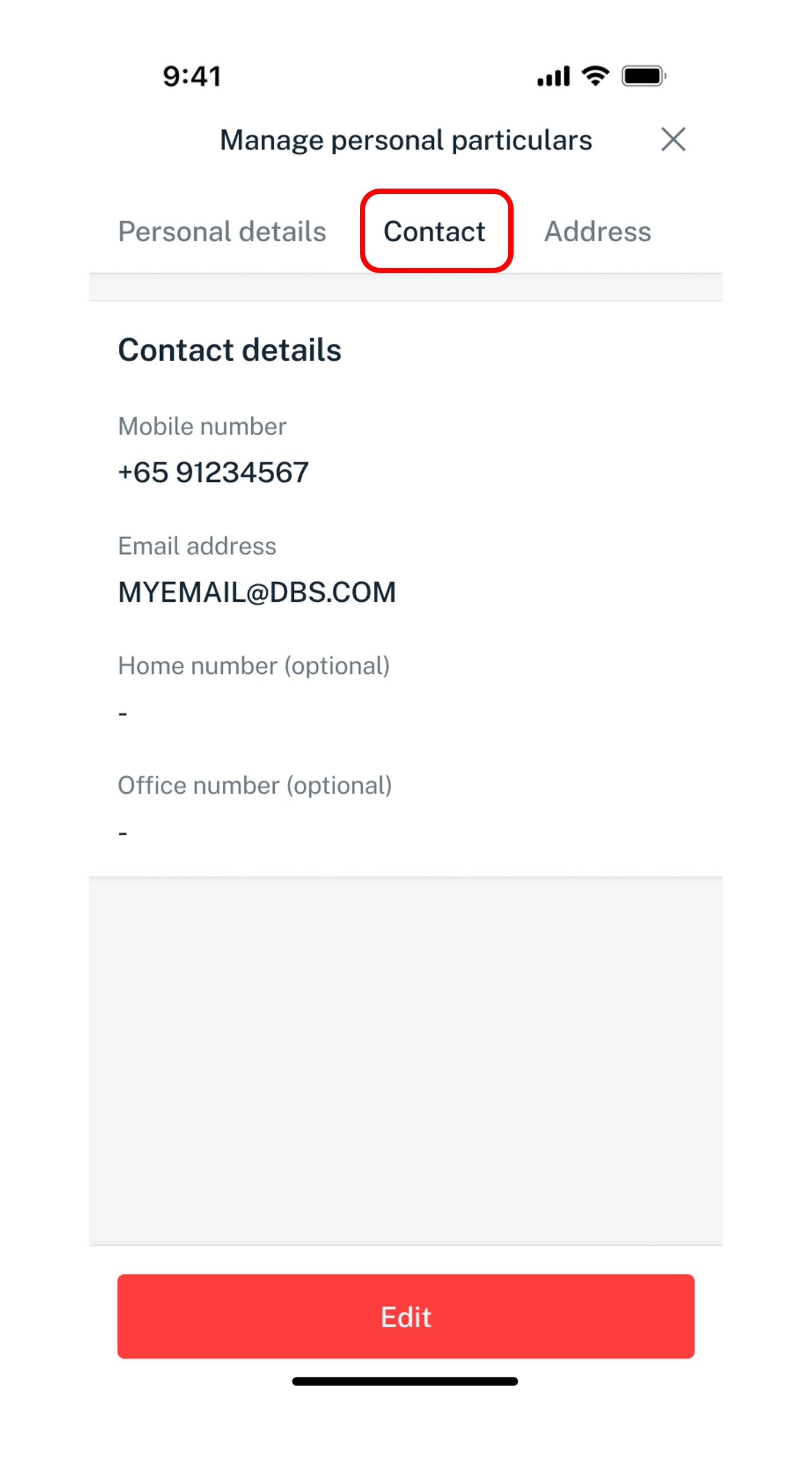
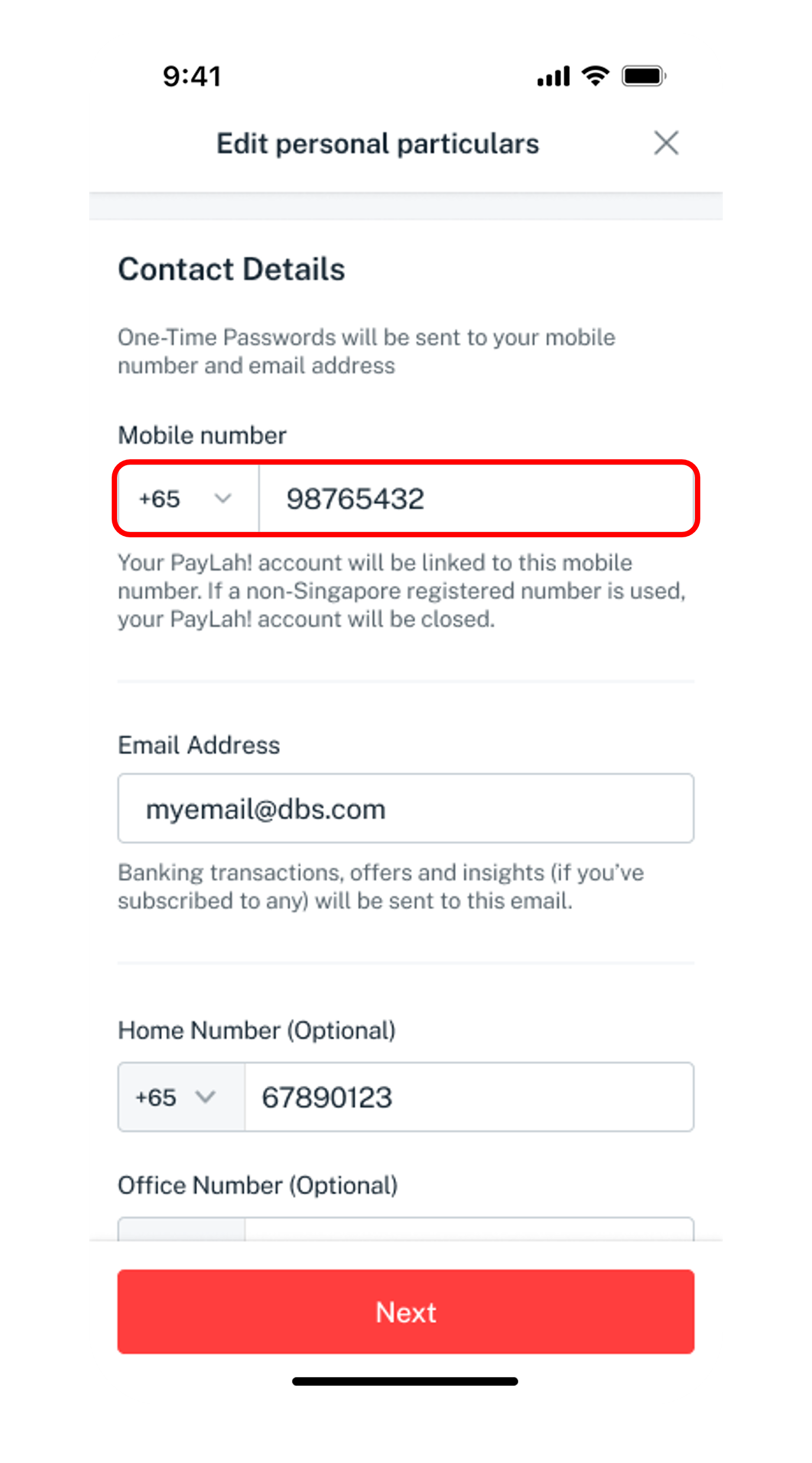
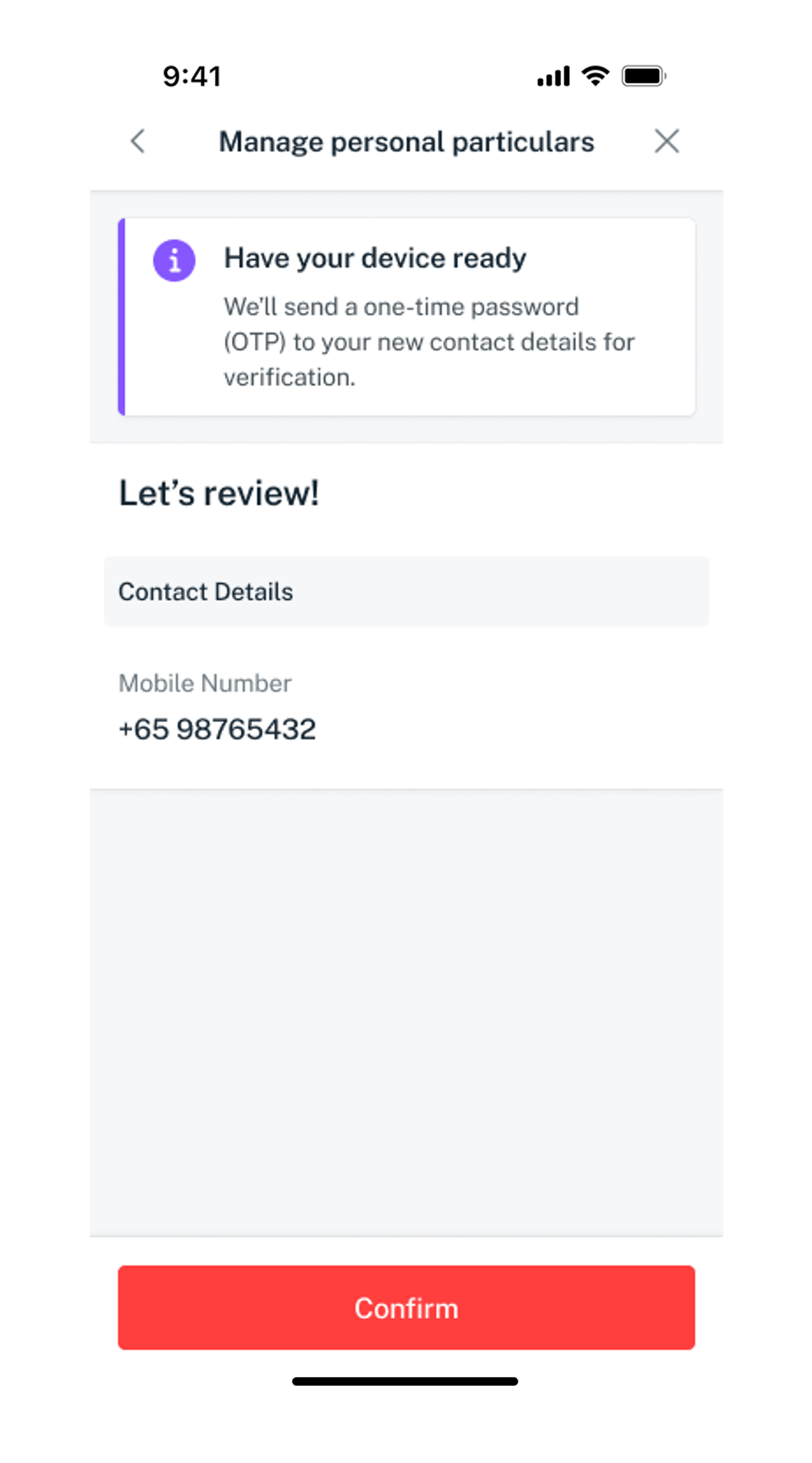
Get the latest digibank mobile app now!



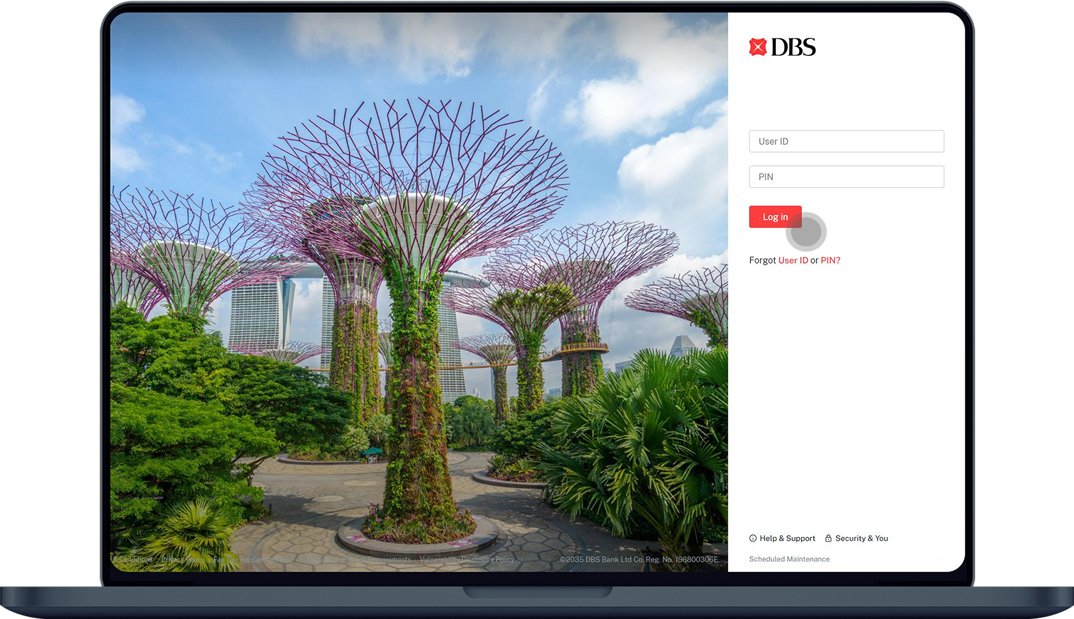
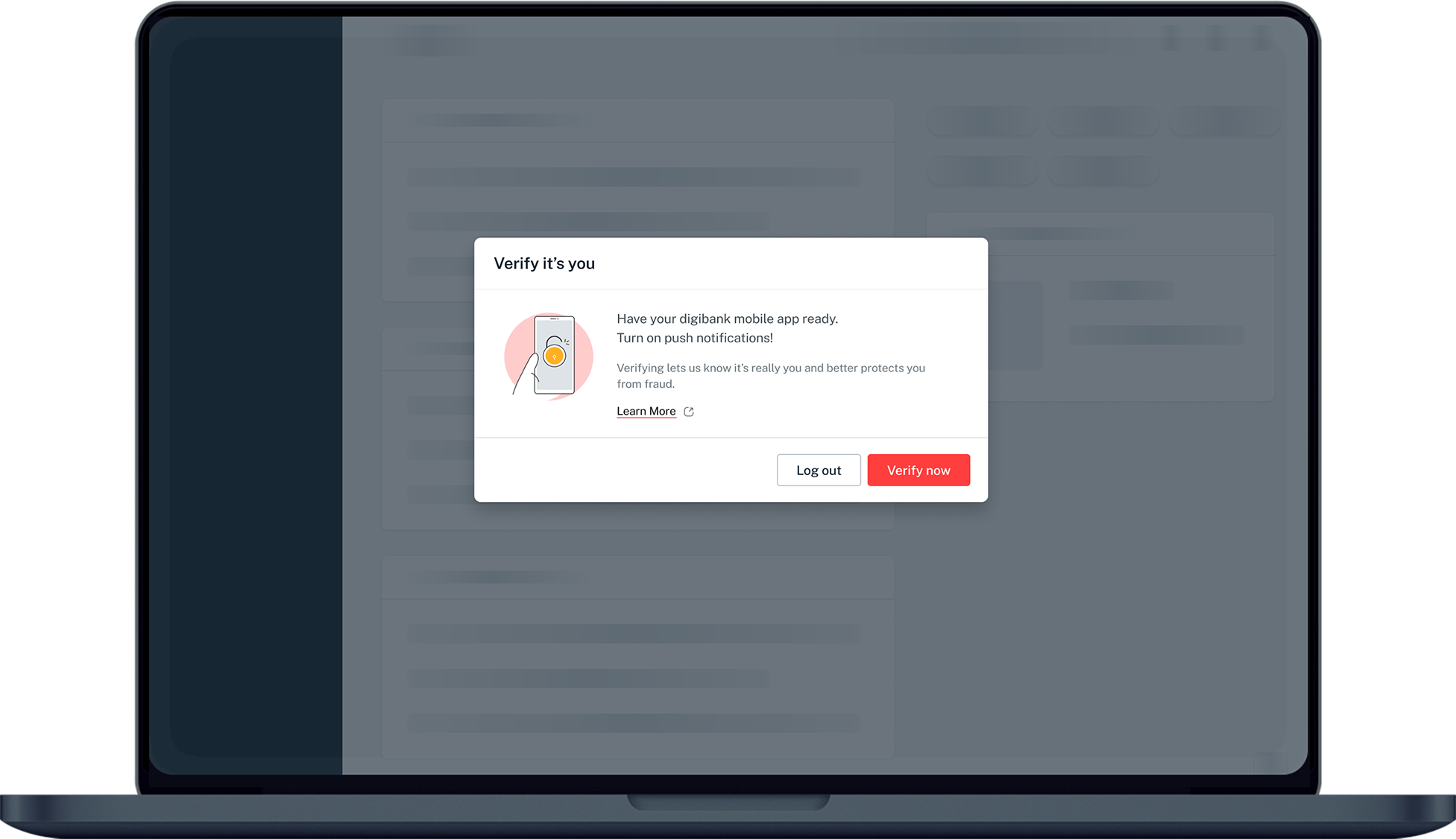
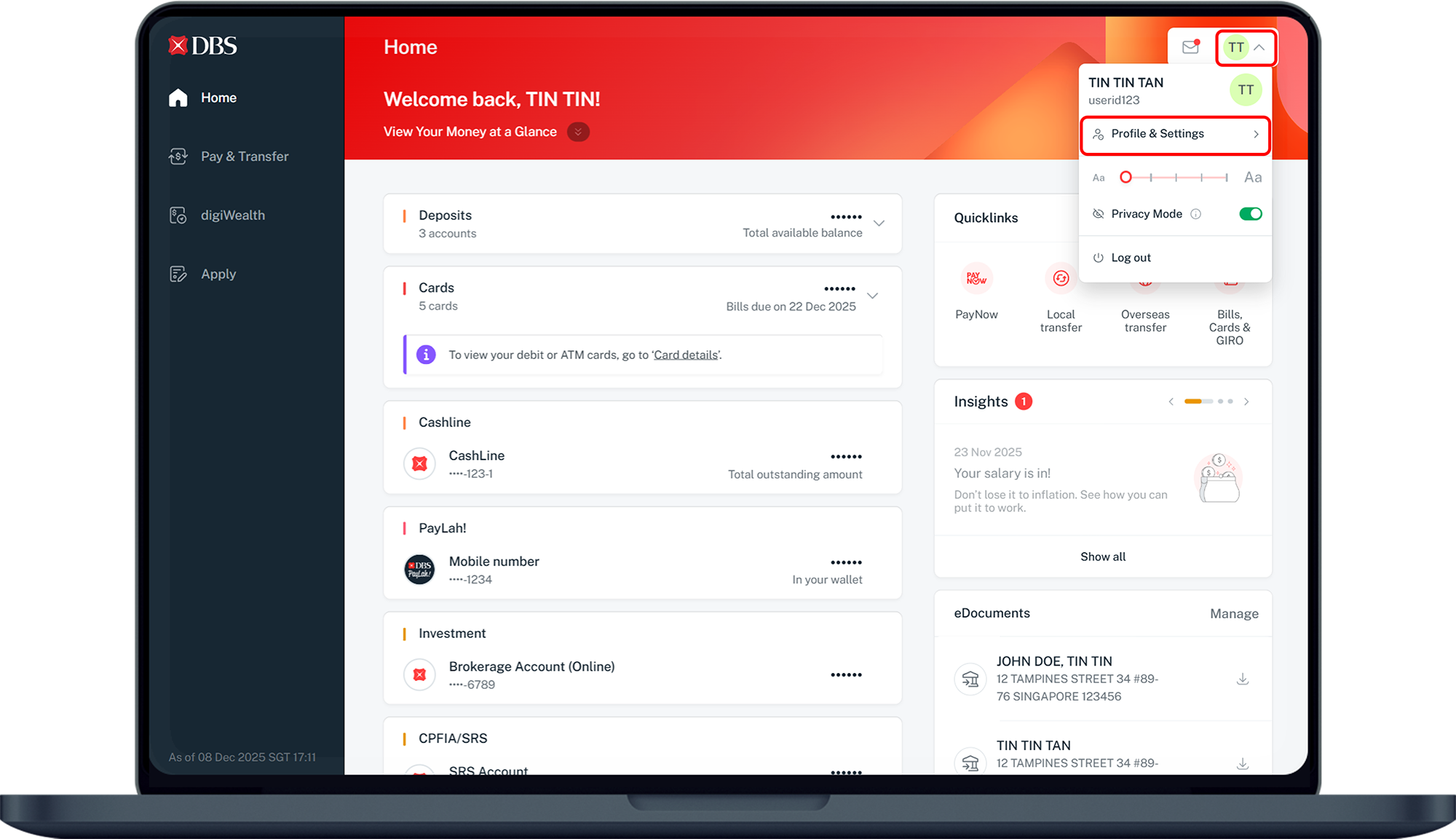
digibank online

Frequently Asked Questions
How to update my mobile number online if I forget my user id and pin, and I do not have a Singapore-registered mobile number?
If you are based overseas, you should reset your User ID and PIN first before trying to update your mobile number.
Learn more about how to reset or retrieve digibank User ID and/or PIN.
Learn more about how to reset or retrieve digibank User ID and/or PIN.
I’ve encountered error while updating my mobile number. Why is that so?
Ensure that you have keyed in the mobile number with the correct format to avoid any errors.
Why do I face an error message when trying to remove my number?
You are not allowed to remove your mobile number from bank’s record.
For removal of all other numbers (e.g home/office/fax numbers), ensure that you remove both the country and area code.
For removal of all other numbers (e.g home/office/fax numbers), ensure that you remove both the country and area code.
Why am I unable to update my mobile number to an overseas number?
- For overseas mobile number, you do not need to add any 0 after your country code. You can directly input your mobile number after selecting the correct country code.
- If you are using digibank online, click on “Overseas” and choose the correct “Country Code”.
- If you are using digibank mobile, tap on the country code that reflects on the screen and search for the country you required.
I am residing overseas and I do not have digibank or Singpass. How can I update my mobile number?
- If you do not have digibank, you may sign up for digibank and update your contact details thereafter.
- If you do not have a Singpass account you may check your eligibility to sign up for a Singpass account. Learn More.
Can I request for a mail-in form to update my mobile number?
No, mail-in forms are no longer available. Any letters or mail-in forms will be strictly rejected. Please update your mobile number on your mobile app.
How do I update my mobile number if I do not wish to do it online?
Please visit your nearest Video Teller Machine (VTM) during office hours (9am-6pm) to update your mobile number.
You are required to bring along the following documents when updating your mobile number online:- Your ATM/Debit/Credit Card
- Your mobile phone with a registered number with the bank
If you are located overseas, please Get in Touch with Us.
Was this information useful?