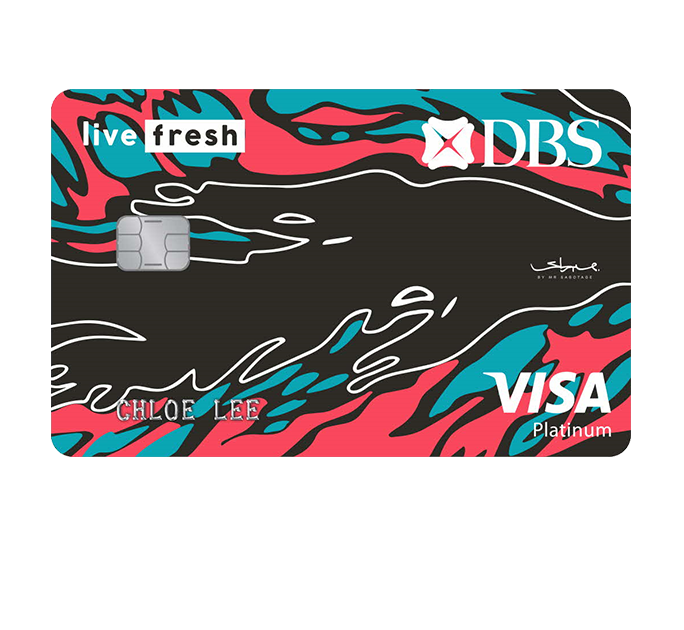
DBS Live Fresh Card





How can I rack up cashback with my DBS Live Fresh Card?
Simply spend at least S$800 on your Card to earn the Bonus Rewards of up to S$120 on your Shopping, Transport and In-store Overseas Spend for each month.
What happens if I do not meet the minimum spend requirement of S$800?
You will still earn the Base Rewards of 0.3% cashback on your eligible All Spend.
What happens if I make a refund?
Refunded transaction will be deducted from the Minimum Spend Requirement and excluded in the computation of your cashback.
When will I receive my cashback?
Your cashback will be credited to your Card Account (that is in good standing) by the end of the following calendar month.
Example: The cashback earned for your spending made in the calendar month of March will be credited to your Card Account by end of April.
How can I find out the merchant category of the posted transactions I made on my credit card account?
You may check the merchant category of the posted transactions via DBS digibot:
- Step 1: Click on the digibot icon located at the bottom right of this page
- Step 2: Click on Check Recent Transactions > Check Transactions and followed by Proceed to Check Recent Transactions
- Step 3: Click on Authenticate me
- Step 4: Complete the authentication using either your iBanking Log in or Card & PIN
- Step 5: Select Credit Cards > Select the Credit Card you wish to enquire on and click on View Transaction History
- Step 6: Select the type of transactions (Unbilled Transactions / Billed Transactions) you would like to enquire on